Computers & Gaming
USB4 and Thunderbolt 4 dock compatibility: check the laptop host before choosing
Match a dock to the exact laptop host protocol and display needs before relying on its HDMI and charging claims.
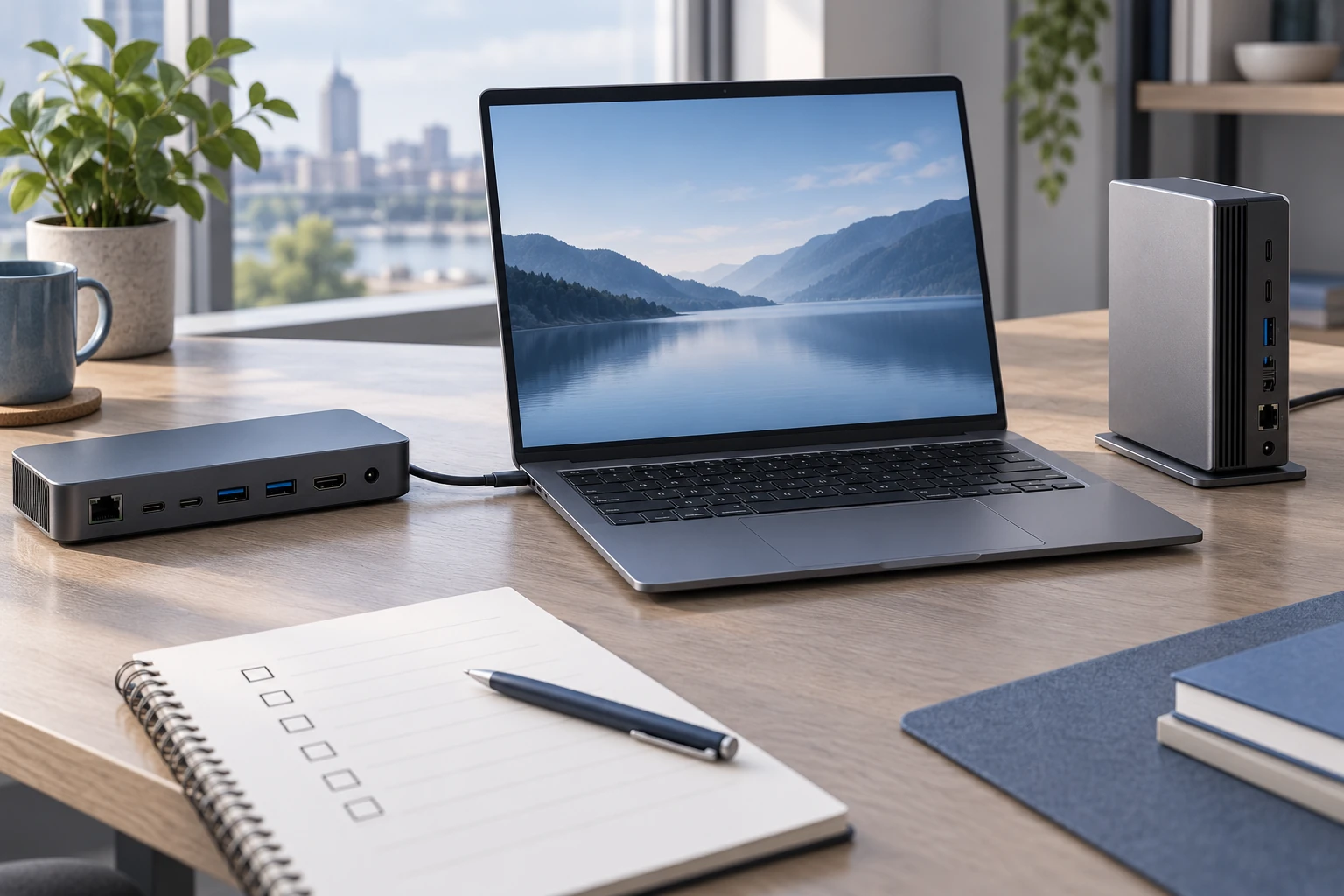
A USB-C shaped laptop port is not enough evidence that a high-end dock will run two screens, charge the laptop, and connect every peripheral as advertised. Start with the laptop model and its host-port specification. Then compare that specification with the dock maker's supported host connection, operating systems, display limits, and power requirements. USB4 and Thunderbolt 4 dock compatibility is an exact host decision, not a promise attached to the connector's shape.
The two examples here show why that order matters. The Kensington K35381NA Thunderbolt 4 dock lists two HDMI ports, a Thunderbolt 4 connection and several USB and network connections. The StarTech 155NA USB4 dock describes USB4 and Thunderbolt 4 laptop connections and names supported Windows and ChromeOS versions. Neither product page, by itself, identifies the capabilities of your particular laptop. Write down that laptop's model before choosing between them.
Identify the host port, not just its outline
Look up the laptop maker's specification for the exact model and, where relevant, its generation or configuration. Find the port used to connect a dock. Record whether the maker calls it USB4, Thunderbolt 4, another Thunderbolt generation, or a USB-C port with a narrower set of functions. A port can carry a USB-C plug without providing the protocol, bandwidth, video path or charging behavior that a dock setup needs. If the specification only says USB-C, seek the maker's more detailed port description instead of inferring Thunderbolt or USB4 support.
Next, identify how that laptop sends video through the chosen host port. A dock with two HDMI sockets offers places to attach monitors; the laptop still has to provide supported video signals through its host connection. Note the number of external displays, resolution and refresh-rate combinations the laptop maker actually supports. Some laptops have different limits when the built-in screen remains active, when a lid is closed, or under a particular operating system. Do not turn a dock listing's maximum output into a laptop-specific guarantee.
For a work or school computer, record the operating system version and any managed-device restrictions that affect external displays, drivers or network adapters. If the dock maker provides a compatibility list or support page, check the exact laptop and OS there too. A category label such as “Windows laptop” is less useful than the documented host protocol and display support for one model. When either side is unclear, ask the maker or support team for the missing fact before treating the setup as confirmed.
Compare the two dock listings as separate candidates
The Kensington listing centers on a Thunderbolt 4 docking station with dual HDMI, USB-A, USB-C, Ethernet, audio and card-reader connections. That is a useful inventory of the dock's physical outputs. It does not prove that an unspecified USB-C laptop will activate them all, nor does it establish the monitor modes a particular laptop can deliver. Treat the Thunderbolt 4 designation as a reason to check the laptop's host protocol and Kensington's current compatibility information.
The StarTech listing identifies its host connection as USB4 and describes use with USB-C/USB4 and Thunderbolt 4 laptops. It names Windows 11, Windows 10 and ChromeOS and describes higher monitor modes. Those statements are seller-side limits and examples, not a test result for every device with one of those operating systems. StarTech also describes a power adapter and laptop charging. Confirm the exact laptop's USB-C power acceptance, required wattage and the dock's supported output before expecting one cable to replace the laptop's normal power supply.
Do not rank the docks by “40 Gb/s” alone. The connection's advertised maximum is not the speed every attached device receives at the same time. Attached storage, displays, networking and the laptop's own controller share a working setup. If a task depends on a particular data rate or display mode, use the dock maker's conditions and the laptop maker's host specifications together. Keep unverified performance claims out of the buying decision.
Build a short compatibility worksheet
For each candidate, make one row with the exact dock model, host connector and protocol, supported OS version, laptop model, required display count and mode, power requirement and cable requirement. Put the source and date beside each fact. Mark a field “unconfirmed” when a listing omits it. A blank field is a reason to seek a source, not a reason to replace it with what a similar dock can do.
Begin with the laptop row. Copy the maker's port description exactly enough to distinguish Thunderbolt, USB4 and ordinary USB-C. Add the laptop's documented external-display limit and its charging input requirement. If the computer has more than one USB-C shaped port, note which one carries the needed functions; their capabilities can differ. Then add the dock row from its model-specific documentation. Only match rows that refer to the same proposed host connection and operating-system configuration.
Now list the actual devices you intend to attach. For two displays, record each monitor's resolution, refresh rate and input connector. For wired networking, note whether the desired network equipment can use the dock's Ethernet interface. For removable storage, distinguish the dock's SD or microSD reader from the laptop's storage-drive interface. This article is about connecting the laptop to a dock. It does not choose an SSD or prove that a memory card meets a camera's requirements.
Check cables separately. An HDMI socket does not establish that a particular monitor cable supports a desired resolution and refresh rate. A USB-C plug on a cable does not establish its data, display or power capabilities either. Use the cable specifications recommended for the documented setup. If the dock includes a host cable, confirm that the exact model and cable are part of the offer. If a listing leaves the host cable unclear, do not assume one is included.
Keep display and charging claims conditional
A dual-display promise has several parts: the laptop must output the needed display streams; the dock must accept and route them; each monitor must accept the selected mode; and the cables must support the connection. The StarTech page's dual-HDMI modes are useful clues for what to investigate, but the host may impose a lower limit. The Kensington page's two HDMI outputs likewise describe sockets, not universal two-screen success. If your target is two high-resolution screens, verify that entire chain for your exact devices.
Charging needs the same care. The StarTech listing describes a 180 W adapter for the dock and up to 100 W power delivery to the host. “Up to” is an upper bound under stated conditions; it does not tell you the power your laptop requires or accepts. A laptop with a higher required input may charge slowly, drain under load or need its own adapter. Conversely, a laptop that does not take power through that port will not gain the feature because the dock offers it. Ask the laptop maker's specification to settle the host side.
Keep port roles separate from host compatibility. A USB-C hub port-role guide helps distinguish sockets used for data, display and charging once the host setup is known. This guide first asks whether the laptop and dock can form the intended connection at all. If you need to count how many devices a charger pack can power, the USB-C charger port-count guide addresses that separate purchase decision. Neither adjacent question can supply a missing laptop compatibility specification.
A practical trial can confirm a purchased setup, but it should not replace a pre-purchase compatibility check when returning hardware would be costly. After connecting equipment under the maker instructions, test the exact functions you listed: both monitors at their intended modes, peripherals, network connection and laptop power under normal use. Record which function passes and which does not. If one fails, compare the saved specifications and support guidance before changing cables or settings. Do not label the whole dock compatible because a mouse works, or incompatible because one unverified high-refresh display mode does not. Keep the result tied to the actual laptop, dock revision, OS and cable set.
For a shared desk, repeat the host check for every laptop that will use the dock. A station that works with one person’s Thunderbolt 4 machine does not automatically serve another person’s older USB-C laptop in the same way. Keep a separate row for each computer, operating system and monitor arrangement. If one user only needs a keyboard, mouse and network connection while another needs two monitors and charging, record those as different acceptance targets. This prevents a successful basic connection on one computer from being mistaken for evidence that the more demanding second setup is supported.
When a maker publishes firmware, driver or operating-system conditions, add them to the worksheet with the date checked. Do not install anything merely to make a seller claim seem plausible; follow the laptop and dock makers’ support instructions for the actual model. If a company-managed device restricts updates or peripherals, let its administrator verify the proposed configuration. The purpose of this step is to make the decision reproducible. You should be able to point to the exact host port and supported setup, rather than relying on a product title or a single photo of two connected screens.
Choose a dock only when the host evidence closes
If the laptop maker explicitly documents USB4 or Thunderbolt 4 support on the intended port, continue to the dock maker's exact compatibility conditions. If the laptop maker documents a different USB-C capability, check whether the dock supports that narrower mode and which functions remain available. Do not infer a fallback mode from a connector shape or a broad title. If the host protocol is missing, hold the decision until the manufacturer or an authoritative support document identifies it.
Do the same for operating system, displays and power. One verified match does not settle the other three. A dock may pass the data-connection check while the desired second display remains unsupported. It may drive the screens yet lack enough host charging for the intended workload. Decide which functions are mandatory and which are optional. A simpler dock that meets documented needs can be more useful than a nominally faster model whose key function is unconfirmed for the laptop.
Before ordering, save the exact laptop model, dock model, compatible host port, OS version and desired monitor arrangement beside the supporting manufacturer pages. Recheck those pages if the computer configuration or dock revision changes. If the offer arrives with a different model or cable, compare it against the saved decision rather than assuming the substitute behaves the same. The result is a bounded compatibility choice: the selected dock serves the documented laptop and setup, while any unsupported or unverified function stays plainly unresolved.