Charging, Cables & Electronics Accessories
USB-C port roles on hubs: charging-only vs data connections
Identify each hub socket by its documented function, then compare a charging-only USB-C input with a stated downstream data connection.
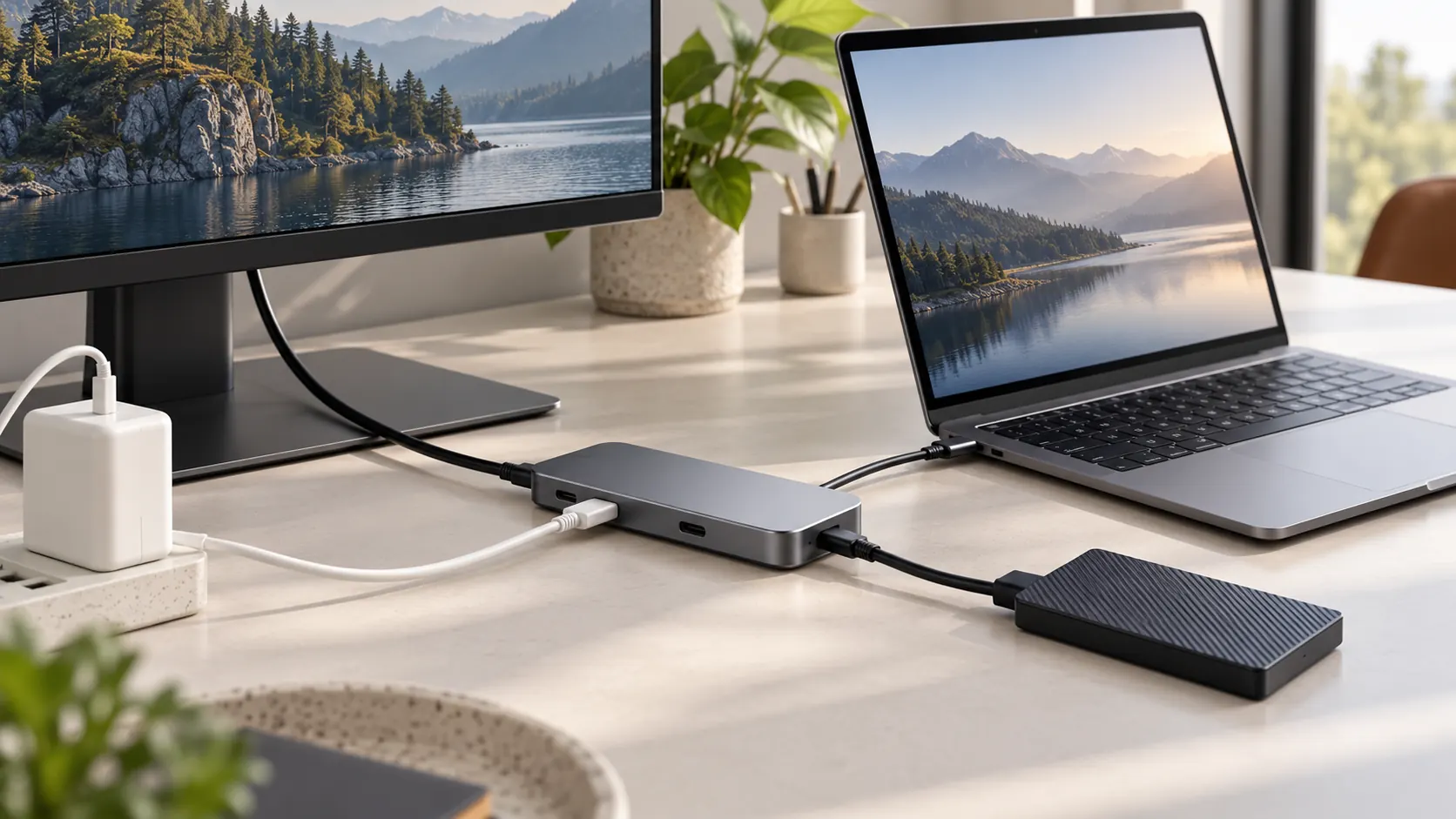
USB-C port roles matter more than matching connector shapes. A USB-C socket on a hub is not automatically a second data connection. The shape tells you which plug fits; the hub's specifications tell you what that particular socket does. If you want to attach an external drive while charging a laptop and using a monitor, check three separate paths before you buy: the hub's lead to the computer, a downstream data port for the drive, and a power-delivery input for the charger. A charging-only USB-C input cannot stand in for the data port.
Match USB-C port roles to the job
Start with the device you intend to connect, then find an explicit function for each connection in the listing or maker's port diagram. A USB-C plug can carry power, data, video, or some combination, depending on the port and the host. Neither the connector's shape nor the number of sockets proves that a particular combination is available. If a listing says “PD,” read the surrounding sentence: it may describe power entering the hub from a charger, not a data port for a phone or drive.
Write a short connection map before comparing products. For a desk with a laptop, HDMI monitor, USB storage drive, and charger, that map has four roles: the captive upstream lead goes into the laptop, HDMI goes to the monitor, a stated data port goes to the drive, and a stated power-delivery input takes the charger. This is a compatibility check, not a promise that every laptop can drive every display. Verify the laptop's USB-C video support and the monitor's required resolution and refresh rate separately.
The upstream lead is particularly easy to overlook in a product photograph. It is the hub's connection to the computer, not another freely assignable peripheral socket. A seller may count the lead in a marketing port total or may count only accessible ports. Ignore the total until you can name the function of every opening you will use. A card-reader slot, Ethernet jack, and HDMI output are useful, but none substitutes for a downstream USB-C data connection when that is the specific need.
USB-A data ports can also meet a storage need when the device has a compatible USB-A cable. That is a cable and device decision, not evidence that the hub's USB-C charging input carries data. If you already own the drive, check its supplied cable and the host's available direct ports before buying an extra hub. If you have several devices, also check which ones must stay attached at once; a hub with enough ports on paper can still lack the single role that matters to your setup.
Why a charging-only input is easy to mistake
The Revodok Pro 9-in-1 USB-C hub listing explicitly says its USB-C port is charging only and does not transmit data or video. The same description lists an HDMI output at up to 4K at 60 Hz, Gigabit Ethernet, USB data ports, and SD/TF card reading. Its power-delivery wording says up to 100 W enters through pass-through charging, with up to 85 W for the laptop and 15 W reserved for the hub's other interfaces. Those figures are a stated power split for this listing; the actual laptop charge rate still depends on the charger, cable, host, and connected load.
For this model, connect a charger to the designated charging input. Put a USB storage device in a port described for data, not in the charging-only USB-C socket. If your accessory has only a USB-C plug, identify a suitable downstream USB-C data port on the hub or another compatible connection. Do not assume an adapter changes a power-only port into a data port. The product gallery shows a multiport hub and accessories, but the textual charging-only limitation is the decisive evidence for that USB-C socket.
There is a practical distinction between a hub being unsuitable for one cable arrangement and unsuitable for every arrangement. A buyer with USB-A peripherals and a compatible display may have a use for several ports even when one USB-C input is reserved for power. A buyer whose only storage cable ends in USB-C needs a different confirmed data path. Device examples in a product listing cannot replace checking the precise host port and display requirements of your own setup.
Compare a hub with a USB-C data connection
The 7-in-1 USB-C HDMI hub listing describes one USB-C port and two USB-A ports for data transfers up to 5 Gbps. It also lists HDMI for 4K video, microSD and SD card slots, and pass-through charging described as up to 100 W input and 85 W power handling. That is a different port-role claim from the Revodok listing. It may fit a buyer who specifically needs a downstream USB-C data connection while the laptop charges, subject to confirming the port diagram for the exact variant supplied.
Do not combine the headline numbers into a single promise. “5 Gbps” describes the stated data interface, not an assured file-copy speed. “4K” does not specify every refresh rate, display mode, or laptop capability. “85 W” is not a guarantee that a laptop will receive that amount under every setup. Check whether your computer supplies video over its USB-C port, whether the charger and cable support the necessary power, and whether the hub's own charging input is separate from the data socket you need.
A product photograph can make different USB-C openings look interchangeable. The photographed unit and the written description should be checked together for the exact variant: a visible PD marking alone does not prove that the marked socket is the data-capable one. Ask for a port map if the listing leaves the roles ambiguous. Choose against the documented configuration, not a guessed reading of a small gallery label. A short cable or an awkward angle can hide a port in a photograph.
Seller descriptions and model variants can change. Revisit the exact product listing before relying on a feature or ordering. If the delivered model differs from the page, compare the unit's own markings and documentation instead of assuming that a similarly named hub has identical port assignments. When a role remains unclear, request the specific port diagram before treating a socket as suitable for your peripheral.
Check host video capability before blaming the hub
Look up the exact USB-C port on your laptop or tablet. Some ports handle charging and ordinary USB data but cannot send video to a hub's HDMI output. Others support display output but have a lower power limit than a buyer expects. A host may also restrict the number of external displays. A hub cannot add a missing host video capability merely because it has an HDMI jack. The device's specifications and the hub's specifications must agree on the same connection path. Host video capability must be stated for the relevant port.
For a storage drive, verify that the selected downstream socket is described as data-capable and that the drive has a compatible cable. For a monitor, check the host's USB-C display capability, the hub's HDMI specification, and the monitor's input. For charging, check the charger output, cable rating, hub pass-through limit, and laptop's charging requirement. This sequence isolates the incompatible link instead of treating all USB-C problems as interchangeable.
A useful symptom is a laptop that charges through the hub while a drive connected to another USB-C opening never appears. That observation does not, by itself, prove the drive or hub is faulty. Read the port map first. If the drive is plugged into the input labeled for PD charging, move it to a documented data port or directly to a suitable host port. If it still fails on a known data port, test a known-working cable and the drive on another computer before concluding that the hub is defective.
A second symptom is a working drive but no external picture. The data path can be healthy while the host-to-hub video path is unsupported or configured differently. Check the computer manufacturer's display-over-USB-C specification and the hub's HDMI limit, then test the monitor with a known-working input. Do not treat a successful file transfer as proof of video support. Likewise, a working display says nothing about whether an adjacent USB-C socket transfers data.
If you are still deciding how many charger outputs you need, the USB-C charger pack port-count guide addresses charger capacity and socket counts. This guide is about the roles of ports on a hub after that charger is chosen. If you are replacing accessories rather than adding a new workstation connection, the charger accessory purchase record guide helps avoid buying another cable or adapter you already own. Neither charger article certifies a hub's downstream data port.
A practical connection test
Before purchase, list the exact devices and plugs you need to connect at the same time. Next to each one, write the hub port named in the product description and the host capability it depends on. If any row lacks an explicit matching port, keep looking for a different hub or confirm the missing detail with the seller. In particular, do not count a power-delivery input as a spare USB-C data output.
After connection, test one function at a time using known-working accessories. First check that the host sees a simple USB device on the intended data port. Then add the monitor and confirm the display mode the host and hub both support. Finally connect the charger and watch whether the laptop reports charging under the intended load. If one step fails, return to that function's cable and port specification instead of swapping every component at once. Stop using any connector that becomes unusually hot, loose, or damaged.
Keep the connection map with the hub's instructions after setup. When a different laptop or peripheral is introduced later, the new host or cable may change the result even though the hub is the same. Recheck that new device's USB-C functions before declaring the old arrangement universally compatible. This is especially useful in a shared workspace where similar-looking cables can serve different duties. Labeling your own known-working charger and data cables may save another round of trial and error without making unsupported claims about every cable of the same shape.
The buying decision is straightforward once port roles are explicit: choose a hub with a named downstream USB-C data port if a USB-C drive or peripheral is part of your setup; choose a charging-only input only for its stated power function. Confirm the exact model and host compatibility before ordering, because a matching connector is only the starting point.