Computers & Gaming
Holiday photo slideshow: repeat, pause and exit
Use documented slideshow controls to repeat pictures, pause a story or return to a viewing window, with the software and mode kept explicit.
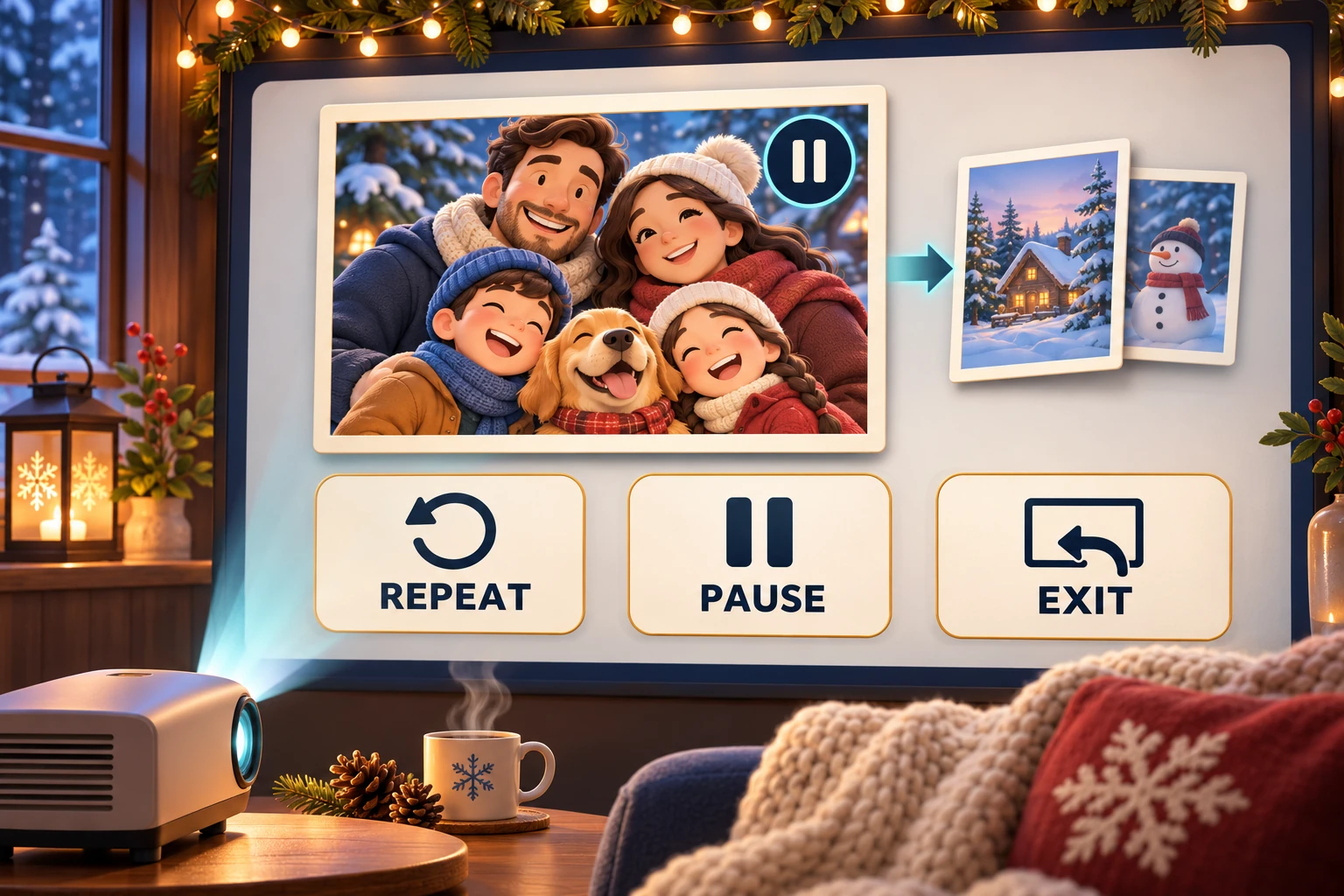
A Holiday photo slideshow starts with the person who will operate it during the gathering. Choose that person before guests arrive, and agree how someone can ask to linger over a picture. A guest’s story may matter more than keeping the programme moving. For this planning task, write a short note naming the intended show and the person who will handle interruptions. Keep the invitation separate from any equipment order. You can arrange a modest viewing session with equipment you already understand while leaving a new projector purchase undecided.
Read the PowerPoint show type and the rehearsal timer separately
Microsoft’s captured Windows instructions for desktop PowerPoint put Set Up Slide Show on the Slide Show tab. Under Show type, Browsed at a kiosk runs the show repeatedly until Esc is pressed. The same help page describes rehearsing and recording slide timings. Rehearse Timings starts its timer immediately; Pause on that rehearsal toolbar temporarily stops recording the time. Keep that timing task attached to its documented purpose when deciding what a Pause label means.
The Mac branch separately describes setting automatic transitions and applying them to all slides. Its rehearsal toolbar uses Play to resume recording time after a pause. These are platform-specific instructions, so retain the branch with the procedure. Microsoft’s separate presentation guide explicitly says looping is unsupported in PowerPoint for the web. A desktop kiosk instruction therefore should not become a promise that the browser edition has the same setting. Identify the edition you intend to use before planning an unattended repeat, and keep a recorded timing distinct from an observation of the running show.
Keep Google Slides playback separate from a published link
In Google’s computer instructions, Slideshow opens the current slide in full-screen view. Arrow keys or the on-screen arrows change slides, and Esc leaves full screen. For automatic movement during a presentation, the guide uses Options and then Auto advance options at the bottom of the show. Choose the advance interval there. Google says to reset these options each time you present; a choice made for an earlier session should not be reported as a current selection.
Publishing is a separate route, reached through File and Publish to the web. The help page distinguishes that link or embedded presentation from presenting on screen. It warns that a published link changes who can see the presentation, with an organization restriction described for work or school accounts. This guide publishes no family pictures. If your immediate purpose is a show for guests in the room, identify that on-screen task before choosing a control whose purpose is publishing a link.
Keep the two Photos on Mac modes identifiable
Apple distinguishes a quick slideshow from a saved slideshow project in Photos on Mac. For a quick show, select pictures and use File > Play Slideshow; Customize includes Loop to change whether the show repeats when finished. The saved-project instructions separately document arrow-key navigation, Space bar to pause and Esc to stop playback. Keep that mode with those key instructions. A saved project appears under Projects; Apple also describes exporting projects as a separate task. Neither creating a project nor choosing an export is a report that this article has played the pictures for anyone.
Separate LibreOffice slide advance from the pause between shows
LibreOffice’s Impress guide describes a default show that begins at the first slide and advances manually. Click to move to the next effect or slide, and use Esc to leave before the show ends. Automatic advance requires a transition setting for each slide: in the Slide Transition sidebar, choose After in the Advance Slide area and enter the duration. Apply Transition to All Slides applies that transition across the deck. The guide also allows different timings for different slides.
Repeating the completed deck is another setting. Under Slide Show > Slide Show Settings, the Presentation Mode area has Loop and repeat after, with a pause between successive shows. That pause belongs between runs of the deck. It should not be mistaken for an instruction to hold the current picture while someone speaks. Keep the advance interval and the inter-show pause separately identified in your preparation note, using the actual controls described for the installed application.
Find Gwenview’s controls in the full-screen top bar
Gwenview’s KF6 manual describes full-screen viewing and a top bar that appears when the pointer moves to the top of the screen. The bar includes Pause/Resume Slideshow, Exit Full Screen Mode and Configure Full Screen Mode. Leaving full screen returns to the Gwenview window. Those are distinct choices in the documented interface, even though they sit near one another. Use the named action for the change you intend.
The configuration dialog separates Interval, Loop and Random. Interval controls the time an image is displayed. Loop returns to the beginning after the last image; Random changes the order from the folder’s alphabetical progression. The manual also describes optional thumbnails of the current folder on the top bar, where clicking an image displays it. Keep the displayed folder and those order choices visible in the account of the show you prepared.
Use Lightroom Classic’s playback keys in its own show
Adobe’s Lightroom Classic guide starts playback with Play in the Slideshow module and says the presentation fills the computer screen. Right Arrow advances, Left Arrow goes back, Spacebar pauses or resumes and Escape ends the show. Repeat in the Playback panel makes playback continuous. These controls concern the running Lightroom Classic slideshow. Its preview toolbar also has playback controls, while the preview-quality choice is explicitly separate from export settings.
The same guide gives Random Order its own setting. Turning it off restores the order shown in the Filmstrip, and photos can be rearranged there for manual playback. Exporting changes the question again: Adobe says an exported PDF slideshow leaves out music, randomized images and duration settings specified in Lightroom Classic. Do not assume a PDF carries every behavior of the native show. Check the actual output type you intend to use, without treating an export option as evidence that a file has already been created or tested.
Space advances a prepared document in GNOME Papers
Papers Document Viewer documents presentations for particular file types, including PDF and OpenDocument Presentation. Its instructions start with opening that file, then choosing Present as Slideshow from the window menu or pressing F5. The view becomes full screen. In this documented mode, Spacebar, the right or down arrow, or a left mouse click advances to the next slide. Left or up goes back, as does a right mouse click. Esc exits the presentation.
The guide also gives blank-screen controls: B or a period shows black, and W shows white. Pressing one of those keys again restores the slide. Keep blanking the view distinct from the navigation keys and from leaving the show. For a prepared PDF of photographs, this is a document-presentation route with its stated supported formats. The Spacebar instruction here differs from Lightroom Classic’s pause/resume instruction; the app and mode are part of what makes a shortcut meaningful.
Check the input list before an IrfanView show
IrfanView’s current FAQ describes saving and importing TXT file lists in the Slideshow dialog, as well as in Batch and Thumbnails contexts. This is a way to retain a list of input filenames. The FAQ separately addresses a single selected file that will not be added through Add: dragging and dropping that file is an alternative. That specific alternative does not require this article to change Windows Explorer’s global settings or report that a list was successfully loaded.
A list can also contain an MP3. The FAQ describes placing it at the beginning or before an image; it plays until it ends or another MP3 is loaded from the list. The required MP3 plug-in is a condition of that instruction. Confirm the applicable existing installation before planning around sound. Keep a saved input list, the media it names and the current playback state separately identifiable. No list, executable slideshow, plug-in installation or music playback is created here.
Keep the projector accounts within their captured role
The QKE projector account shows a compact white-and-yellow enclosed projector. The LITINKIMI projector account shows a black enclosed unit with an attached U-shaped support. Its sports scene and device icons are promotional context. They do not establish separately supplied phones, laptops or other devices. The QKE account provides no credible factory model identification, and LITINKIMI’s catalog code is not factory authentication.
These are projection-hardware references, not certified configurations for the software above. Their captured material does not establish your computer connection, the application available to you or an app’s playback controls. Keep the exact offered unit and its applicable instructions with any equipment enquiry. If you already understand the display arrangement you will use, the preparation task can remain about the selected program and its actual mode. Neither account supplies a completed photo show or a reason the gathering must depend on a purchase.
Use the related guides for their separate decisions
The year-end photo-caption afternoon concerns printed pictures, handwritten recollections and a shared page. The projector adjustment controls guide explains documented lens and image-setting interactions. Those are different tasks from identifying a software show’s input list and its repeat, pause or exit action. Keep their instructions with the decision each guide actually addresses.
Keep a possible order tied to the exact offered unit
If a later equipment enquiry becomes a possible order through republeq.com, retain the exact projector account and the question that remains unanswered. A useful purchase note can say what unit is being considered and what information the responsible seller still needs to provide. It can remain open while you prepare a gathering with an existing arrangement. If USDT or another cryptocurrency is offered for that particular order, ask the service responsible for the transaction to confirm the applicable payment details before deciding whether to proceed. This article establishes no current crypto checkout, accepted network or completed payment for either projector. Review the exact item, configuration, quantity, final charge, delivery arrangement and return terms for the proposed order. Ask how a cancellation or refund would be handled for the offered payment method, and keep the answer with the order reference. Do not replace an unanswered item question with an assumption that the transaction is ready. If an earlier order or payment has an uncertain outcome, have that outcome reconciled before authorizing another payment. Retain the acknowledgement actually supplied; a missing response does not establish that an earlier action had no effect. Keep any payment instructions attached to their own confirmed order instead of reusing a message from another purchase. A gathering invitation can leave an equipment decision undecided. The person operating the pictures need not become the purchaser merely because they accepted that task. Identify who would authorize an order and who would retain its correspondence. No wallet connection, order, transfer, cancellation or refund was performed for this article.
Conceptual slideshow controls; no real family photos, exact software interface or completed playback is shown.