Computers & Gaming
External drive enclosure compatibility: match SATA size
Match the bare SATA drive size to the enclosure, then check the actual host data port, supplied cables and power before installing the drive.
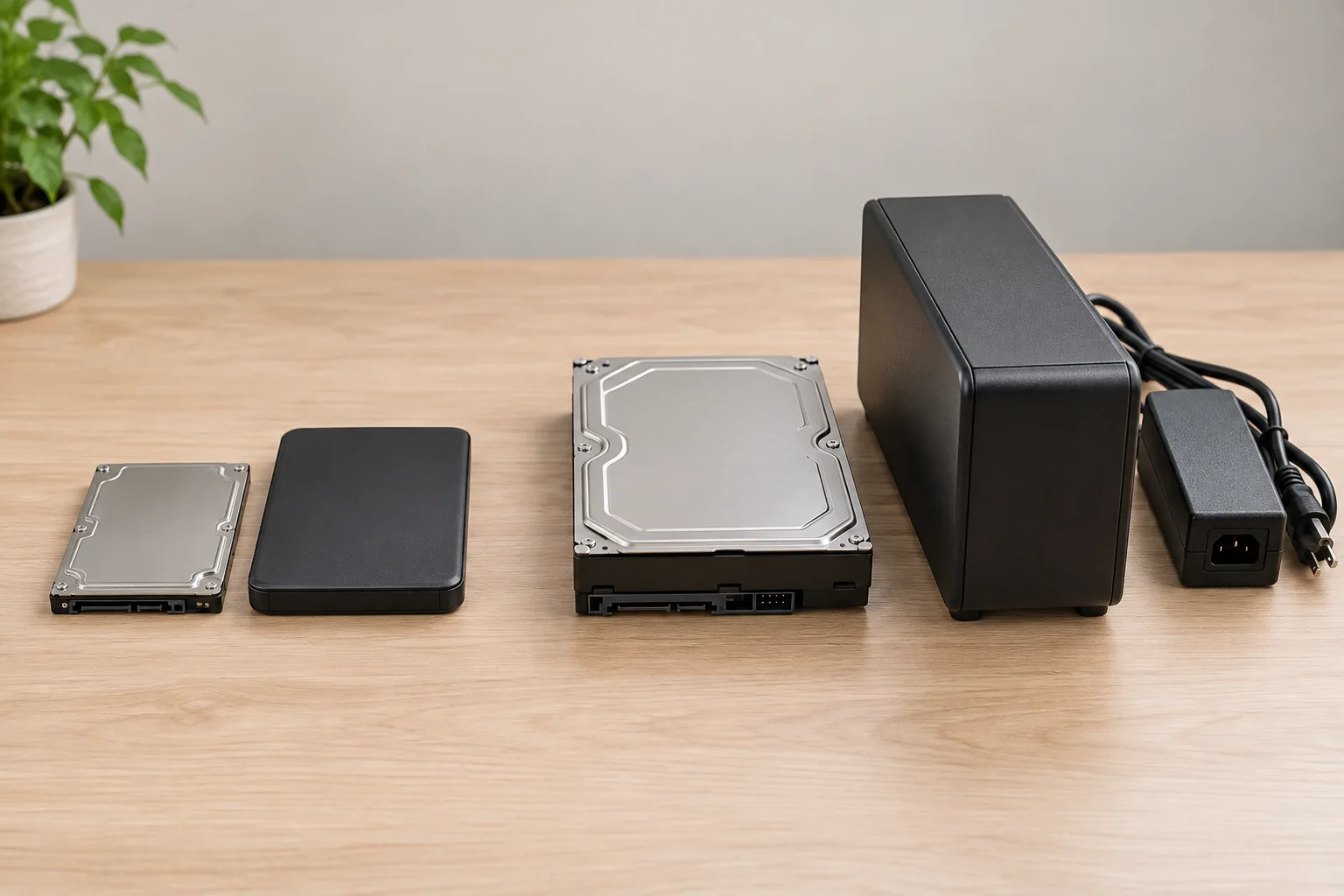
External drive enclosure compatibility starts with the bare drive. Read its label and identify its physical size and internal interface before looking at the connector on your computer. A 2.5-inch SATA drive and a 3.5-inch SATA drive require different enclosures, even when both cases connect to a computer through USB-C. A cable that fits the host cannot make the wrong drive fit inside a case.
Two current offers show the distinction. The AuroraLink 2.5-inch SATA enclosure lists a 2.5-inch SATA drive target, USB 3.0 and Type-C connections, and a TF/SD card reader. The Oyen Digital Novus 3.5-inch SATA enclosure lists a 3.5-inch SATA drive target, USB-C connection, and a 12V/2A power adapter. Neither listing, by itself, establishes compatibility with a drive or computer you have not identified.
Identify the drive before choosing a case
Record the drive model, form factor, and interface. The form factor answers the 2.5-inch or 3.5-inch question. The interface identifies the connector the enclosure must meet inside its housing. If the label or maker's specifications do not establish that the drive is SATA, identify it before buying a SATA enclosure. M.2 and SAS devices, for example, are different interface families; a familiar-looking outer case does not make them interchangeable.
Inspect the drive itself. A desktop may contain a 2.5-inch drive, and a laptop's outer carrier may make a small drive look larger in a photograph. Note the model on the drive underneath any carrier or spacer. If you are removing it from a computer, follow that computer's service instructions. Once it is out, photograph the label and connector area without touching exposed contacts. Those details give a seller something precise to check against the enclosure specification.
Consider why you need access to the drive. You might be reading an old internal drive once, keeping a spare drive in an external case, or retrieving files from a computer that no longer starts. That purpose affects the host and cable arrangement, but it does not change the drive's physical size. If the drive appears damaged and the data matters, repeated trial connections can complicate recovery. Seek qualified recovery advice before experimenting further.
Check any thickness or capacity limits stated for the exact enclosure model as well as the nominal drive size. The captured product descriptions establish the 2.5-inch and 3.5-inch targets, but they do not settle every dimension or supported drive capacity for your particular drive. Ask the seller or maker for the missing limit when it affects your choice. Do not press a drive past a guide rail or force the connector merely because its nominal size sounds right.
Keep the bare drive's label distinct from the computer it came from. A computer model may have been sold with several storage configurations, and a previous owner might have changed the drive. The label on the unit you will install is the more useful starting point. If the label is unreadable, use a trustworthy model identifier from the computer's service record or the drive maker's documentation; avoid guessing from the slot's appearance.
Compare what the two offers actually include
The AuroraLink listing describes a plastic case for a standard 2.5-inch SATA hard drive. It names USB 3.0 and Type-C and adds TF/SD card-reader slots. Its captured gallery shows the outside of a single case; it does not show an installed drive or a close view of the internal connector. The captured description does not specify a complete operating-system list or a supported drive-capacity limit. Verify those details if your setup depends on them.
The Oyen Digital listing describes a Novus case for a 3.5-inch SATA hard drive, with a vented aluminum chassis and silicon sleeve. It lists a 12V/2A adapter and USB C-C and C-A cables in the package. The gallery shows the exterior of the sleeved case. Those listing details help you plan the drive size, connection, and power, but the exterior image cannot confirm the fit of an unexamined drive.
The additional features serve different purposes. The AuroraLink case lists a card reader alongside its drive-enclosure role. Confirm that your particular card format and host path are supported if you plan to use that reader. The Oyen case lists separate power and two cable types. Plan a nearby outlet and confirm that the supplied cable type matches a data-capable host port. None of these extras changes the initial SATA size check.
Read the current package contents before ordering. The AuroraLink description identifies the case and card reader, but the captured text does not clearly enumerate every supplied cable or include a bare drive. The Oyen description specifically lists its adapter and two cables. If a cable, adapter, or drive must be purchased separately, find that out before you commit to a setup. A photograph of a closed housing is not evidence that a storage drive comes inside it.
Think about where the completed case will be used. A portable setup calls for a host connection you can actually make at each computer. A desk setup for the Oyen case also needs a workable place for the adapter and cable. These are layout questions, not promises about durability or performance. The product galleries show the case exteriors, but they do not show your outlet, host ports, or the clearance around your desk.
A connector name is also a poor substitute for a speed specification. USB 3.0 and Type-C describe listed interface or connector features; actual transfers depend on the drive, the enclosure, the host, the cable, and the software path. A port's shape or color does not establish a measured result. If speed is central to your decision, seek a specification for the exact combination you intend to use rather than assuming a rate from the connector name.
Trace the host data path and power
Once drive fit is settled, inspect the computer port and every device between it and the case. Identify a port that supports data for the intended connection. A USB-C shape alone does not establish the port's data, charging, display, or Thunderbolt role. Check the host maker's specification for the exact model. The USB-C hub port-role guide explains how to read hub labels; here the question is whether the complete path can carry the enclosure's data.
The Oyen listing mentions USB hosts and Thunderbolt 3, and excludes Thunderbolt 2. Keep that distinction when comparing it with your computer. A cable or adapter that can be plugged in does not override the enclosure maker's stated host compatibility. The captured AuroraLink description names USB 3.0 and Type-C, without a comparable Thunderbolt claim. Check its exact instructions if Thunderbolt support is a requirement.
The Oyen package lists C-C and C-A cables, which give two connector choices for a compatible USB host. Their presence does not mean every USB-A or USB-C port has the same capabilities. For the AuroraLink case, confirm the supplied cable list before purchase and match it to your host. Avoid a chain of unverified adapters merely to make the plugs meet. Each additional connection can obscure which part of the path needs attention.
Power deserves its own line on the checklist. The Oyen 3.5-inch case lists a 12V/2A adapter. Plan where it will plug in, and use the adapter specified for that case rather than substituting one based only on plug shape. The captured AuroraLink description does not state an external-adapter requirement. That silence does not prove every 2.5-inch drive will work from every host port; consult the full product instructions for your planned setup.
If you plan to connect through a hub, check the hub's data path and power arrangement along with the enclosure's own requirements. A charging-only hub port will not become a data port because the enclosure plug fits. If a drive connects directly to the computer but not through the hub, test the middle connection next. Keep the drive, one known cable, and one host port constant while you isolate the difference.
When asking about host compatibility, name the computer model, the port you plan to use, and any hub between it and the enclosure. "It has USB-C" leaves out the role of that port and the cable in between. For the Oyen case, ask specifically about the host generation if Thunderbolt is involved, because the captured listing distinguishes Thunderbolt 3 from Thunderbolt 2. Keep the seller's answer tied to the exact enclosure model.
Separate fit from the ability to read files
A SATA hard-drive enclosure answers a different question from an external DVD drive. The external DVD drive compatibility guide covers optical-drive host, disc, and software issues. A bare SATA storage drive has no disc to insert; it needs a case that fits its form factor and internal connector. The AuroraLink card-reader feature is another separate function. Card slots do not turn its SATA bay into an M.2 or SAS enclosure.
Physical fit and a live USB connection still do not guarantee that the computer can read the files. The drive might use a file system from another operating system, be encrypted, or be damaged. Those outcomes call for their own diagnosis and do not, alone, establish that the case size was wrong. If the files matter, do not accept an erase or reformat prompt just to make the drive appear usable.
Follow the enclosure maker's installation instructions. Align the drive in the direction shown, avoid force, and close the housing as directed. The captured galleries show exterior housings, so they cannot establish the internal assembly steps for your unit. If the case resists closing or the connectors fail to meet cleanly, stop and recheck the drive model and the instructions before applying pressure.
Use a short compatibility record
Start with the bare drive's model and its 2.5-inch or 3.5-inch SATA designation. Add the enclosure's stated drive size, the computer's data-capable port, the cable you will use, and any separate power requirement. For the AuroraLink case, note any unanswered cable or card-format question. For the Oyen case, note its listed 12V/2A adapter and your host's USB or Thunderbolt version.
Ask about any specification that remains material to your setup. A broad claim that a case works with hard drives cannot resolve an unlisted thickness limit, capacity limit, operating-system requirement, or cable inclusion. Give the seller the exact drive and host models, then save the answer with the product listing. You can compare that answer with the delivered instructions before installing a drive.
Make the checks in order: the SATA drive must fit the enclosure, the enclosure must have a supported data and power path to the host, and the computer must be able to read the data without a destructive step. The two cases differ at the first check. Resolve that physical choice before deciding whether a card reader, cable pair, or other extra feature is useful to you.