Computers & Gaming
Windows 11 per-app audio output: check one app's route
Inspect one app's destination while keeping an established system default unchanged.
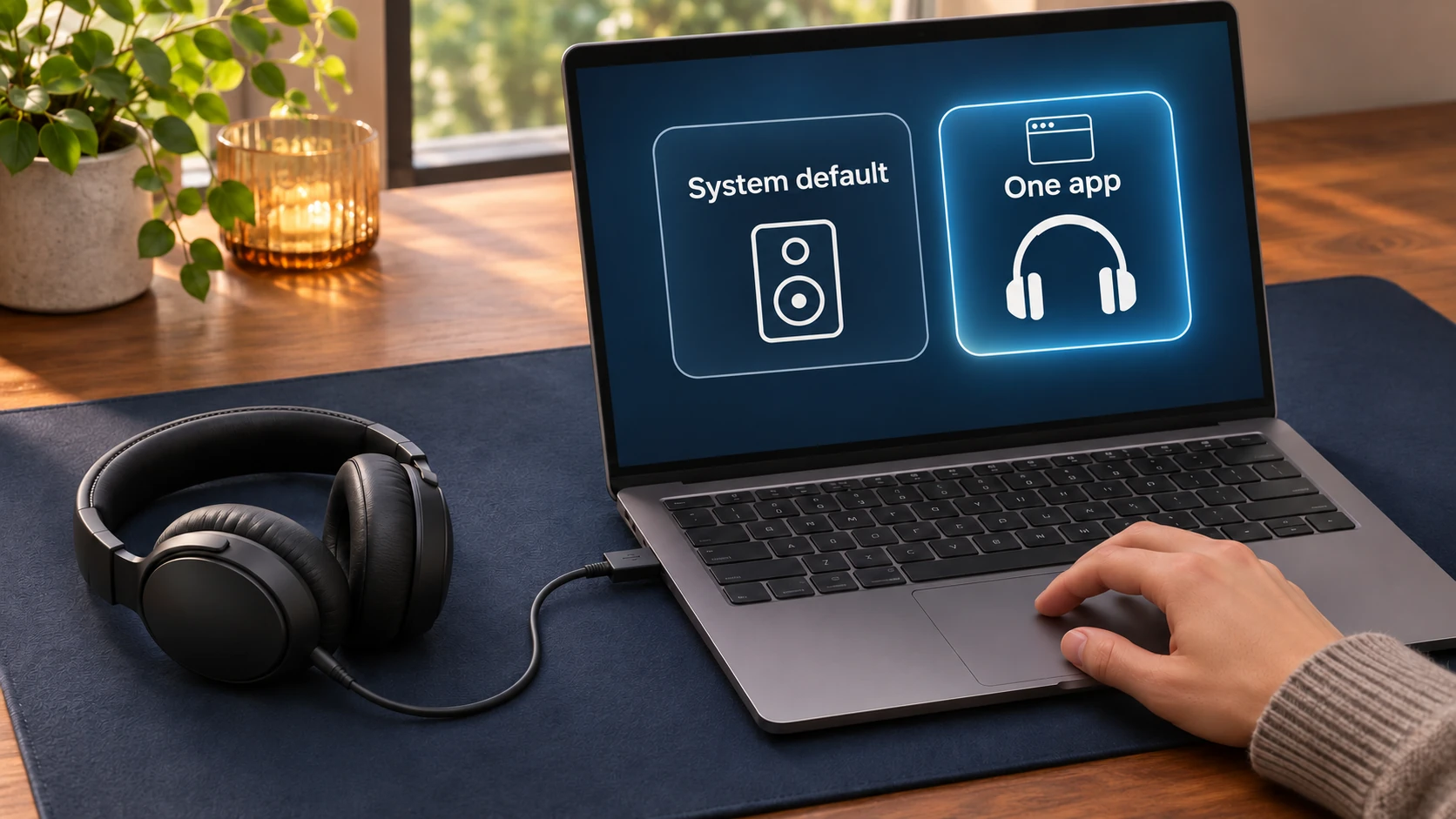
Windows 11 per-app audio output is the question to investigate when a particular program seems to be using a different listening destination from the one you intended. Begin with a system playback route that already works. This guide checks one app's destination separately, without rebuilding the computer's general audio setup.
Microsoft's current app-audio guidance states that an app can use a different output device from the system default.
State the app question before changing the default
Identify the particular program you want to check and the listening equipment you intend to use with it. Describe the unwanted result at that level. “This app's recording is not reaching these headphones” gives the exercise a clearer target than “the computer has no sound,” especially when other known sounds are already playing successfully.
Keep the working arrangement available as your baseline. This tutorial does not ask you to repeat the global output-selection procedure or change a monitor's connection, mute setting or physical audio path. Those are different tasks. The starting question is whether the affected app has the output destination you intended.
Use supported equipment that the computer already recognizes. If you are unsure whether a retail headphone is suitable for Windows, settle that question using the exact manufacturer's documentation before relying on it here. A photographed USB connector is not evidence that Windows recognizes your delivered device or that a particular app can use it.
Separate the system default audio route from the app route
Write the intended relationship in a short sentence before making a change. You might want the affected app to use the same listening equipment as the rest of your current arrangement. You might have a deliberate reason to use a different recognized destination. In either case, identify the one app you are investigating rather than treating all programs as one unnamed source.
A useful comparison has two named fields: the system default audio route you have established and the destination chosen for the affected app. Leave an unconfirmed field open. A note that distinguishes an observation from an unanswered question will be more useful than a confident explanation built from an assumed setting.
Do not change the working default merely to make an unexpected app result look consistent. First inspect the app-specific choice. If you later decide to alter the general arrangement, treat that as a separate decision and explain it to anyone else using the computer. Keep track of which question each change is intended to answer.
Inspect the Volume mixer output device for that app
Open Start, Settings, System, Sound, then Volume mixer. Under Apps, inspect the affected app's Output device and select the intended available destination.
Match the app entry to the program you actually mean to investigate. Do not choose another row merely because its name is familiar. If you cannot identify the affected app or the relevant output option is not available in the screen you see, preserve that observation and seek the current instructions for your particular Windows and app arrangement. Use the program's actual displayed name in a support request. If you have only a loose description such as "the web page," clarify which program you meant before assigning the unanswered question to a Windows setting. Check that your question names the same program throughout.
Read the destination associated with the app before changing it. The Volume mixer output device should be the one you intend that app to use. If a device name is unclear, resolve its relationship to the connected equipment before guessing. This guide supplies no universal device label and does not authenticate a hardware model from the name displayed by Windows.
Check the affected app without changing every variable
Choose content inside the affected app that you can start and stop deliberately. Keep the system's usable baseline available, but let this check concern the app you identified. If the content requires access you do not have, resolve the access question or choose another appropriate example rather than treating it as evidence about the audio destination.
After inspecting or changing the app's destination, try that content through the intended listening equipment. Describe what you hear. An app entry that appears selected and an app sound you heard are different observations; retain both when the result is uncertain. Do not call the exercise complete solely because you found a setting.
If you do hear the intended content through the chosen equipment, describe that narrow result. You have checked a particular app, destination and piece of content in the current arrangement. You have not demonstrated that every program uses the same route, that an untested microphone works or that a different retail headphone is compatible with the computer.
If the content still does not reach the intended destination, stop short of a hardware diagnosis. Record the app entry and the result that remains unexplained. The Microsoft source also discusses other app-audio checks, but this article does not direct you to restart services, replace drivers or reinstall software. Follow the appropriate current support path for any further investigation.
Read two fictional route cards
Imagine a fictional computer with a confirmed system-default card labeled “Desk speakers.” A separate card for an invented program called “Reading app” says “USB headphones.” Those labels are teaching examples, not names you should expect on your own computer. The cards describe two destinations at different levels rather than a single field with conflicting answers.
In this fictional case, a person who wants the reading app through the headphones can investigate that app's card without rewriting the system-default card. A person who wants that app to follow the desk-speaker arrangement needs a different intended result. Establish which result is wanted before treating the app's separate destination as an error.
Now imagine the reading-app card is changed to the intended destination and its known recording is heard there. The useful conclusion concerns that app and that check. It does not establish how an invented second program, “Lesson player,” is configured. If the second program matters to the task, identify it as another app question instead of assuming its card has the same setting.
In a second fictional situation, the system-default card is known but the affected app's card has not been inspected. The two cards cannot yet be compared. A successful system sound supplies a baseline; it does not fill in the missing app field. The next useful action is to inspect the particular app's available output choice, not to invent a fault in the headphone.
A third fictional card comparison makes the decision more specific. Suppose both the default and Reading app cards say “Desk speakers,” while the user wants only the reading app through the headphones. The matching cards describe the current arrangement; agreement alone does not make it the arrangement the user wants. The question remains which destination should be assigned to that app.
Now suppose the app card already identifies the intended destination, yet its chosen recording is still not heard there. A routing label has been checked, but the result remains unexplained. Avoid cycling through every destination and reporting the last one as a diagnosis. Keep the distinction between a confirmed setting and an unresolved listening result when you continue through appropriate support.
Keep device shopping separate from app configuration
The Digitaldigital USB-A headset listing describes a wired Poly EncorePro 725 stereo headset for computer-based calls. Its image shows a boom-microphone headset, USB-A plug and inline controls, without a readable technical model label. It supplies no test of a Windows app's selected output.
The wired USB-C over-ear headphone account describes direct use with USB-C phones and tablets. The gallery shows black and silver headphones, a USB-C plug/control inset and a fitted case. The account does not establish Windows or microphone support. Do not assume that it meets this tutorial's recognized-device starting condition.
These catalog names identify the offers without authenticating a manufacturer or delivered hardware revision. One primary headphone or headset appears in each gallery. The second account states a carrying case is included; the illustrations do not certify delivered quantities or condition. Neither account resolves an app-specific routing question.
Use the related guides for their own decisions
The Logitech and Razer wireless headset comparison distinguishes a proprietary wireless connection from Bluetooth and asks readers to check host support. That is a hardware-transport decision. An app-output setting does not turn those connection methods into interchangeable arrangements.
The holiday call headset check addresses the people who should hear a greeting and an agreed listening plan. Resolve that audience question with the participants. It does not establish which destination a particular Windows app has selected.
When handing the computer back, describe the relationship you left in place: the established system default, the app you checked and its intended destination. Include the unresolved result if there is one. The next person should be able to distinguish a deliberate app-specific choice from the general listening arrangement without reconstructing your steps.
Keep a proposed purchase tied to the exact device
If this exercise leads you to consider buying audio equipment on republeq.com, establish the exact product and its documented platform support before deciding how to pay. A Volume mixer selection for equipment you already own cannot establish that a different retail offer will be recognized. Keep that unresolved compatibility question with the proposed order. This article does not verify any current crypto checkout option. Should the responsible checkout service offer USDT, ask for the details that apply to your particular transaction rather than using this tutorial as a payment guide. Confirm the intended asset, network and receiving destination through the service, along with the requested amount and the order it relates to. Read the applicable terms, including any fees, cancellation process and refund conditions, before you authorize anything. If an answer concerns only the headphone's connector, do not treat it as confirmation of the payment instructions. Likewise, a transaction acknowledgement would not demonstrate Windows support, microphone capability or a successful playback result. Retain the product information and the payment correspondence with the relevant order reference so those different questions remain identifiable. When an attempted payment has an unclear status, resolve the existing transaction with the responsible service before initiating another. A lack of visible confirmation does not establish that an earlier attempt had no effect. If any required instruction changes, pause the purchase decision and obtain a clear answer for that order. No wallet address, supported network, current merchant acceptance or refund guarantee is supplied here. The purpose of this purchase check is to keep an uncertain equipment decision from becoming an assumed transaction instruction. You can leave the order undecided while you obtain the information needed for your own choice.
Conceptual app-specific playback routing; no exact Windows interface or retail-model compatibility is shown.