Computer Accessories
Check video adapter direction before choosing a cable
Choose a converter by documented source-to-display direction, conversion requirements and power.
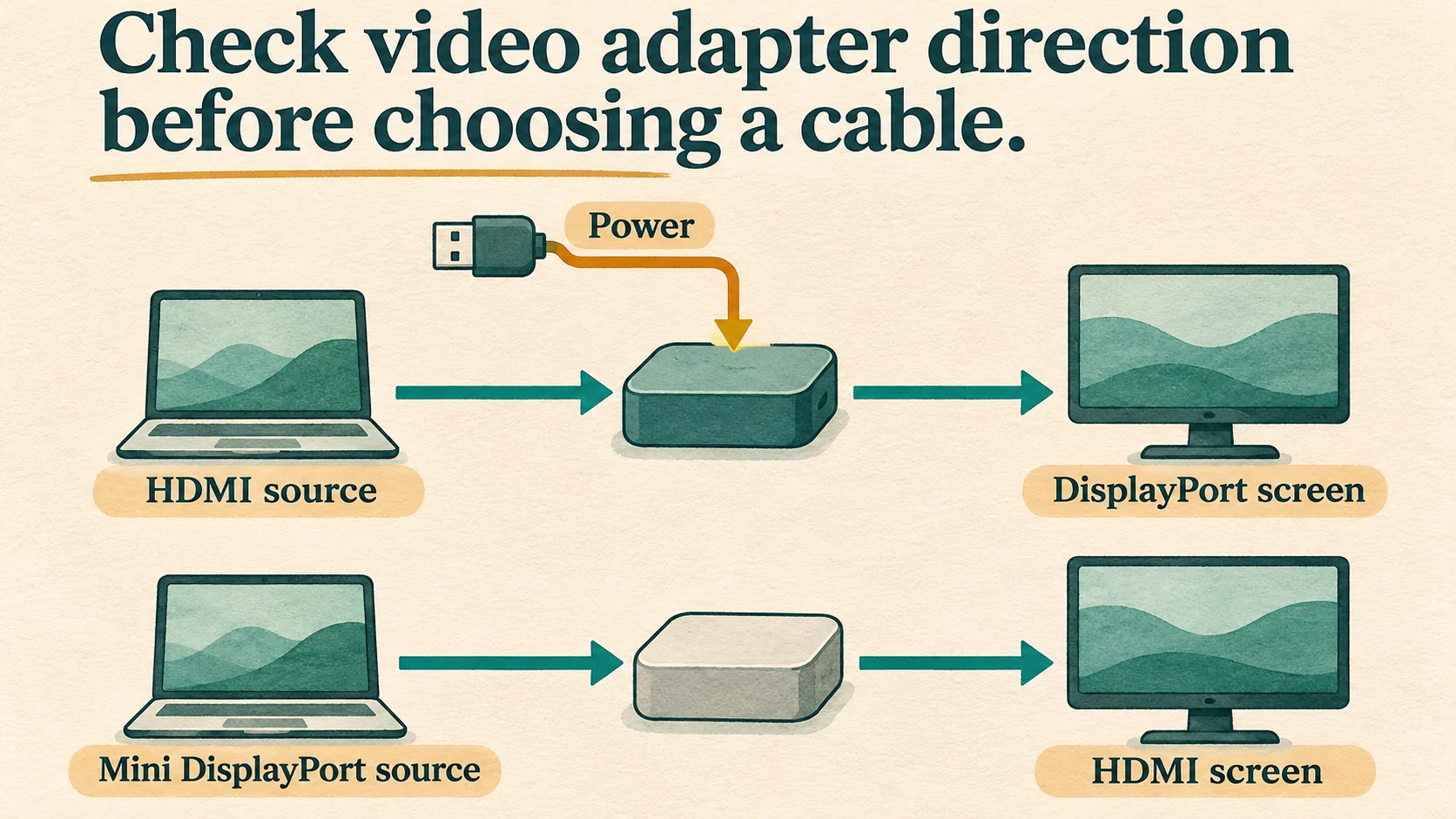
Start with the device sending the picture and the screen receiving it. video adapter direction describes that ordered connection. Dell's HDMI-to-DisplayPort conversion guide distinguishes an HDMI source feeding a DisplayPort display from a DisplayPort source feeding an HDMI display. Those arrangements need their own documented conversion support. A product containing both connector names is not sufficient evidence that it works in either arrangement. Read the input and output descriptions before matching the physical plugs.
For an HDMI output on a computer and a DisplayPort input on a screen, look for documentation explicitly naming that source-to-display arrangement. If the computer instead sends DisplayPort and the screen accepts HDMI, investigate that direction. Changing which device sends the signal changes the requirement even when the same two interface names appear on the shopping list. Dell's guide supplies the directional distinction; it does not certify either of the particular offers discussed below on your equipment.
Read the two offers as different directional examples
The StarTech 148B-HDMI-DP-8K offer names HDMI-to-DisplayPort conversion. Its exact manufacturer product record identifies HDMI input, DisplayPort 1.4 output and active conversion. It separately lists a 50cm Micro-USB power cable and a Micro-B power-only input. The manufacturer's 8K60 notes require host DSC support and an 8K60 DisplayPort monitor. Confirm those conditions for the actual source and display. The pictured StarTech-labeled converter is not a test result. The power-input description also does not establish whether the supplied cable contains data conductors or whether a charger accompanies the retail order.
The Pro Signal Mini DisplayPort 1.2 to HDMI offer describes the other interface direction: Mini DisplayPort toward HDMI. Its sole gallery shows a black inline adapter, a short attached lead with a Mini DisplayPort plug, and an HDMI socket. The photograph carries DP1.2 markings, but no legible Pro Signal model identifier. Keep the catalogue label and the pictured connection arrangement together when asking about the exact item.
That evidence leaves the Pro Signal offer's active or passive construction unresolved. Obtain its actual conversion requirements before using it with a source. A plug that enters a socket does not answer that electronics question. Nor does the photographed shape establish a supported resolution, refresh rate or complete compatibility list. These two offers illustrate different jobs; this guide has no matched performance test ranking them against one another.
Check active video conversion and the source requirement
StarTech's passive-versus-active DisplayPort FAQ explains that a passive adapter depends on a dual-mode DisplayPort source, commonly identified as DP++. That source can provide an HDMI- or DVI-compatible signal. The adapter therefore relies on a particular capability of the sending device. Read the computer or graphics-output documentation for the exact port being used. A general reference to DisplayPort somewhere in the computer's specification does not establish that every output has the required dual-mode capability.
The same FAQ describes active video conversion as conversion performed inside the adapter. This gives you a concrete question to ask about an unspecified product: does it need a DP++ source, or does it perform the required conversion itself? Keep the answer tied to the adapter model and intended direction. Active is not a universal compatibility guarantee. Supported modes and any multi-display conditions still belong to the actual equipment documentation, rather than to the word active alone.
DP++ does not mean an adapter has no electrical role
VESA's article introducing its updated Dual-Mode standard explains the source-side distinction more precisely. A dual-mode source can emit DisplayPort signaling or the TMDS signaling used for HDMI and DVI. The adapter changes mechanical and electrical aspects of the connection. Consequently, describing an adapter as passive does not justify saying that nothing electrical happens inside it. The useful buying question is which signal the source must already supply.
This also explains why a DP++ discussion should not be transferred wholesale to an HDMI-output computer. The dual-mode feature described by VESA belongs to a DisplayPort source. Establishing it on one computer does not turn an opposite-direction converter into the required accessory. VESA's article discusses historical adapter types and their performance conditions; those figures are not specifications for the current Pro Signal offer. Use the standard explanation to understand the requirement, then obtain the chosen item's own supported-mode information.
Identify Mini DisplayPort by more than its outline
Apple's port-identification guide distinguishes Mini DisplayPort from Thunderbolt and Thunderbolt 2. The older Thunderbolt connectors share the Mini DisplayPort shape, while their symbols and supported protocols differ. Apple's documented Thunderbolt and Thunderbolt 2 ports support Mini DisplayPort video output. That is useful context when identifying an older Mac, but it does not authenticate the Pro Signal accessory or certify a particular computer-and-adapter combination.
Find the exact computer in its manufacturer's documentation and identify the port symbol beside the socket. Record the documented video-output capability alongside the connector name. This is especially useful when a photograph shows the small familiar opening without a readable symbol. If the device documentation establishes Thunderbolt rather than Mini DisplayPort, retain that distinction when checking the adapter requirements. Apple also distinguishes later Thunderbolt ports using USB-C connectors. A guide to older Mini DisplayPort-shaped ports should not be used as a physical connection instruction for those newer sockets.
Read the mode conditions separately from the direction
VESA's DisplayPort FAQ describes Display Stream Compression, or DSC, as visually lossless under typical viewing conditions. The same FAQ describes DisplayPort as carrying packetized digital video and audio. That signaling description concerns the interface, without identifying the capabilities of your individual output. DSC is a named part of the display technology, not evidence that an arbitrary computer supplies it. When a converter's maximum mode requires DSC at the host, find an explicit answer for that host. Merely recognizing the abbreviation in a standards explanation does not resolve the equipment requirement.
The FAQ also explains that DisplayPort can provide power for adapters. That general capability does not establish the power arrangement of every conversion product. Read an accessory's specified power input and required connection. In particular, a separate USB power connection and the video input have different documented duties. Keep the intended video mode, the source's capabilities and the converter's power instructions available together. A correct signal direction can coexist with an unresolved mode or power requirement; each needs its own supported answer before the arrangement is accepted.
Make the DisplayPort cable choice for the actual sockets
VESA's DisplayPort cable-selection article starts by identifying the connector type at each end. It distinguishes standard DisplayPort, Mini DisplayPort and USB-C carrying DisplayPort Alt Mode. For DisplayPort cable choice, look at the converter's output socket and the screen's input, then select the required physical ends. A cable described only as a display cable leaves that purchase question unanswered. The connector on the computer may already be occupied by the converter, so it is the remaining connection that needs attention.
The article also recommends checking DisplayPort certification listings for the cable being considered. Use the exact product identity when checking a certification claim. A familiar logo in an unrelated photograph does not identify the cable in your order. Certification and connector format answer different questions: one concerns the specified cable's tested status, while the other determines whether its ends match the intended sockets. Standard DisplayPort and Mini DisplayPort are different physical sizes, so retain the full connector description when selecting both ends of the remaining cable. This guide does not transfer the article's historical bandwidth statements to every current cable or promise a particular mode through an unverified converter.
Put the converter back into the complete display route
The published monitor cable compatibility guide follows the computer, any intervening accessory and the monitor's supported input modes. Its central question is whether the complete arrangement supports the resolution and refresh rate you need. Use that investigation after identifying the directional converter. A correctly named HDMI-to-DisplayPort accessory establishes the proposed direction, while the complete mode remains a separate requirement.
Keep the monitor input's own specification in that check. A maximum printed elsewhere in the monitor listing may concern another input. After installation, the selected resolution and refresh settings provide an observation about the actual arrangement. They do not retroactively prove that every untried mode works. The existing guide's MSI and KTC examples belong to those monitors; they supply no extra performance specification for either converter considered here.
The published USB-C display hub guide addresses another purchase decision: choosing a hub with HDMI alone or HDMI plus DisplayPort. Its hub outputs are connections supplied by a larger expansion device. If a hub already provides the screen's required input type, identify that available output before adding a separate cross-interface converter. Keep the hub's upstream video requirements in the investigation as well.
A hub description containing both HDMI and DisplayPort does not establish that its two display sockets convert signals between one another. The published hub comparison concerns outputs driven through its upstream host connection. Dedicated converter selection asks which source signal enters the accessory and which display signal leaves it. Record that distinction in the final parts list so an additional socket is not mistaken for an additional conversion route.
Keep the order separate from the compatibility finding
You can complete this compatibility investigation before placing an order. If you decide to buy on republeq.com, read the exact offer and the checkout information presented for that order. A preference for cryptocurrency, including USDT, does not establish which payment options are available. Use the options actually offered if you proceed. Keep the selected product and any clarification of its supplied parts with the order record. A manufacturer's package description does not certify the contents of the particular retail parcel. Ask the responsible service about any difference that affects your purchase. If a cryptocurrency option appears, read its current asset, network, amount, receiving details and order reference. This article supplies no transfer address, wallet procedure, network recommendation or processing-time promise. Obtain clarification through a channel you have checked when an essential instruction remains unclear. Review the applicable delivery, cancellation, return and refund conditions before authorizing a purchase. Retain acknowledgements and records identifying the action you actually took. A payment record, an accepted order and a delivered working connection concern different events. If a payment or order has uncertain status, preserve that uncertainty while obtaining an account of what happened before considering another payment. The technical checks in this guide establish none of those transaction events. If another person is helping with the order, give them the selected goods, the decisions already made and the unresolved questions before they act. Include the adapter direction and any separately required cable or power connection in that handoff, so the intended purchase remains identifiable. Save any response that resolves those questions with the same order information.