Monitors & Displays
Monitor cable compatibility for MSI MP243L E14W and KTC H32S17F
Check monitor cable compatibility for MSI MP243L E14W and KTC H32S17F: input modes, host and adapter limits, firmware-only USB and Windows settings.
Write down the computer's output and the resolution and refresh rate you need before buying another cable. For monitor cable compatibility with MSI PRO MP243L E14W or KTC H32S17F, the exact input table matters. MSI documents Full HD up to 144Hz over HDMI and up to 60Hz over VGA. KTC documents Full HD at 240Hz on its HDMI and DisplayPort inputs. Those are supported monitor modes, not proof that your computer, dock and cable deliver them.
This guide checks two separate connection arrangements. Both Republeq listings belong to Computer Monitors, and each manufacturer's table identifies the model used here. Plan a separate source-to-display route for each model using its own supported inputs. The goal is to establish a usable path for the display you choose, including any equipment already between it and the computer.
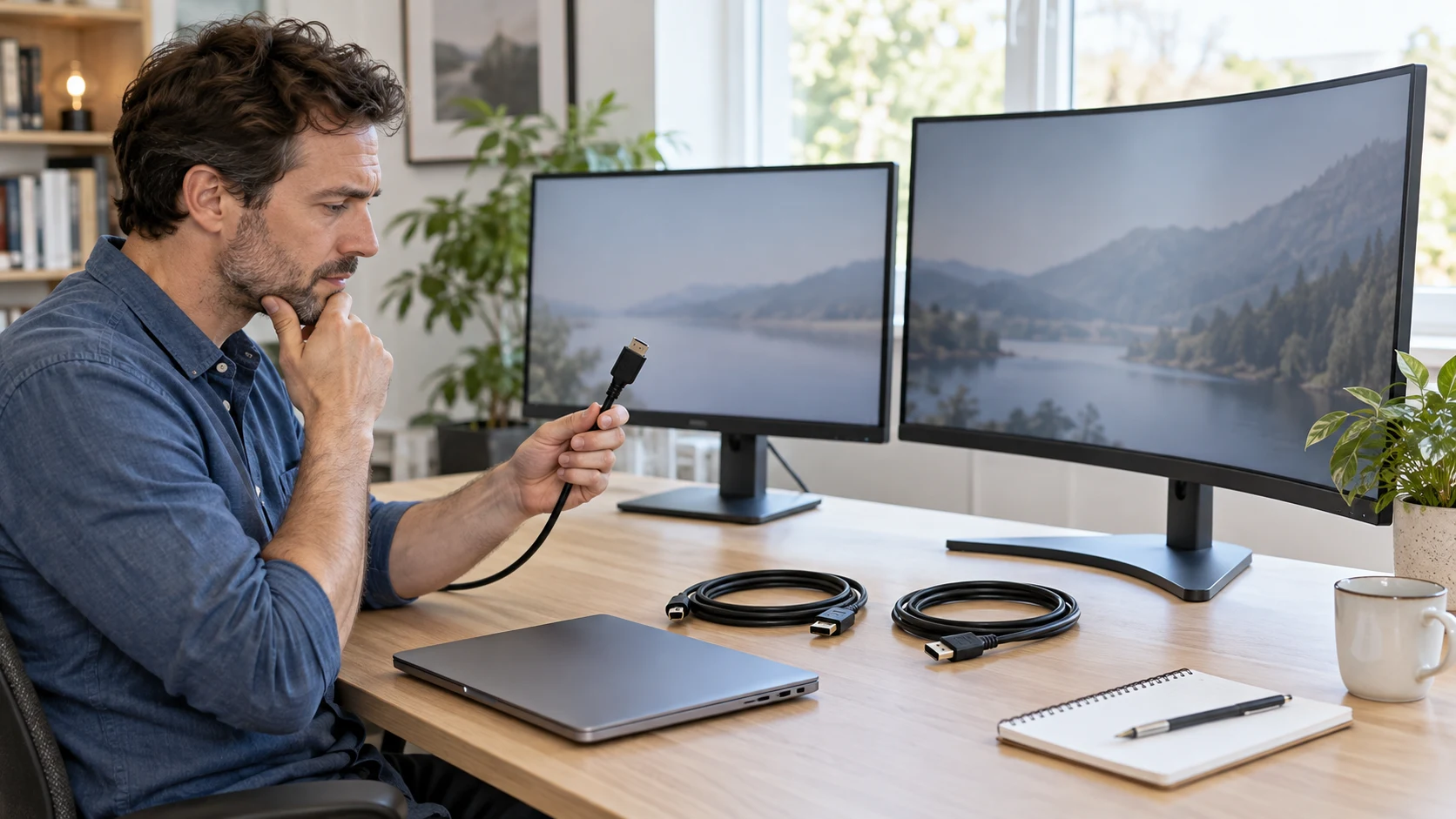
Conceptual editorial cover for monitor cable compatibility: generic desktop displays and a buyer checking computer cables, not exact retail models or proof of a tested connection or supplied accessories.
Begin HDMI refresh-rate checks with the complete path
List the computer, the output you will use, every intervening dock or adapter, the cable and the intended monitor input. Put the required resolution and refresh rate beside that list. Keep that complete arrangement in the question you send to the equipment supplier. A photograph of a socket or the word HDMI on one product does not document every mode supported along the route.
For HDMI refresh-rate checks, obtain the actual output specifications of the computer or graphics device. If a dock is involved, use its own display-support table too. Do not borrow the capabilities of another computer in the same family. Ask for the exact output and resolution/refresh combination that matters, rather than a broad answer that the equipment can connect to a monitor.
The MSI PRO MP243L E14W listing describes a 23.8-inch IPS Full HD display, HDMI 2.0 and VGA. MSI's exact E14W table gives HDMI at 1920 by 1080 up to 144Hz, with VGA limited to 60Hz. Its UPC, 824142448243, matches the listing. Keep those input-specific limits with the model name when requesting a source or cable compatibility answer.
The KTC H32S17F listing identifies a 32-inch curved HVA Full HD display. KTC's detailed model table specifies two HDMI 2.0 inputs and one DisplayPort 1.4 input, each naming 1920 by 1080 at 240Hz. This is the manufacturer's mode statement for those inputs. It supplies no matched test of your laptop or an adapter you intend to reuse.
Keep VGA, HDMI and DisplayPort tied to their documented jobs
If the computer you will retain uses VGA, the MSI's documented 60Hz ceiling is the relevant monitor limit for that input. Its HDMI 144Hz headline does not change the VGA table. Decide whether a 60Hz route meets the task or whether another supported output arrangement is necessary. This guide does not establish that an unspecified converter provides the higher HDMI mode.
KTC's documented input table lists HDMI and DisplayPort, not VGA. If the source only provides VGA, obtain a verified complete connection answer before ordering around it. An adapter advertised as joining two connector types still needs its own direction and supported modes checked. Do not treat its appearance as proof that it accepts the source signal and supplies the target display mode.
For a computer with several available outputs, identify which one the planned desk will actually use. Another output may already be occupied, or the path through a dock may differ from a direct connection. Record the intended arrangement rather than assuming all outputs are interchangeable. The monitor table alone cannot settle the source's simultaneous-display configuration.
If the display will serve two computers at different times, prepare a separate connection list for each. One successful route does not certify the other. Keep the input chosen for each source clear, particularly when a household member leaves a cable attached to an unused socket. KTC's two HDMI inputs can be included in the inventory, but their presence does not automatically switch or manage an unverified multi-device arrangement.
Check the cable and adapter as specific accessories
Identify the cable you already own, including its stated type and any documented mode support relevant to the job. If that information is missing, avoid assigning the cable an unsupported capability. Obtain a suitable product specification or a model-specific compatibility answer before making it the foundation of an expensive setup. A cable that physically fits still leaves the intended display mode to verify.
Do the same for an adapter or hub. Name the actual model, its input and output directions, and the display mode supported for the configuration you plan. Include its required power or computer connection if its instructions specify one. This guide has not checked a particular adapter or hub, so it cannot certify that either monitor reaches its maximum through one.
MSI's manufacturer package table lists an HDMI 2.0b cable, power adapter and quick guide. KTC's page also lists an HDMI cable, adapter and power cord with its stand supplies. Confirm the contents of the seller's actual order before buying duplicates. Manufacturer package information can help form the question, while the selected offer still needs an answer about what ships with that unit.
The current Republeq listing prices captured here are $106.24 for MSI and $237.48 for KTC. These are monitor prices, not complete totals for an unselected connection setup. Add the quoted cost of an accessory only after you know which part is required. An inexpensive monitor can still be an unsuitable order if the available source lacks the route your task needs.
Observe USB monitor port limits before planning a dock
For USB monitor port limits, KTC's detailed table is explicit: its USB 2.0 entry is only for firmware upgrades. Do not budget around that socket supplying an ordinary USB hub for a keyboard, storage drive or other desk equipment. A listed USB connector needs its stated purpose read before it becomes part of the peripheral plan.
KTC also marks KVM and picture-in-picture/picture-by-picture unsupported. If the desk needs a feature that shares controls or displays several sources in a particular way, obtain an appropriate supported arrangement independently. Two HDMI inputs are not evidence of a KVM or a simultaneous-view function. Keep the video input count separate from how you expect to operate the computers.
MSI's exact specification table likewise marks KVM and picture-in-picture/picture-by-picture unsupported. Its video entries are HDMI and VGA. Do not add a docking function because another MSI monitor has one, or because a product image shows several cables near a screen. The model and port purpose must match the equipment actually selected for the desk.
If peripherals are the main reason for considering a new screen, write their requirements on a separate list. A mouse, external drive and display connection can each need a different supported route. Resolve those requirements with the actual computer and accessory specifications. This article establishes the two monitors' documented video modes and stated feature limits, without certifying a complete dock design.
Check the selected display in Windows after installation
Microsoft's Windows 11 instructions direct you to Settings, System, Display and Advanced display to inspect display information and choose a refresh rate. Use the entry for the monitor you intend to check when several displays are connected. The information panel shows its current resolution and refresh rate. Read both values together before comparing the setup with the manufacturer's table.
Microsoft says the rates offered in the selection depend on the display and its support. Its refresh-rate list can mark an option with an asterisk when that rate does not support the current resolution; choosing it changes the resolution. Watch for that condition. Selecting a larger refresh figure is not enough if the task requires the original resolution to remain in use.
Record the observed resolution and refresh rate alongside the connection list. For an MSI HDMI plan, compare the observed mode with the documented Full HD HDMI ceiling; for VGA, use its separate ceiling. For KTC, compare with the exact HDMI or DisplayPort entry you selected. Perform this check on your installed equipment; no tested combination is reported here.
If the intended rate is missing, identify the selected display and actual input before changing other settings. Recheck the source and any dock or adapter's documented mode support. Follow the relevant manufacturers' setup instructions for further diagnosis. A missing choice is an observation about the current arrangement; it does not identify a faulty monitor, cable or computer by itself.
Separate an available mode from the result in an application
A supported display mode is useful information, but it does not measure what a game or another application produces. Neither listing supplies a matched application test for the computers readers own. If a particular program motivates the upgrade, evaluate that program on the confirmed setup. Keep the configured monitor rate and the program's result as separate observations.
The MSI listing includes 1ms MPRT and 4ms gray-to-gray response ratings. KTC's detailed manufacturer table gives 3ms with overdrive as typical. These descriptions do not provide a shared response test or a measurement of total input delay. They should not replace the cable and supported-mode checks, nor should they be turned into a prediction that one arrangement always looks better in motion.
Adaptive synchronization is another stated capability to confirm for the source, input and selected mode. Both offers describe it, and the manufacturer pages name their own support. This guide does not establish that every computer output or software setting activates it. Ask the exact source-compatibility question before assigning value to a feature label in a shopping description.
For ordinary desktop work, test the actual document layout and scrolling you use after confirming the connection. Both monitors' stated resolution is Full HD; the larger KTC diagonal does not give the setup a 4K pixel grid. Choose text size and window layout that serve the work. A higher available refresh ceiling cannot answer a separate need for more workspace pixels.
Make a connection record that another person can use
For an existing desk, record the current working arrangement before replacing any component. Note which computer output enters which monitor input and whether a dock sits between them. Keep the current resolution and refresh rate with that record. That gives you an actual starting point to compare with the proposed arrangement, rather than a memory that the old screen felt different. Retain the supported instructions for the original setup when planning the replacement.
Consider a household keeping an older VGA computer for a specific application. Its MSI plan should state the manufacturer's VGA ceiling and the task that needs to remain usable. If the future plan uses another computer's HDMI output, write that as a separate arrangement with its own verified specifications. Do not count a hoped-for future computer as a current compatibility answer or discard the existing route until the replacement requirements are settled.
For a laptop that moves between a home desk and another location, identify the actual dock or adapter used at each. Similar-looking accessories may be different models with different documented limits. Keep the intended monitor mode with the correct accessory name. If the laptop can connect directly at one desk but uses a hub at the other, those are two paths to check. A result from one location cannot certify the other without its own equipment information.
If the desk is shared, leave a short note identifying the supported input and the accessories that belong to it. A person returning a loose cable to the wrong socket can leave the next user investigating an arrangement nobody intended. Keep the note about the actual setup rather than copying every manufacturer specification into it. The useful details are the equipment involved, the required mode and where its confirmed instructions can be found.
After checking the active mode, try the recurring task that justified the purchase. Open the normal documents, then try the application or game relevant to the desk. Record an observed problem clearly, including the selected display and connection, before seeking help. This does not substitute for a controlled performance comparison. It helps establish whether the particular supported setup completes the ordinary work the reader needs it to do.
Use the related guides without transferring their specifications
The MSI and Philips Full HD connection guide compares the MSI offer with a different Philips monitor. It shows why input-specific limits belong in a buying decision. The Philips VGA and HDMI limits apply to that Philips model. They do not establish an additional input or mode for the KTC in this article.
The MSI MAG and KTC mode guide compares KTC with another MSI model that has separate 4K and Full HD modes. Those MAG mode choices do not transfer to PRO MP243L E14W. Read the exact model name before using a resolution/refresh table, even when the two products share a manufacturer.
Before ordering, keep the intended source, monitor model, input, resolution/refresh pair and verified accessories together. Request an answer for the complete path if one part remains unknown. After installation, use the same list to check the selected display and a representative application task. Retain the confirmed arrangement so a later dock or computer change can be assessed without guessing what previously worked.