Crypto Commerce
VEIKK Studio 16 pen display vs XPPen Artist 12 3rd pen displays for desk or bag
Compare VEIKK Studio 16 pen display by screen size, pen controls, color claims, computer support, cables, and desk setup before choosing a portable art station.
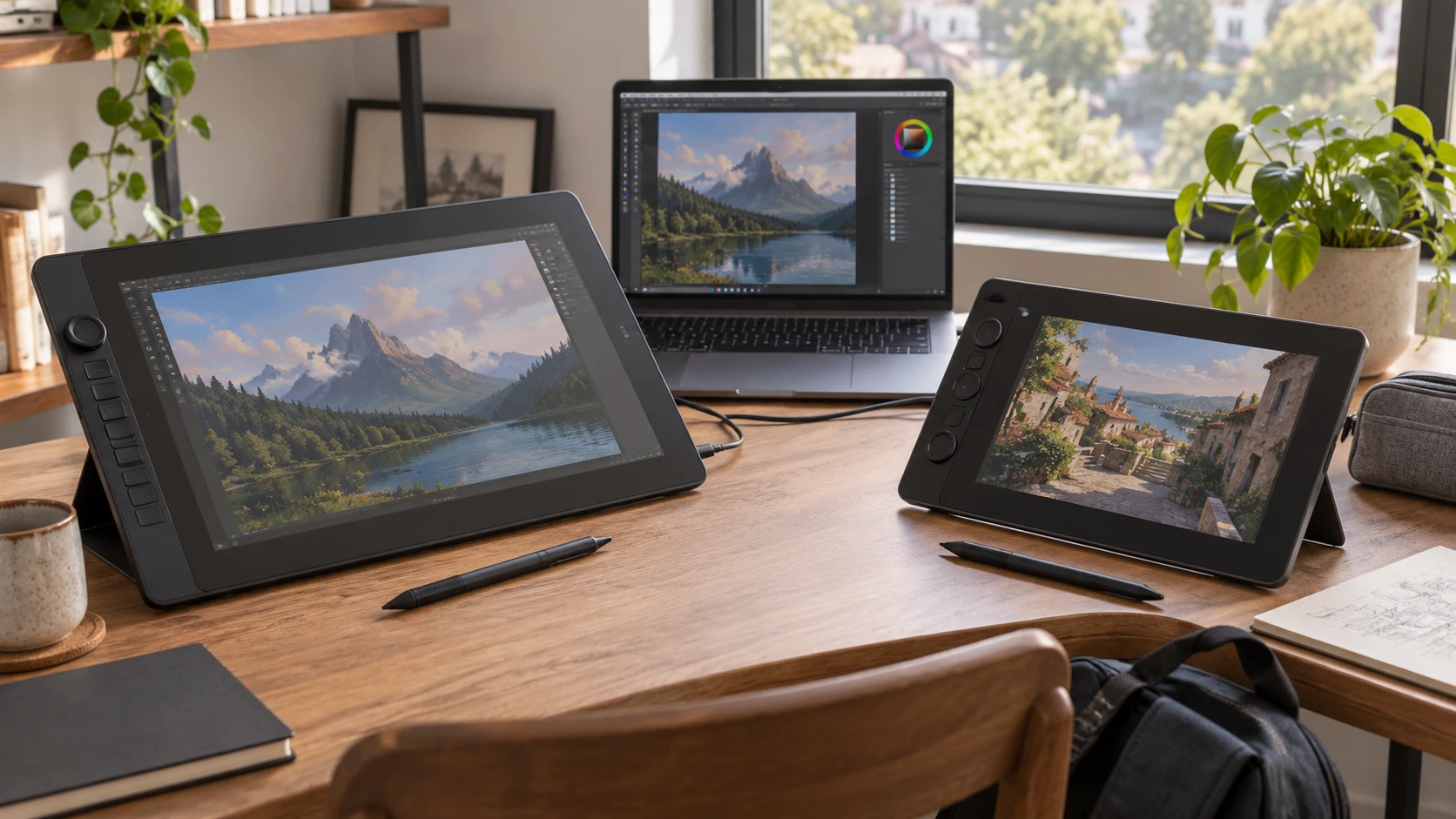
The VEIKK Studio 16 pen display has a listed 15.6-inch laminated screen, two pens, five shortcut keys, and a Quick Dial. Before choosing a drawing screen, use the guide to checking display connections to trace both picture and pen input back to the computer. The XPPen Artist 12 3rd pen display lists an 11.9-inch screen, an X4 pen, two X-Dial wheels, and eight customizable keys. Screen room, connection path, and the space available on the desk or in a bag will shape the daily experience.
Both listings describe pen displays that depend on another device for the drawing program. VEIKK explicitly requires a computer or laptop; XPPen lists operating systems and computer connection options. Identify the machine you will use, the place where the display will sit, and the cables that can reach it. A large drawing surface may be comfortable at a fixed desk while taking more room to carry.
Measure the actual drawing position — XPPen Artist 12 3rd pen display
VEIKK's 15.6-inch screen gives a larger physical area for a canvas and interface panels than XPPen's 11.9-inch screen. That difference matters when an application keeps tool palettes open beside an image. Lay out the application at the intended scale and estimate how much of each panel remains available for the drawing itself. A larger diagonal does not guarantee more pixels. The VEIKK excerpt does not state its native resolution, while XPPen specifies 1920 by 1080. Confirm VEIKK's pixel dimensions before deciding that one will show more detail.
XPPen lists a 1.58-lb weight and a foldable stand set at a 20-degree angle. Those details make it easier to plan the space needed beside a laptop. Check whether that angle places the working surface comfortably under the drawing hand, then consider where the keyboard will go. VEIKK's saved entry does not give a weight, stand angle, or body dimensions. Ask for them if the display will travel between rooms or fit into a specific bag. Use the full device dimensions for that check; screen diagonal alone does not describe the bezel or cable clearance.
Both listings describe a laminated drawing surface. VEIKK names anti-glare glass and an anti-fingerprint coating. XPPen describes etched glass with a paper-like feel, a claimed 85% glare reduction, and full lamination. These are Republeq's product descriptions of surface treatment, without the same glare test for both products. If reflections are a problem in the room, position the display under its usual light and look at dark canvas areas. A textured surface also changes how a nib feels over time, so try a long enough stroke to judge comfort rather than relying on the word paper-like.
Compare pen behavior without treating counts as a verdict — XPPen Artist 12 3rd pen display
VEIKK lists 16,384 pressure levels and 60-degree tilt recognition for its battery-free pen. The box includes two pens, one slim and one thicker, each with side buttons that can be customized. Changing grip size may help someone who alternates between short detailed marks and longer painting sessions. The listing does not provide a measured activation force or stroke-latency test. Try light marks, slow diagonals, and a quick curve in the software you use to see how the pen behaves at your own hand pressure.
XPPen also lists 16,384 pressure levels and 60-degree tilt support. Its magnetic X4 pen has a stated 2-g initial activation force and comes with ten replacement nibs. XPPen claims a faster response and steadier nibs, but the excerpt does not supply a matched test against VEIKK. The two displays sharing a pressure-level number does not mean their drivers, nibs, and screens will feel identical. Adjust the pressure curve in the intended drawing application, then make the same slow and fast marks on each device if a trial is possible.
Pen placement matters between strokes. XPPen calls its pen magnetic, but the saved excerpt does not say where it attaches. VEIKK gives two pens of different thickness without describing how they are stored. If the desk is crowded, decide where spare pens and nibs will live. Check whether a pen's side buttons are easy to press deliberately while rotating the hand. A specification for pressure sensitivity says little about an accidental shortcut during a long sketch.
Put shortcuts where the hands will reach them — XPPen Artist 12 3rd pen display
VEIKK has five customizable keys and one Quick Dial. XPPen has eight customizable keys and two X-Dial wheels. The second dial could let an artist keep brush size and canvas zoom on separate controls, while a smaller key set may be enough for a repeated three-tool workflow. Set up the exact shortcuts you use, then work for several minutes without looking at the controls. The counts alone cannot tell whether their positions suit a left-handed or right-handed setup, and neither saved entry gives a complete layout diagram.
XPPen says its keys are designed to reduce accidental inputs and makes a percentage claim about faster dial work. VEIKK describes quick access to frequently used tools. Treat these as reasons to test the controls, not measured productivity gains for every artist. Open a real project, use the usual brush, undo, canvas rotation, and zoom commands, and note when a hand has to leave the pen. Application-specific shortcut support can matter as much as the number of physical controls.
Both brands name common creative programs. VEIKK lists Photoshop, Krita, MediBang, and Clip Studio Paint among compatible applications. XPPen says it has been tested with Photoshop, Clip Studio Paint, and Krita. The overlap is reassuring for a basic compatibility check, though plugin versions, driver permissions, and operating-system updates can still affect a specific setup. Download the current driver and check the manufacturer's current compatibility notes for the exact computer before a paid deadline depends on the display.
Check the image and color claims — XPPen Artist 12 3rd pen display
VEIKK states 125% sRGB coverage. XPPen states 99% sRGB, 16.7 million colors, factory calibration, and a color difference figure of ΔE less than 1.5. These are different kinds of claims. A percentage greater than 100 can describe gamut volume, while coverage describes how much of a reference space the screen includes. The saved VEIKK wording does not provide a measurement method, and neither listing gives a matched test under the same calibration conditions. Do not rank editing accuracy from the larger percentage alone.
XPPen provides a menu for on-screen color adjustment. That can help when matching the drawing display to another screen, but a menu cannot prove color accuracy in every room. For paid photo or design work, inspect a known image on the connected computer, set a consistent brightness, and compare the result with the intended output workflow. Ask for VEIKK's native resolution and color documentation as part of the same check. Without that information, the saved sources support a comparison of stated features, not a verified color ranking.
The Artist 12 3rd's 1920-by-1080 resolution is listed for its 11.9-inch screen. Text and small interface controls can feel different at that size depending on operating-system scaling and eyesight. The Studio 16 offers more physical drawing room, but its unlisted pixel count remains an open question. Use the application at the scale you actually prefer; a marketing image of a full-screen canvas may hide tool panels that occupy space during real work.
Verify the computer and cable path — guide to checking display connections
VEIKK lists support for Windows 7 and later, macOS 10.12 and above, and Linux. XPPen lists Windows 7 or later, macOS 10.13 or later, Android 10.0 or later, ChromeOS 88 or later, Linux, and Windows ARM. Those ranges come from saved product descriptions, so current drivers and device support should be checked before purchase. If a tablet or ARM computer will be the source, XPPen gives an explicit compatibility claim that VEIKK's excerpt does not. Confirm the exact model and app rather than assuming every device in an operating-system family behaves alike.
XPPen names a single USB-C cable connection and a three-in-one multi-interface option. The saved VEIKK excerpt does not identify its port or included cable set. A USB-C socket on a laptop may handle data but still lack the video output a display needs; some setups also require separate power. Check the computer's port specification, the display's current connection diagram, and the cables included with the chosen variant. Then test both picture and pen input. Seeing an image alone does not prove the driver is receiving strokes.
The connection guide provides a useful sequence for this check: start at the source device, trace the cable, and finish at the screen. For a laptop at a shared desk, also check how much cable slack remains when the screen is tilted. A tight cable can pull a small display out of position or place strain on its port. If the setup is packed away daily, count the pieces that must be disconnected and stored. The easiest connection on paper may be less convenient if it needs an adapter that stays at another desk.
Make the choice from a real session — XPPen Artist 12 3rd pen display
The saved catalog prices are $284.99 for VEIKK and $312.49 for XPPen; confirm current variants, contents, shipping, and return terms. VEIKK lists a larger drawing surface, two pen grips, one-year hardware service, and free driver updates. XPPen lists a smaller 1.58-lb display with specified resolution, more physical controls, and a foldable stand. The XPPen excerpt gives no comparable service term. Check current support terms for both models, and try the pens before deciding which feels better over a long session.
Run the same drawing task on each display if a trial is possible. Open the application you use, set the pressure curve, and keep your normal panels visible while you work. Save a file, then disconnect and pack the screen if you plan to travel with it. That routine exposes the usable canvas area, shortcut positions, cable path, and driver behavior that a screen-size number cannot show.