Networking
Travel router connection modes for hotel Ethernet, Wi-Fi and phone tethering
Understand travel router connection modes for hotel Ethernet, Wi-Fi and phone tethering, with version-bound TL-WR1502X and GL-MT3000 examples.
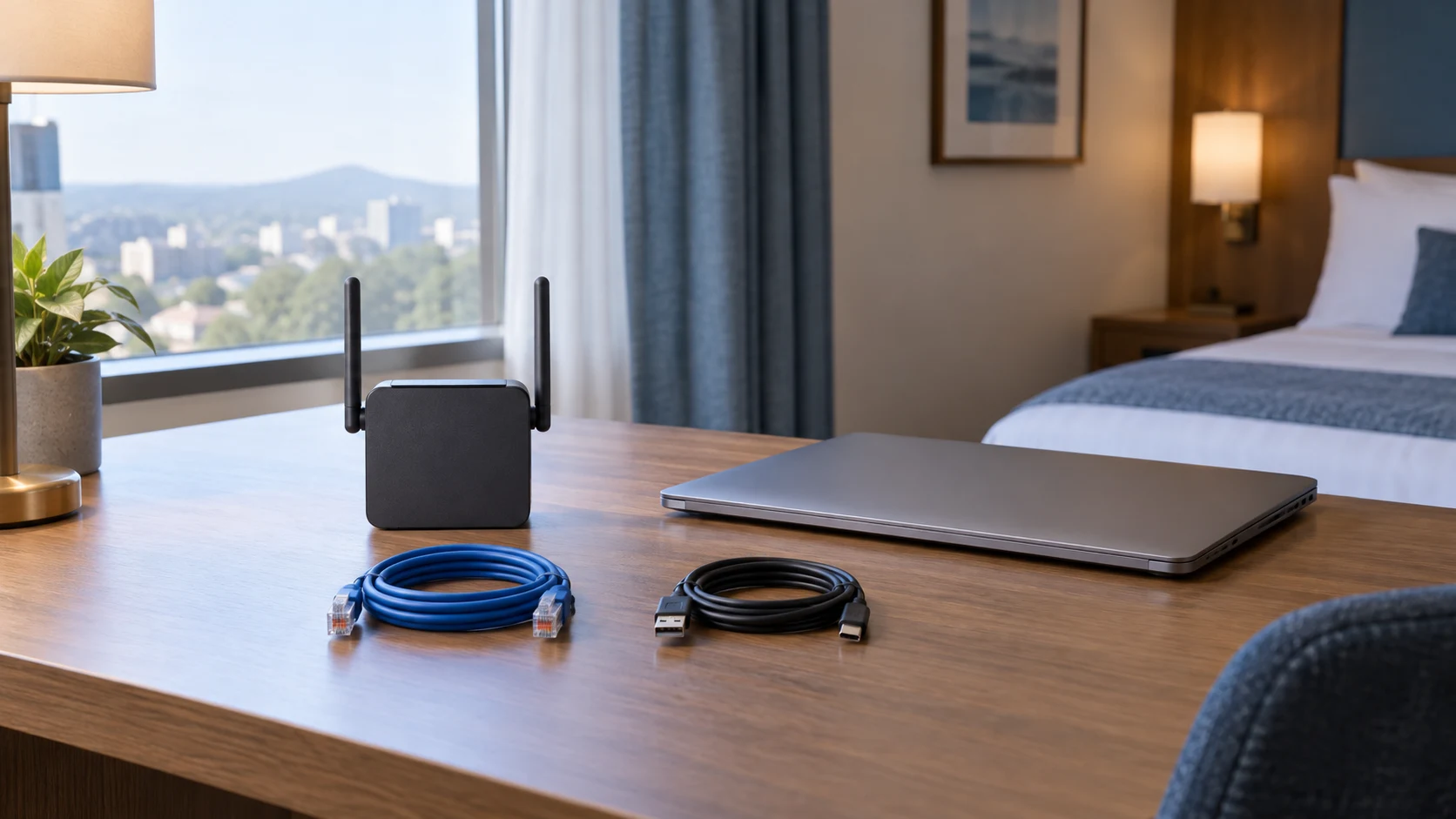
A laptop can join a travel router's Wi-Fi while the router still has no usable internet connection. Choosing travel router connection modes starts with the connection supplied at your destination: an Ethernet socket, an authorized Wi-Fi network, a phone's cellular data, or a compatible USB modem. The router then connects your own devices to that source. During arrival setup, check the upstream connection separately from the devices joining your local network. You can identify whether a problem belongs to the hotel's connection, the router's selected mode, or the laptop joining your local network.
Two actual offers illustrate these choices. The TL-WR1502X travel router lists several operating modes, phone tethering and USB file sharing. The GL-MT3000 Beryl AX offer emphasizes OpenVPN, WireGuard and its software environment. Both catalogue entries identify their brand as NOBRAND. Their literal model names allow you to look up documentation, but they do not establish the hardware revision or installed firmware of the delivered unit. This explanation uses the official TL-WR1502X V1 guide and GL-MT3000 documentation for the 4.x interface as version-bound examples.
Identify the internet source before choosing a mode
Write down what the destination actually supplies before packing. A room with an Ethernet socket calls for a different connection path from a café with Wi-Fi credentials. A phone carrying an active mobile plan can supply another path when its tethering feature and the router are compatible. A separate USB modem needs its own compatible hardware and usable service. These arrangements all feed an upstream connection into a local network; the presence of your router's network name on a laptop tells you only that its local wireless side is visible.
The distinction also helps when reading a portable router listing. The TL-WR1502X offer expressly says it is not a Mi-Fi device and requires a USB modem for its 3G/4G modem mode. A mode name therefore cannot stand in for an included cellular radio or service account. The existing guide to cellular-router service paths examines separate TravlFi and Puli products whose activation arrangements differ. Its relevant lesson is to establish the internet source and service first. Its SIM slots, batteries and failover descriptions belong to those products and should not be assigned to these travel-router offers.
Use the applicable manual for the unit in your bag
Before relying on a numbered setup instruction, read the model and revision on the unit and compare them with the manual's scope. The official TL-WR1502X V1 user guide is marked REV1.0.0. It warns that features and screenshots can vary with model, software version, location, language and service provider. The catalogue offer does not identify its hardware version. Treat the following TL examples as explanations of that documented version, then use the matching instructions for the unit you receive. A changed menu can be a version difference rather than evidence that the router is faulty.
The Beryl AX offer names OpenWrt 21.02, while the official GL-MT3000 instructions read here describe the GL.iNet 4.x administration interface. That documentation includes a System Overview with model and software information. Record those details before following its interface labels. This keeps a reference to a Repeater or Tethering panel tied to an applicable installation. The documentation can explain a connection method without proving that an older offer has shipped with the same menus. Avoid making a firmware change merely to make a screenshot match while you are trying to get online.
Choose the wired role for a hotel Ethernet connection
In the TL-WR1502X V1 guide, Router mode shares an existing wired connection with the devices joining the travel router. The hardware sequence starts with the mode switch at Router and the existing network connected to WAN. A laptop then joins the router over its Wi-Fi or LAN connection, and Quick Setup completes the internet configuration. This assigns a clear job to each cable: the destination's network enters on one side, and your client device connects on the other. Plugging the laptop into whichever socket is convenient can obscure that distinction.
The same guide gives Access Point mode a different purpose: turning an existing wired network into wireless access. Its example starts with an existing router and uses the AP/RE switch position. The guide says that hotel authentication in Router mode is performed once on one device, while in Access Point mode each device needs authentication. That is a documented distinction to check against the applicable version and the property's network rules. It is not a promise that every hotel accepts either arrangement. Ask which connection the property permits and use its normal sign-in process rather than planning around an assumed device-limit workaround.
Port roles can also change with the mode. For the documented TL version, WAN remains WAN in Router, USB modem and USB tethering modes, but serves as LAN in Hotspot, Access Point, Range Extender and Client modes. The separate LAN socket is listed for wired clients. Read the socket label together with the selected mode. The existing guide to router wired-port choices discusses different home routers and shows how cable roles affect a network plan. Its specific port counts and rates do not describe these travel units.
Hotel Wi-Fi router setup needs the upstream network
For hotel Wi-Fi router setup, the TL V1 guide describes Hotspot mode as turning an existing public Wi-Fi connection into a local wired and wireless network. The switch is set to Hotspot, the router is powered on, and a client connects to the travel router before Quick Setup selects the upstream connection. If that public network requires captive-portal authentication, the guide places completion of that sign-in within Quick Setup. The upstream network's password and its browser sign-in are separate requirements; knowing one may leave the other unfinished.
GL-MT3000's 4.x guide calls its existing-Wi-Fi connection path Repeater. On the Internet page, the user chooses Connect in the Repeater section, selects an available network, supplies its password and applies the choice. The guide says a green dot appears in that section after successful internet connection. These labels belong to the documented GL interface, so they should not be used as a literal menu map for the TL unit. The GL overview also links to further captive-portal guidance, but that linked procedure is outside the sections used here. Follow the applicable detailed instructions when the destination presents a sign-in page.
Keep a simple record of the property's approved network name and access instructions. Joining a similarly named network is a different connection, and troubleshooting your router will not correct a mistaken selection. After the upstream connection is established, open a normal internet page from one of your clients and check the work you need to do. A local administration page can remain reachable when the destination has no usable internet. Treat that as useful access to the router's controls, then inspect the selected upstream path instead of repeatedly changing the client's Wi-Fi password.
Travel router phone tethering uses a data connection
Travel router phone tethering uses the phone as an internet source. In the TL V1 guide, the physical switch remains at Router for USB Internet, and Quick Setup distinguishes USB Tethering from 3G/4G USB Modem. The guide specifically tells the user to avoid connecting the tethered phone to the router's Wi-Fi. The phone is supplying cellular data through USB in this arrangement. Your laptop or another client joins the travel router separately. Keeping the source phone and the receiving clients straight prevents you from mistaking a local wireless connection for the intended cellular path.
In GL-MT3000's documented 4.x sequence, the mobile device connects to the router's USB port using a USB cable. USB Tethering is enabled on the mobile device, then Connect is selected in the Tethering section of the router's Internet page. Its green indicator marks a successful internet connection according to that guide. Before depending on this at a remote stop, rehearse with the actual phone, cable and permitted mobile plan. The TL documentation explicitly says USB internet sharing depends on modem or mobile-device compatibility and is not guaranteed for every device. A connector that physically fits does not answer that compatibility question.
A cellular USB modem follows its own path. The GL guide describes inserting the modem into USB to share its connection with clients; the TL guide treats a modem and a phone as different USB Internet choices. Bring the applicable modem instructions and verify service for the location. Do not buy a bare router on the assumption that selecting Cellular or 3G/4G supplies a modem, SIM or data allowance. If phone tethering is your fallback, keep the phone and its usable plan part of the travel kit rather than treating the router alone as the backup connection.
Client mode and coverage extension solve other jobs
The TL V1 Client mode example connects a wired-only device to an existing Wi-Fi network. The travel router acts as an adapter for a television, media player or similar Ethernet device. The documented setup uses the AP/RE switch position and a computer connected by cable. After configuration, the wired-only device attaches through WAN or LAN. The guide expressly says clients connect only by wire in this mode. Someone expecting a new local wireless network for several phones should therefore verify a different applicable mode instead of treating Client as a general synonym for travel Wi-Fi.
The same version's Tether application does not manage Client mode; its web management page is required. Range Extender mode, meanwhile, repeats an existing wireless network for a coverage-extension task. Its Quick Setup can copy or customize extended network names, with the main network's Wi-Fi password retained in the documented example. Client mode supplies a wired adapter; Range Extender serves the documented coverage task. A hotel-arrival plan should identify whether you need a local network, an Ethernet adapter or permitted coverage extension before selecting a mode by a familiar-sounding name.
Separate power, administration and local credentials
The TL V1 port description assigns USB-C to the supplied charger and the separate USB 2.0 socket to a modem, mobile device or storage device. Those are different physical roles. Its guide recommends the supplied power adapter and warns of device damage with other adapters. The GL-MT3000 guide also starts by assembling and connecting its power adapter. Neither portable wording nor a phone-tethering feature demonstrates unplugged battery operation. Pack the appropriate power equipment and place the router where its cables and outlet can be used safely, following the applicable placement instructions.
Set up management access before the trip, while you can identify the unit and read its instructions comfortably. The TL V1 web setup asks for a management login password; the GL 4.x guide asks the user to choose a language and set an administrator password. Local Wi-Fi credentials serve another role: they connect your laptop or phone to the router. Both guides explain that a changed wireless name or password requires clients to reconnect using the new details. Write down which credential belongs to administration and which belongs to joining your network so an ordinary reconnect does not become an unnecessary reset.
Add a VPN after the connection works
The Beryl AX offer lists OpenVPN and WireGuard client and server capabilities, with an active subscription required for its advertised service-provider use. A VPN client connects outward to a VPN service or another configured server; a server provides access into a network. The official GL overview distinguishes those purposes and links to separate setup instructions. Choose the role required by your actual account or work arrangement. This article does not supply the linked configuration procedure or establish compatibility with an employer's system. Keep those instructions beside the account details before depending on the feature away from home.
The offer's 150 Mbps OpenVPN and 300 Mbps WireGuard figures come with a local-network testing caveat and a warning that real conditions differ. They cannot predict hotel throughput. Establish ordinary internet access first, then apply the applicable VPN configuration and check the same intended task again. That sequence makes a loss of access easier to locate: the upstream path worked before an additional configuration was applied. It also avoids blaming the local Wi-Fi standard for a service or VPN setting. A privacy feature needs working configuration and appropriate software; its presence in a title does not certify every connection.
Rehearse the arrival path with one real client
Before departure, test the primary method with the equipment you will carry. Connect one client, confirm that it can reach the router's administration interface, establish the chosen upstream path and perform a representative internet task. For a tethering fallback, use the actual phone and cable rather than a different device available at home. Record the working mode and the relevant software version. On GL's documented interface, the Clients page can identify connected devices and their connection type, helping separate the laptop that joined locally from the upstream connection supplying its traffic.
At the destination, repeat that short sequence using the property's authorized connection. If it fails, retain the selected mode, upstream network, status indicator and exact observed symptom before changing settings. Check the matching documentation at the point where the expected result stopped. This gives travel router connection modes a practical purpose: you arrive with a named connection path and can distinguish its parts. A successful rehearsal prepares the equipment and its owner; the destination's access rules, available service and actual conditions still determine whether that path works there.
Illustrative travel router connection modes scene: an unbranded pocket networking device beside a closed laptop and separate coiled cables on a hotel writing desk, with no displayed interface or asserted model configuration.