Computers & Gaming
sliding keyboard tray mouse setup: map the full movement first
A side mouse platform and a shared tray need different layouts. Trace your real devices and the tray motion before installation.
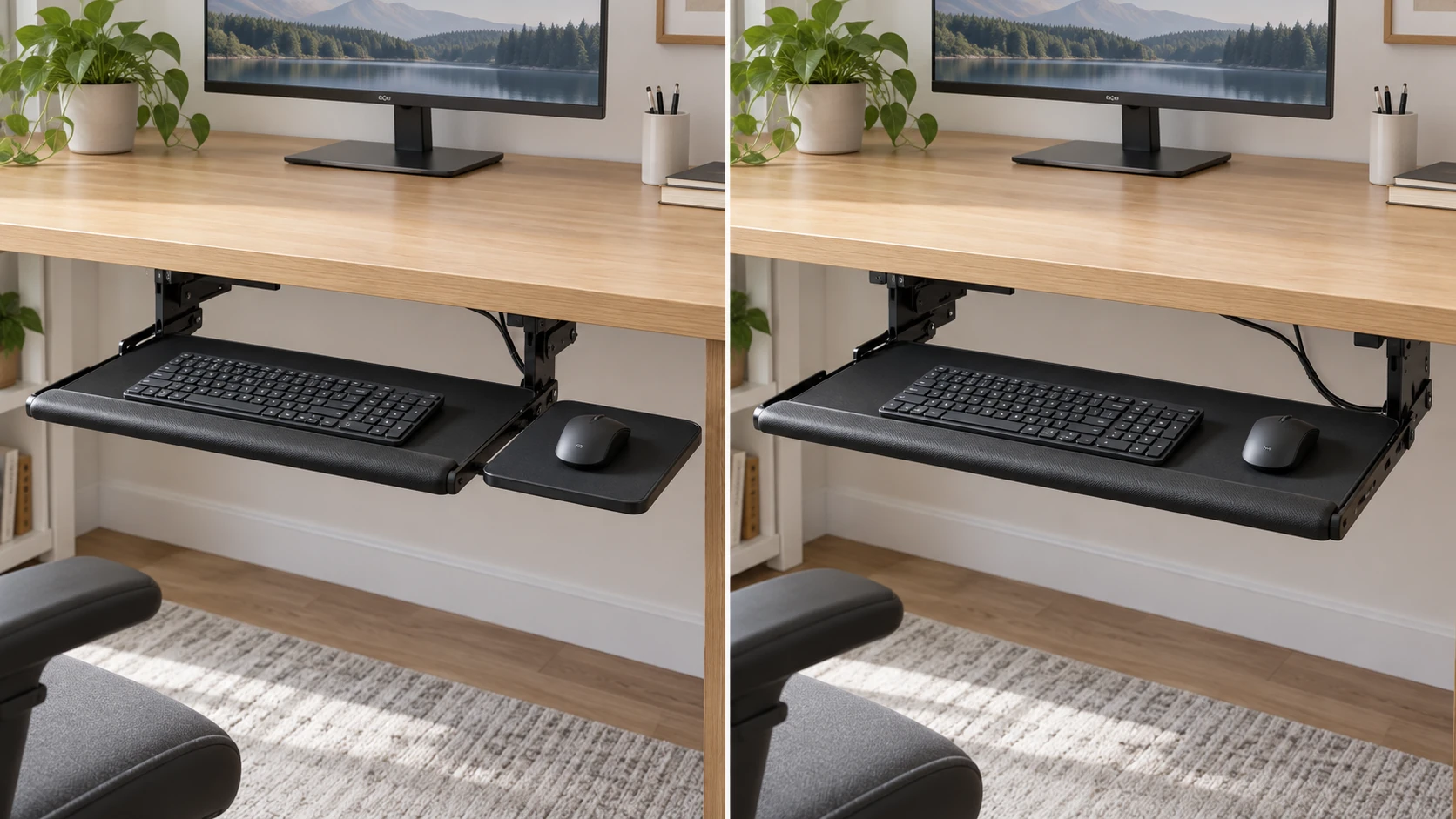
A sliding keyboard tray changes where the keyboard and mouse live during a work session. Before attaching one, lay out the devices you actually use and decide where the mouse should sit. One of the two offers here provides a separate mouse platform that can be placed on either side; the other shows a broad shared surface. They solve the same space problem in different ways. The setup begins with your hand position and the tray's movement, then checks the desk and the maker's installation instructions.
Step 1: measure the devices you own
Measure the keyboard's full width and depth, including any attached wrist rest or side controls. Do the same for the mouse pad or area you normally use for mouse movement. A product photo with a compact keyboard does not tell you how a full-size or split keyboard will fit. Put your devices on a sheet of paper and trace their outer footprints. Leave space for your hands rather than packing the objects edge to edge.
The sliding tray with an adjustable mouse platform states a 21-inch-wide keyboard platform and a mouse platform that can mount on the left or right. That gives you an initial width to compare with your keyboard. It does not provide a complete usable mouse travel area in the saved description. Measure your device and ask for a current platform drawing if the side surface is a deciding factor.
The clamp-mounted shared platform is described as a wide surface for both a keyboard and mouse. Its saved description contains broken phrases where exact width and depth numbers should be. Do not invent those dimensions from a gallery image. Get the current model's usable platform dimensions and overall clamp span before deciding that both devices will fit side by side.
The desk-pad dimensions guide discusses how a keyboard and mouse share a flat surface. A desk pad stays on the desk, while these trays slide under it, so its measurements are not tray specifications. Use its layout question, then apply your own device footprints and the exact chosen tray dimensions.
Step 2: choose the mouse side
If you use the mouse on the right, place a paper rectangle on that side of the keyboard and move your hand through its usual range. Repeat on the left if another person shares the desk or if you switch hands. A separate mouse platform can preserve keyboard width on the main tray, but it also needs side clearance as it moves. The first product describes a left-or-right platform. Confirm the maker's mounting orientation and usable space for the exact model before fastening it.
A shared platform asks a different question: how much space remains after the keyboard is placed? Put the keyboard in its intended position on your paper template and see whether the mouse area still allows ordinary movement. The second listing calls the platform extra large but omits complete numerical dimensions in its saved description. Ask for those numbers and compare them with your template. A large-looking product image is not a scale drawing.
Keep the user's posture in the trial without treating the listing's health claims as medical proof. Sit at your usual chair height and note where your elbows and wrists would be when the tray is fully extended. If you must reach sideways for the mouse or raise your shoulders to clear the desk, change the proposed layout. A tray may be marketed as ergonomic while still fitting poorly for a particular user. Comfort and fit need to be observed in the real workstation.
If two people share the desk, record both preferred mouse sides and keyboard positions. A reversible side platform may be useful, but it is not necessarily quick to move between sessions. Check the maker's instructions for how it attaches and whether a change requires tools. If the position is effectively fixed after installation, choose the side that serves the primary user or look for a layout that works for both. Do not assume “adjustable” means every component can be shifted during use.
Step 3: map the slide path
Place removable marks at the desk edge where the tray would attach. Estimate the stored and extended positions using the current product drawing. Check the path under the desktop for drawers, crossbars, cable trays, a chair arm, desk legs and the user's knees. The first offer describes steel ball-bearing glide tracks; the second describes stainless slide rails and rolling balls. Those statements establish a sliding design, not a guarantee that either mechanism clears your particular furniture.
Move a chair through its normal range while imagining the tray extended. Can the chair roll close enough for typing? Will the mouse platform hit an armrest or desk leg? Is the walkway still clear when someone leaves the tray out? Mark any collision on your sketch. A tray can retract neatly and still be awkward in use if the working position has not been planned. Repeat the check with the keyboard and mouse footprints on the mock surface.
Look at the rear travel as well. A tray that stows under the desk needs a clear area behind the front edge. A drawer handle or support beam may not block the keyboard itself but may block a slide rail. The first listing does not give every rail and mounting dimension in the short description, and the second lacks complete usable-surface numbers. Obtain the installation drawing when the underside is crowded. The product gallery shows intended shape, not your desk's hidden obstacles.
For the clamp-mounted option, verify the edge shape and thickness with its exact current instructions. The saved description says it uses no-drill clamps but does not supply a reliable complete measurement for total clamp span. Another article's clamp range or a similar tray's photo is not a substitute. For the first tray, follow its specified mounting method rather than assuming that the second product's no-drill hardware comes with it. Treat installation hardware as model-specific.
Step 4: plan cables before mounting
If the keyboard or mouse has a wire, extend it to the proposed working position and see whether the cable reaches without tension. Then trace where the cable goes when the tray slides back. Keep it away from rails, clamp jaws and moving mouse-platform parts. An extra loop can solve a reach problem while creating a snag if it hangs near a chair or drawer. Plan a route using the actual device cords and the maker's instructions for the selected tray.
A wireless keyboard still may need a charging cable at times, and the receiver or host port may be located on the desk or computer below it. Mark those points on the same sketch. The product descriptions do not establish a cable management system for your whole workstation. The under-desk cable-tray guide covers a separate accessory and can help frame a cord route, but its mounts and dimensions do not certify these keyboard trays.
Do not route a cord through the path where the platform closes. Try the full planned motion with an unplugged cable before finishing the installation. If a cable must cross a moving part, look for the maker's approved routing method or choose a different path. A neat desktop is not useful if the cable is pulled each time the keyboard is stored. Leave service slack where the connected device moves, while keeping the excess out of walking and chair paths.
Step 5: set a working position
The first tray's native description names three height positions over a stated adjustment of up to 1.25 inches. That is a limited range, so compare it with the height you want before installation. The second listing describes a clamp-mounted sliding platform without a reliable specific height adjustment figure in its saved text. Ask for the current model specification if working height matters. A keyboard that is lower than the desktop is not automatically in the right place for every chair and user.
After installing according to the exact instructions, position the keyboard and mouse and move the tray slowly through its entire travel. Check that the side platform, if present, stays clear of the desk and that the cables do not pull. Sit and perform a normal short typing and mouse task. Notice whether the mouse remains reachable when the keyboard is centered. This practical check is more useful than assuming a single marketing photo represents the final setup.
Do not use a tray as a shelf for unrelated equipment. The saved offers here describe keyboard and mouse use; they do not prove a load capacity for every object a user might add. If you use a heavy keyboard or intend to put other items on the platform, obtain the current model's weight limit and follow it. Check that mounting hardware remains seated as the maker directs. If anything shifts, binds or feels unstable, stop using it until the cause is resolved.
Step 6: keep the setup usable day to day
Decide whether the keyboard will be stored under the desk at the end of each session. If so, leave a clear path for the mouse and any side platform to retract. Keep small loose items out of the rails and drawer path. The first product emphasizes a sliding keyboard surface and stowable mouse platform; the second emphasizes a broad clamp-mounted platform. Neither design will save space if the desk arrangement makes it difficult to push the tray back after use.
If the desk is shared, leave a short note with the chosen keyboard position, mouse side and cord route so another user does not force a component into the wrong place. A tray that can be adjusted by the maker's method should be changed according to its instructions, not improvised while loaded. Review the setup if the keyboard, chair or desk changes. A different full-size keyboard can consume space that was previously available for mouse movement.
When you compare the two offers, keep separate rows for the keyboard surface, mouse surface, mounting method and stored depth. The first listing gives a keyboard width and a reversible side mouse platform. The second gives a shared platform but leaves useful numerical dimensions incomplete in the saved description. Ask the seller for the exact model drawing, then place those numbers beside your paper template. A missing number can decide whether the layout works. Do not substitute a measurement from a similar-looking tray or assume that the same brand's other model uses the same rails. The final setup should reflect the exact product that arrives.
Place the real keyboard and mouse on a measured template before choosing a sliding tray layout.
The decision is whether your devices, hands and cables have a usable place through the tray's whole travel. The first offer separates mouse space to either side and states a 21-inch keyboard platform; the second proposes one broad surface and no-drill clamps but needs exact dimensions confirmed. Follow the model-specific installation instructions after that layout check. If the device footprints or missing specifications leave the setup uncertain, resolve those measurements before drilling or clamping anything to the desk.