Troubleshooting & Repairs
Projector no image checks: BrightLink 575Wi and EF12 source steps
Follow matched Epson BrightLink 575Wi No Signal and EF12 no-image checks, keeping source selection, HDMI steps and refurbished-unit details with each model.
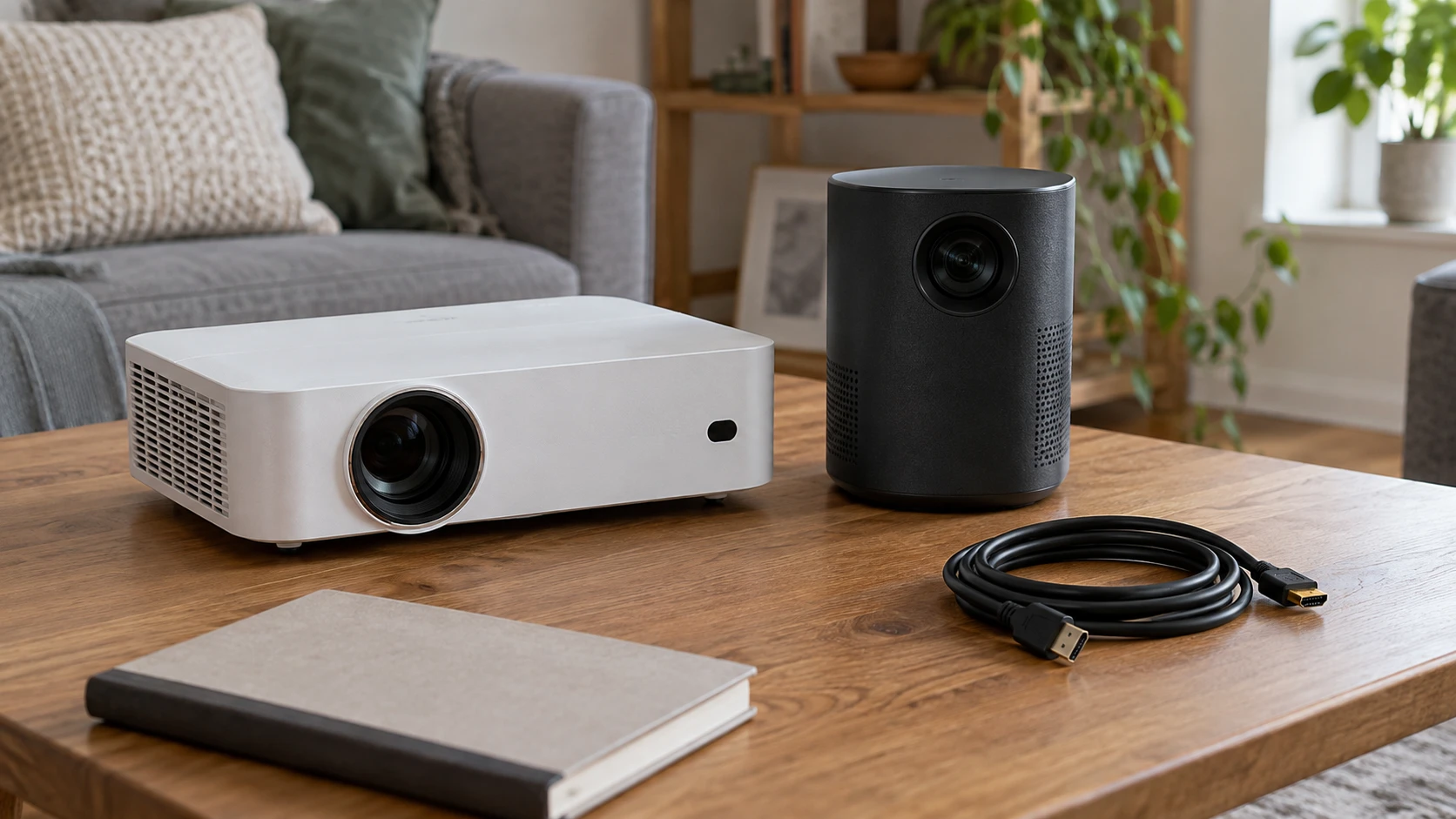
Projector no image checks begin with the message and the exact model. A BrightLink 575Wi showing “No Signal” has a documented source-search checklist. An EpiqVision Mini EF12 with no picture has a different Epson checklist, including its remote's Blank button and HDMI-specific questions. Use the instructions for the identified model when choosing a remote control or input.
These are checks from the respective Epson online user guides, applied to the two actual refurbished offers below. They do not diagnose a failed lamp, laser or internal component. If the status lights indicate a fault, use the corresponding model's status-light instructions before treating the absence of a picture as an ordinary source-selection problem.
Match the symptom to the projector in front of you
Read the projector's displayed message before changing the arrangement. A visible “No Signal” message is useful information: the display is showing a message while the intended source picture is absent. No visible image at all is a different observation. Write the wording you actually see, including whether a menu or message is visible, rather than reducing every situation to “the projector is dead.”
Identify the source as well. A connected laptop, an external video player and an online program are different starting points. Note which one you were trying to show when the picture disappeared. The same projector can present more than one kind of content, and a working home screen does not establish that a particular external video source is reaching it.
Use the identification on the actual unit to select its manual. The two retail records identify different Epson models and different refurbished offers. Their shared Home Theater catalog category supplies no common remote-button layout, input inventory or repair method. Keep any supplied accessory with the particular offer that names it.
BrightLink 575Wi source search for a No Signal message
The Epson BrightLink 575Wi refurbished offer identifies a white interactive WXGA 3LCD projector, SKU 14276873193 and UPC 723587508256. The listing calls its condition Grade B- (Good), restored and inspected for resale. Those statements identify the offered unit's condition account; they do not establish the cause of a picture problem on an individual projector.
For BrightLink 575Wi source search, use the “Solutions When ‘No Signal’ Message Appears” page in Epson's BrightLink 575Wi/585Wi/595Wi User's Guide. It gives the following checks for that message. Locate the named control in the applicable guide if its position is unclear.
- Press the Source Search button and wait a few seconds for an image to appear.
- Turn on the connected computer or video source. Press its play button to begin the presentation if necessary.
- Check the connection from the projector to the video sources.
- For a laptop, make sure it is set up to display on an external monitor.
- If necessary, turn the projector and connected computer or video source off, then on again.
After pressing Source Search, wait the few seconds specified before judging the result. The source also needs to be producing the intended content: an attached device that is turned off or has not begun playback leaves a different question from a device already playing a presentation.
The laptop check concerns its display arrangement. Epson's page provides separate links for displaying from a PC laptop and a Mac laptop. Follow the appropriate instructions for the actual computer; this guide does not substitute a universal keyboard shortcut. Different computers need their own display controls, so guessing from the projector model alone can leave the source question unresolved.
The connection check also belongs to the actual route. Identify the cable and connected source you are using before asking whether the route is established. A box containing several cable types does not prove that each cable has been connected to the correct device or that every possible source is supported.
Keep the restored BrightLink's package and lamp account visible
This offer names one power cord, a VGA cable, a USB 2.0 printer cable, an HDMI cable, a projector remote and one pen. It says the remote requires two AA batteries, which are not included, and that a mount is not included. If you cannot use a remote, its actual battery inventory is therefore worth confirming with the applicable instructions. This article gives no battery-fitting or mounting procedure.
The lamp account is specific to this restored offer. The listing reports 1,250 to 2,000 hours of moderate use and estimates approximately 50 to 75 percent or more of its lifespan remains. It separately states rated lamp life up to 10,000 hours in ECO Mode and up to 5,000 hours in Normal Mode. Record the usage range, remaining-life estimate and mode-qualified ratings separately.
A No Signal message does not turn those figures into a lamp-failure diagnosis. They also do not establish how many hours a particular delivered unit will provide. If source search and the documented checks do not resolve the message, seek the next model-specific check with the actual unit's information. Do not replace a lamp merely because a refurbished listing contains a remaining-life estimate.
EF12 no image troubleshooting starts with its own controls
The Epson EpiqVision Mini EF12 refurbished offer identifies a black 16:9 projector, model V11HA14020-N, SKU 1654298004 and UPC 010343959231. Its description names a MicroLaser light source, 3LCD imaging, Android TV, Chromecast and Yamaha-designed audio. This is a different product account from the BrightLink's lamp and supplied-cable inventory.
For EF12 no image troubleshooting, Epson's EF12 User's Guide has a “Solutions When No Image Appears” page. Start by checking its status light to confirm normal operation. The page then tells you to press the remote's Blank button to see whether the image has been temporarily turned off. That is a named EF12 check; the BrightLink No Signal page above names Source Search instead.
The EF12 page also says to make sure all necessary cables are securely connected and that the projector and connected video sources are powered on. It suggests trying a shorter HDMI cable and trying the video source connected directly to the projector. These are concrete alternatives for a connected-video problem, not proof that an existing cable or intermediary is defective.
If the projector is in standby or sleep mode, the page directs you to press its power button to wake it. It also asks you to check whether a connected computer is asleep or showing a blank screen saver. Keep those two devices' states distinct: waking one does not establish that the other is already sending an image.
Selecting the intended EF12 image source
The EF12 guide also has a separate “Selecting an Image Source” page. It first asks you to make sure the connected image source is turned on. For a video source, insert the relevant video media and press play if necessary. Then press Source Search on the remote and use the up or down buttons to select the image source. Its note says to check the cable connections between projector and source if no image signal is detected.
Check which input you selected while investigating the missing picture. Use it for the actual connected image source, keeping the EF12 button instructions with the EF12. The shorter BrightLink No Signal checklist above does not supply this EF12 up-or-down selection sequence.
Follow the EF12 HDMI and computer checks that fit your source
Epson's EF12 checklist says the connected device should meet the HDMI CEC standard and refers you to that device's documentation. If necessary, it says to set the connected device's CEC function again and restart the device. Use the actual source documentation for that operation; this article supplies no invented menu path or promise that every source has an identical setting.
The checklist also says to turn off the projector and the connected streaming device or video source, then turn them back on. It separately addresses a computer connected by HDMI: turn off the computer and projector, make sure the HDMI cable is securely connected, turn the projector on, then turn the computer on. Preserve that stated order when following the computer-specific instruction.
The guide says to make sure the connected device does not require MHL, because the EF12's HDMI port does not support MHL. That is a specific compatibility boundary. A connector that can physically be joined does not settle whether the required signal method is supported. Record the actual device and its stated requirement if this is the unanswered part of your arrangement.
For a laptop, the EF12 page again requires it to be set up for an external monitor. It also says the computer's display resolution must stay within the projector's resolution and frequency limits, with any change made using the computer manual. Consult the EF12's supported-format information for the exact limit; the retail phrase “accepts up to 4K sources” is not a complete resolution-and-frequency table.
Separate online content from an external picture problem
When the missing image concerns online content, the EF12 checklist asks whether there is an active Internet connection. Its retail description names viewing services, but those names do not establish that an individual service, account or connection is working now. Identify whether the problem occurs in the intended online program, an external source, or both before describing it to support.
The GPX Scene+ and Aurzen ZIP source-planning guide distinguishes wired video, file playback and mirroring, including actual device exclusions in the Aurzen description. That makes the source route worth naming during troubleshooting. Its GPX ports and Aurzen mirroring permissions do not establish either Epson's connection options or supply an Epson button sequence.
The XGODY N6 and VANKYO L570S guide keeps native image resolution separate from accepted 4K input and asks for exact supported formats. The same distinction helps explain an EF12 computer-format question. The other projectors' port inventories, applications and correction settings remain their own; they cannot fill an Epson manual's missing detail.
Use the next documented step when the picture remains absent
The EF12 no-image page ends by suggesting resetting all projector settings through its Reset menu if the other solutions fail. Because this affects all settings, consult the complete applicable manual before deciding to use that option. This article does not give a guessed reset sequence or present it as the first check for every absent picture.
If the problem persists, keep the exact model, displayed message, source device and checks already performed together for the next support conversation. For BrightLink 575Wi, say whether Source Search changed the No Signal message. For EF12, say whether Blank, power-state checks or the applicable connected-source steps changed the result. Report the observed outcome without assigning an internal-component diagnosis the checklist has not established.