Troubleshooting & Repairs
Phone charges but files do not transfer: check the USB path
If a phone charges but files do not transfer, separate power, data support and the complete phone-to-computer route before choosing another cable.
If your phone charges but files do not transfer, the charging observation does not identify which part of the file-transfer connection is missing. Power and data have separate entries in a cable specification. The computer, phone and any dock or adapter also have roles in the complete arrangement. Check what the intended route supports before choosing another cable.
The Auto Drive Black USB-C and StarTech UCC-3M-10G-USB-CABLE offers both state data support alongside charging. Neither is described here as charge-only. Their different stated data rates and construction provide examples of what a cable description can establish, while leaving the actual phone, computer and transfer method to check. This guide provides no device reset, driver installation, permission change or repair procedure.
Describe what happens after charging begins
Begin with the part of the task that remains unfinished. Does the intended computer recognize the phone through the proposed route? Are the wanted files unavailable through the intended method, or does a transfer start without completing? These are different observations. Keep the one you actually saw instead of turning every unsuccessful result into a general statement that the cable cannot carry data.
A file-transfer task also needs its direction and destination. Moving selected photographs from a phone to a computer is a different request from showing video on a monitor or charging from a wall supply. Name the actual phone and computer involved. An available socket on another device may serve another function, even when the connector appears familiar.
Use the existing observation and the applicable device documentation to identify the next question. A charging indication can remain a useful fact while file access stays unresolved. It does not establish that the computer is the device supplying that power through a data connection. A wall charger, a display, a dock and a computer should not silently exchange roles in the explanation.
Charging power and USB data support
Read charging power and USB data support as separate claims. The Auto Drive entry states 60W charging and data transfer up to 480 Mbps. StarTech states 60W Power Delivery and up to 10 Gbps data. The shared power figure does not make the two data statements identical, and a larger data figure does not establish a complete working route for your phone.
The rates are source-stated capabilities, without a matched photo-copy test here. Neither description supplies a completion time for your files, computer, phone or application. File size and the rest of the arrangement remain relevant. Do not convert a maximum cable rate into a promise that a particular folder will finish copying in a calculated number of seconds.
Likewise, the fact that both entries name data support prevents a charge-only diagnosis based on these descriptions alone. A failure with one of these cables still needs its actual context. The missing part may concern the host connection, a device requirement or the intended transfer method. The catalog does not identify that cause from a charging observation.
The Auto Drive description names both roles
The Auto Drive Black USB-C cable offer identifies SKU 15334371422 and an eight-pack. Its description names a braided, reversible design with a 90-degree right-angle connector and a length of 6 feet, also written as 1.8 meters. The right-angle shape concerns the physical connector arrangement. It supplies no clearance measurement for the phone case or desk you have.
The stated capabilities are 60W charging and up to 480 Mbps data transfer. The named compatible devices include Samsung Galaxy S10, S10E, S9, S9 Plus, S8 and S8 Plus, LG G6 and G5, and the Moto Z series. That list does not cover every later phone from those brands. Check compatibility for your own model if it is not named.
The description mentions use while gaming, watching videos and reading e-books. That usage wording does not establish a video-output feature to an external display. It also does not provide the phone-to-computer file-access instructions. A person using the phone while it receives power is a different subject from a computer receiving files through the complete connection.
The StarTech account adds active-cable and video claims
The StarTech active USB-C cable, UCC-3M-10G-USB-CABLE is described as 3 meters, with 9.8 feet in the description and 10 feet in the title. It states bidirectional 10 Gbps data and 60W Power Delivery. Its active re-timer chipset is described as supporting signal integrity over the stated distance. These are the offer’s capabilities and design claims, without a trial of your setup here.
StarTech also names DisplayPort 1.4 Alt Mode and several video modes, including 8K at 60 Hz and stated 4K modes. The detailed mode account includes conditions such as DSC. Those video modes have their own connection requirements. They do not turn every USB-C socket on a phone or computer into a compatible video output, nor do they explain why photographs are unavailable to a file-transfer application.
The entry names USB 3.2 Gen 2, Power Delivery 3.0 and an E-marker claim, and lists USB-C laptops, mobile devices and iPhone 15 or 15 Pro among compatible devices. Its broad compatibility language still needs the actual host and task. A cable capable of several roles can be considered for those roles without assuming that each device supports every maximum mode at once.
The complete phone-to-computer connection
For the complete phone-to-computer connection, identify each participant and its purpose. Put the intended computer at the receiving end of the photo task and the actual phone at the other end. If the route includes a monitor, dock, hub or adapter, name it as well. Follow the documented data route between those two devices, including each intermediary.
A monitor’s socket deserves particular attention in a shared desk. The display may be attached to one computer while the phone is expected to exchange files with another. Charging at that desk would not establish that the intended computer receives the phone’s data. Use the display and computer documentation to identify the actual host relationship instead of assuming every nearby port reaches the same machine.
The OWC Thunderbolt 3 and Dell UD22 desk-connection guide distinguishes a USB-C-shaped connector from the host functions behind it. Its actual dock discussion also separates host, video and peripheral connections. For a phone routed through a desk device, identify the host and the port’s stated function. Neither dock’s charging figure or connector count confirms a photo-transfer route for these cables.
The SSL CONNEX and HyperX QuadCast 2 connection-check guide describes a USB device that can be connected and lit while its intended application receives no voice. It also notes that QuadCast 2’s USB-C label does not certify every cable or dock. That actual device-and-application distinction helps separate power from a completed task here. Its microphone controls and model-specific connection instructions do not become phone file-transfer instructions.
Match the next action to the actual device instructions
Once the route is identified, consult the applicable information for the phone, computer and transfer method you intend to use. The two cable descriptions do not supply operating-system menus, access permissions or file-management instructions. A remembered procedure for another phone may address a different arrangement. Keep the action with the actual devices and current instructions that support it.
A missing device entry on the computer and a file-copy error after recognition also deserve different support questions. The first observation concerns establishing the intended device path. The second includes a path that has reached a later stage, with the copying task still unfinished. Neither observation alone identifies a defective cable. Preserve the actual error or result without inventing a hardware cause.
If a computer is managed by an organization, its applicable device and software rules are part of the arrangement. A retail cable claim does not establish permission to change them. Obtain the supported route for that computer rather than installing an unrelated utility or applying an unverified setting change. This guide does not provide those actions.
Two similar complaints can lead to different decisions
In a hypothetical first case, the phone receives power from a desk display while the intended receiving laptop’s relationship to that display is unknown. The useful next answer concerns the host route. Buying the cable with the higher stated rate would leave that relationship unexplained. A cable selection can wait while the actual connection requirements are established.
In a second hypothetical case, the intended computer recognizes the phone through a documented supported arrangement, but the desired photographs are unavailable through the chosen method. That observation belongs with the device and file-access instructions for that task. It does not erase either cable’s data claim or demonstrate that a faster-rated replacement will make those files available.
Neither hypothetical case supplies a repair demonstrated on these cables. A useful result should concern the original task on the intended devices: the wanted files become available through the supported route and the agreed transfer completes. A charging indicator, a higher rate on a package or success with another task is a different result.
Choose a cable after identifying its required role
If you are considering either cable through republeq.com and prefer crypto such as USDT, first establish the connection role the purchase must serve. Read the payment methods actually offered for that order at checkout, along with the conditions that apply, before selecting an available method you understand. A guide mentioning USDT does not establish acceptance for a particular transaction. If the option is absent, leave it out of the purchase plan. Keep Auto Drive’s stated charging and data capabilities distinct from the actual phone model and the rest of the route. For StarTech, keep its active-cable, data and video claims with the requirements behind the intended task. Payment preference cannot turn a charging observation into a successful file-transfer result or confirm an unsupported host connection. Check the actual condition, package contents and return terms for the selected offer. The Auto Drive eight-pack wording concerns the package, while StarTech’s length and model reference identify a different offer; neither establishes how the devices will expose photographs to an application. If a different cable, adapter or computer becomes part of the proposal, revisit the compatibility information affected by that change. Keep any delivery estimate separate from a promise that an unresolved transfer will be ready for a particular appointment. A purchase confirmation belongs with the order records. The device-specific support question should still describe the actual phone, computer, route and unfinished task. Paying with USDT, another offered method or postponing the purchase adds no diagnostic evidence. Return to the supported connection requirement before deciding whether a replacement cable addresses the problem you observed.
When a phone charges but files do not transfer, keep the successful power observation and the unfinished data task distinct. Both selected cables state data support. The next useful answer should explain the actual route or task requirement that remains unresolved, followed by a result on the intended devices. Choose a replacement only when its documented capabilities address that requirement.
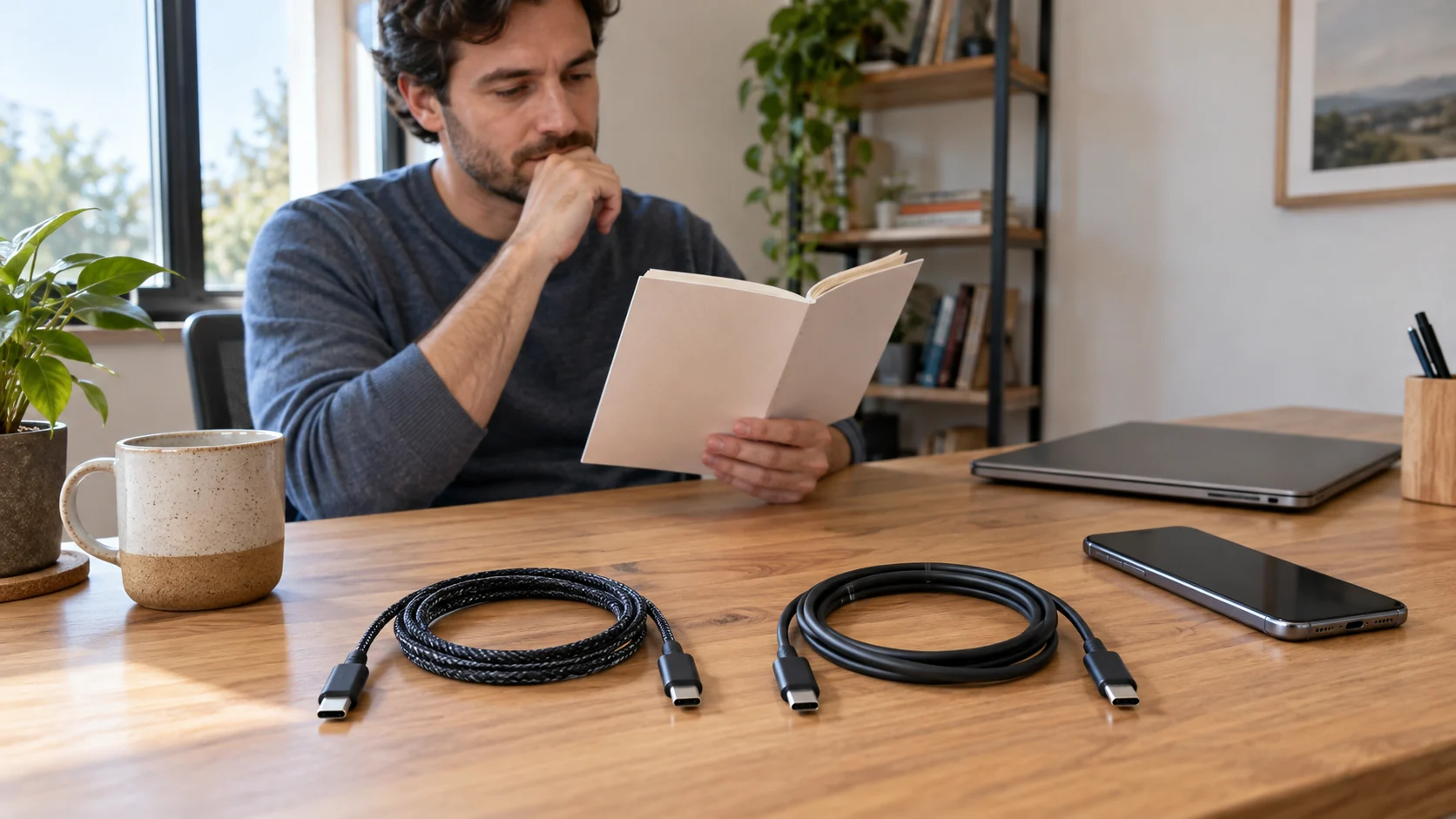
Conceptual editorial scene for a case where a phone charges but files do not transfer, with whole generic cables and unused devices; no exact model or tested connection is depicted.