Audio Production
USB microphone has no voice in a call: checks for SSL CONNEX and HyperX QuadCast 2
Check SSL CONNEX and HyperX QuadCast 2 mute, selected input and headphone monitoring when your voice is absent from a call.
A microphone can be connected and lit while the meeting application sends no voice. If your USB microphone has no voice in a call, first check the selected input and the two separate mute controls: the microphone itself and the application. The actual Solid State Logic CONNEX and HyperX QuadCast 2 offers have different onboard controls. Identify your delivered model before applying a remembered instruction from another USB microphone.
These checks follow the actual CONNEX and QuadCast 2 voice controls and the selected meeting input. The CONNEX Quad offer is listed at $124.99 under USB Microphones. The black QuadCast 2 is $149.99 under Podcasting Bundles, model 872V1A6#ABA. The $25 difference is a captured purchase detail, not evidence that replacing one with the other solves a silent call. Establish where the current voice path stops before ordering more equipment.
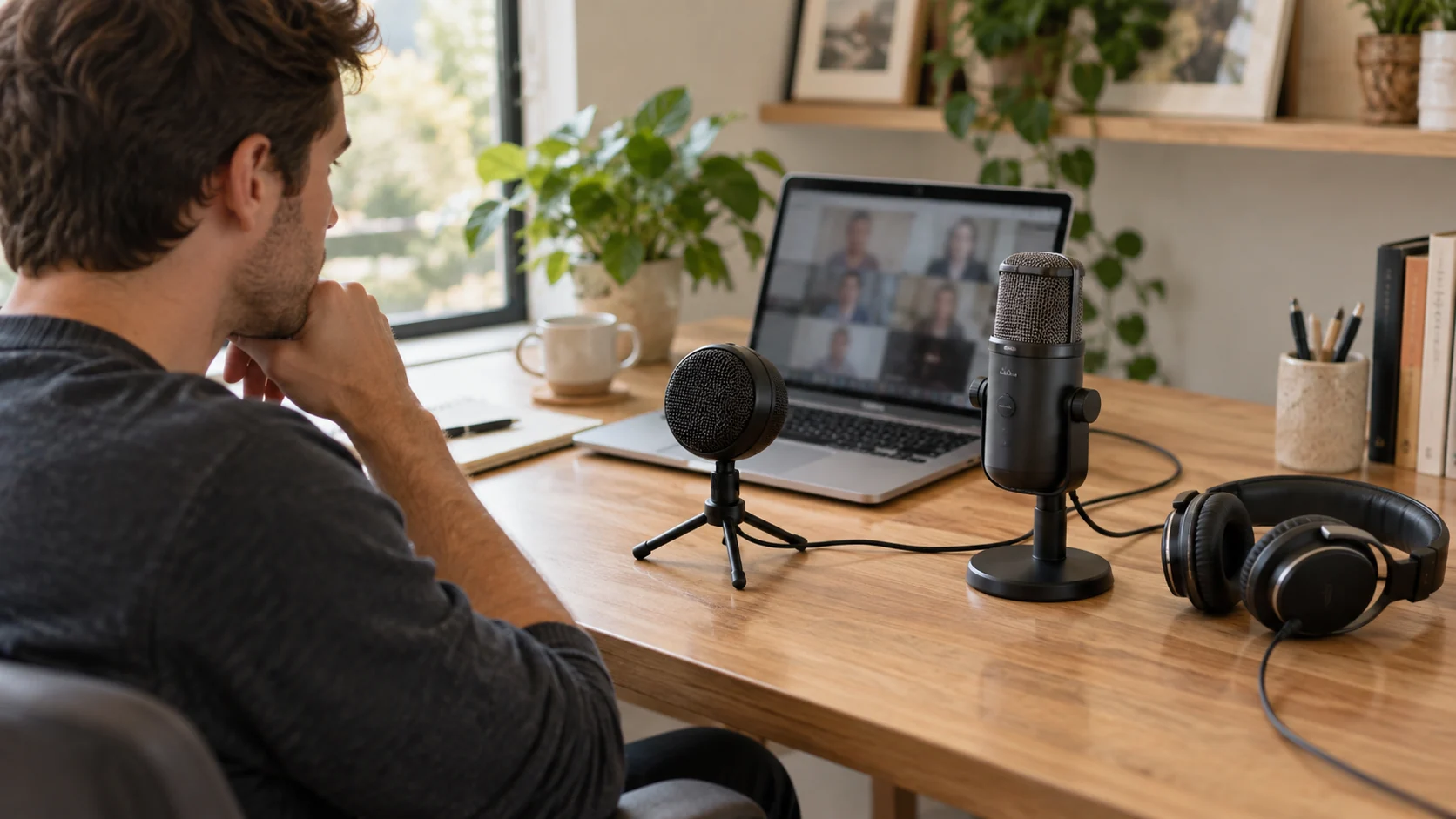
Conceptual editorial illustration of generic USB microphones and headphones at a computer desk; not photographs of the actual models, their exact controls, included parts or a demonstrated repair.
Begin microphone mute and input selection with the exact unit
The Solid State Logic CONNEX Quad offer identifies SKU sku-2064371358 and UPC 878076001692. Its brief shopping description does not give a setup procedure. SSL's actual CONNEX support instructions supply the relevant mute and input checks. Use the retail SKU to identify the delivered CONNEX, then follow its manufacturer mute and input instructions on that unit.
The HyperX QuadCast 2 offer identifies a tap-to-mute sensor on top, a status LED and an onboard multifunction knob. That knob adjusts microphone gain, playback and monitoring volume, and selects among four pickup patterns. Its description also names USB-C connectivity. Those different functions matter when the microphone is silent: turning a control without knowing its selected function may change headphone listening rather than the voice input.
Before troubleshooting, note whether the unit is CONNEX, QuadCast 2 or a different model. Check the product name on the delivered equipment or its accompanying instructions. QuadCast 2 S and older QuadCast products should have their own documentation. This guide does not transfer a lighting color, software instruction or control sequence from one of those alternatives. If the equipment name does not match, obtain its exact instructions before continuing with a model-specific action.
Write down which part of the call is silent
Start with the observation that another participant cannot hear you. Record whether you can hear the other person, whether the application shows your microphone as muted, and whether its input meter responds when you speak. Those are three different observations. Hearing the call in your headphones does not establish that your voice is being sent. A moving meter also needs to be tied to the intended microphone rather than the laptop's built-in input.
Keep the computer and meeting application named in your notes. If the fault only occurs in one application, record that limitation instead of describing the microphone as universally broken. Likewise, a successful recording elsewhere does not prove every meeting configuration uses that same device. Identify the exact job you need to restore, such as a voice contribution in the application used for a scheduled appointment, and use that job as the final check.
If another person is helping, tell them which change you are about to make and ask for a clear observation afterward. There is no need to record a private meeting to establish whether ordinary speech reaches the other end. Use an appropriate test session or the application's supported audio test. Follow its privacy and recording rules. This article contains no hands-on result for either microphone and cannot certify a repair from the product name alone.
Check the CONNEX logo and the application's mute separately
SSL's no-sound support article identifies a red Solid State Logic logo as microphone mute. It instructs the user to tap the logo to toggle that state. Inspect the actual unit before making the change, then check the application again. Do not assume that clearing an application's mute button also clears the microphone's own mute. Each control can prevent the intended voice from reaching the call, so both need their own observation.
The same support article tells the user to ensure the video conferencing application is not muted, often indicated by a crossed microphone symbol. Use the actual application's control and inspect its new state. If the application prevents unmuting or the meeting host controls participation, follow the application's meeting rules. A device control is not a substitute for permission to speak in that session. Establish an ordinary permitted test before deciding that the hardware has failed.
For microphone mute and input selection, SSL also specifies the application's input as “Microphone - SSL Connex.” Locate the audio-device settings in the application you are using and compare the selected input with that instruction. Record the choice. If several microphones are connected, a generic working audio input may be the wrong one. A change to the computer's default does not by itself confirm what the current application has selected.
SSL's manual distinguishes a short tap from holding the logo. While muted, holding temporarily enables push-to-talk; release mutes it again. While unmuted, holding temporarily acts as a cough switch; release restores it. If speech appears only while your finger remains on the control, check that you have used the intended action. Follow the manual rather than treating a momentary change as a permanently restored microphone.
Use the QuadCast 2 controls for their stated jobs
On QuadCast 2, inspect the top tap-to-mute control and the indicated microphone status using the exact supplied instructions. Republeq's description identifies the status LED, but it does not provide a full color table for every configuration. The manufacturer says the top sensor mutes the microphone. Check its state and then inspect the application's own mute. Do not use the appearance of the grille lighting alone as proof that participants can hear you.
The onboard knob serves several jobs, according to the actual QuadCast 2 description. Before adjusting it, determine whether it is controlling microphone gain, playback volume, monitoring volume or pickup pattern. Gain concerns the microphone signal; the listening controls concern what reaches your ears. Follow the exact model instructions for selecting the adjustment. This guide does not invent a button-hold duration or LED sequence that the captured retail description does not supply.
If the selected application input is QuadCast 2 and mute is cleared, inspect the application's supported input test while making an ordinary spoken contribution. Change one relevant setting at a time and note the result. Avoid increasing every control together simply because one output is quiet. That makes it harder to know whether you changed the voice input, your headphone level or both, and does not establish which earlier setting caused the silence.
Republeq lists cardioid, omnidirectional, bidirectional and stereo pickup patterns for QuadCast 2. Confirm the selected pattern and the model's placement instructions for the person speaking. The list is not a promise that every pattern works equally well in every desk arrangement. Choosing a pattern also does not clear an application mute or select the right USB input. Set the control deliberately after identifying which voice and seating position the application needs to capture.
Separate headphone monitoring versus call audio
For headphone monitoring versus call audio, ask what you are hearing and where the headphones are connected. Your own voice through a microphone's monitoring path is a local listening observation. It does not prove that the conferencing application is sending that voice. Conversely, being unable to hear another participant can be an output problem while the microphone input works. Keep those directions separate so a listening adjustment is not mistaken for an input repair.
SSL's headphone-output support article gives a specific check when other participants are inaudible through CONNEX: select “SSL Connex” as the application's speaker or headphone output. It also says to inspect headphone mute and level. Apply that instruction to the output complaint it addresses. It is separate from selecting “Microphone - SSL Connex” as input when your own voice is absent. Record both selected devices if you are investigating both problems.
SSL's manual describes a front 3.5mm headphone socket and says a microphone built into attached headphones is not operational through that connection. Do not expect a headset's own microphone to become the call input merely because its plug fits that socket. Keep the intended voice source explicit. The supplied instructions govern the actual arrangement, and any adapter or different audio path needs its own verified compatibility rather than an assumption based on the plug shape.
The live buying guide to Sony and beyerdynamic case and cable upkeep discusses different wired headphones. Its useful connection question is which plug, adapter and cable serve the intended source. It does not give either USB microphone additional outputs or supplied headphones. Check the actual listening parts in your arrangement without importing that guide's package contents or headphone specifications.
Check the computer connection before declaring a failed microphone
Inspect the USB route you are actually using, including any hub or adapter. SSL's manual recommends a direct spare computer USB port wherever possible for CONNEX. If you change that route, note the new connection and check the selected input again. A successful USB connection still needs the correct application device and mute state. Keep the route recorded so a later move back to a dock does not conceal which arrangement was tested.
For QuadCast 2, use its exact connection instructions and confirm any required adapter with the delivered package. The retail listing names USB-C connectivity, but this alone does not certify every cable or dock you own. If the intended device does not appear in the application's choices, preserve that observation and consult the model's current support instructions for the computer. Do not treat a missing entry as a reason to select an unrelated microphone and claim this one recovered.
Before changing software, identify the actual operating system and the supported route for the delivered model. HyperX's listing mentions NGENUITY for settings and lighting; that name is not a requirement to install an arbitrary download to fix every quiet call. Obtain any needed software from the manufacturer's current instructions. This guide supplies no unverified driver package, registry edit or operating-system menu sequence. Follow the application and device documentation for your actual versions.
Verify the person and task that matter
Once the intended input is selected and both mute states are understood, run the appropriate application audio test or a permitted test conversation. Speak from the seat used for the call. Check the application's response and ask the other end to confirm that your contribution arrives. If your headphones reproduce your voice but the application does not show the intended input, keep that disagreement in the notes rather than calling the microphone restored.
The live buying guide to a headphone bundle and multiple listening seats considers how many people need listening equipment. It does not establish how many voices either USB microphone can transmit. Here its relevant planning question is who must listen and who must speak during the actual session. A second listening seat is not automatically a second independent microphone input or evidence that a remote participant hears both people.
If the equipment is shared, leave a brief record of the chosen input and output, the normal mute action and the test that succeeded. The next person may use another application or change the computer connection. Have that person confirm the selection in their own session. The goal is a repeatable working contribution from the intended microphone, rather than a setup that only worked once while someone held a momentary control.
Keep unresolved evidence for the right support question
If the voice remains absent, stop describing the issue simply as low volume. Preserve the exact model, computer, application, USB route, selected input, mute observations and any test result. Explain whether the device is missing, its meter is inactive, or the other participant cannot hear an input that appears active. Those distinctions give the manufacturer or application's support team a more specific starting point than the microphone's price or advertised recording quality.
Consult current purchase and service terms for the actual order if support identifies a defective unit or the supplied parts do not match. The CONNEX and QuadCast 2 descriptions do not provide a common repair-turnaround guarantee. Do not open or modify the microphone to resolve an application-selection problem. Keep any replacement decision tied to the diagnosed requirement and confirmed delivered contents, rather than assuming that the captured $25 difference buys a solution to an unexplained silent call.
Return to the call task after the documented change. Confirm the intended microphone is selected, the device and application allow speech, and the actual listener receives it. Check listening output separately when required. Save the working arrangement with the exact model's instructions so it can be checked after the next move, software change or shared-desk handoff. Keep the successful application test with those settings, or send the remaining input and mute observations to the appropriate support contact.