Crypto Commerce
Philips 329P1H 31.5-inch 4K monitor vs KOORUI N07 4K monitors for desk and inputs
Compare Philips 329P1H 31.5-inch 4K monitor by desk fit, USB-C and video inputs, known refresh details, panel claims, ergonomics, and current offers.
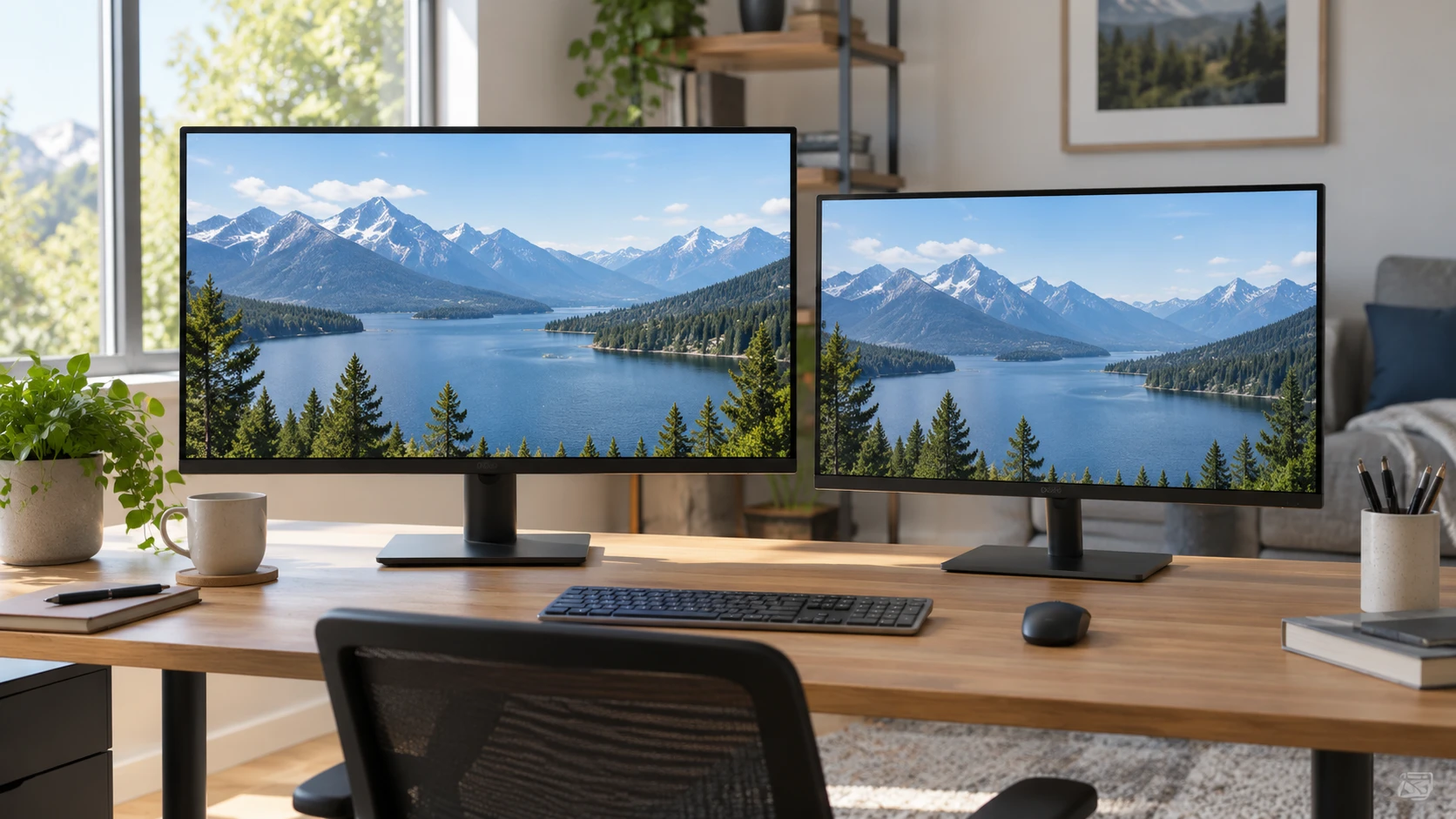
Both the Philips 329P1H and KOORUI N07 are listed at 3840-by-2160 resolution, but they put that pixel count into different screen sizes. Philips lists a 31.5-inch viewable panel and a USB Type-C connection. KOORUI lists a 27-inch IPS panel with HDMI 2.0 and DisplayPort 1.4 connections, plus an included HDMI cable. The larger screen may make it easier to place several windows side by side; the smaller one may fit a tighter desk while keeping the same number of pixels. The right choice depends on your viewing distance, computer output, and the adjustments you need from the stand.
The Philips 329P1H 31.5-inch 4K monitor is listed with a 75-hertz refresh rate, 350-nit brightness, and a 4-millisecond gray-to-gray response claim. KOORUI's entry names 90 percent DCI-P3 gamut coverage, HDR10 support, Adaptive-Sync, low-blue-light and flicker-free features, and picture presets. These are saved catalog claims, not measurements from one lab. Decide which capabilities your actual computer can use before ranking the figures.
Put the same pixels on the desk — 4K monitor display connection checks
At the same 4K resolution, the smaller 27-inch screen packs the pixels more closely than the 31.5-inch one. That can make fine detail look smaller at the same operating-system scale and viewing distance. Many people adjust text and interface scaling rather than read tiny menus. Try a 27-inch and a roughly 32-inch 4K screen at the distance your desk allows, if possible. The larger display gives physical room for wide documents; the smaller one may be easier to scan without moving your head as far.
Measure the desk and its surroundings. Screen diagonal alone does not tell you the width of a base, the depth of its stand, or the space a cable needs behind it. The KOORUI source says the panel has a near-frameless bezel suited to multiple monitors, tilts, and supports VESA mounting. The Philips short description does not detail its stand adjustments or mount pattern. Find the current drawings for the exact models before ordering an arm or deciding that either screen will clear a shelf above your desk.
Think about what sits beside the monitor. A laptop on a stand, notebook, microphone, or pair of speakers can crowd a narrow desk. A 31.5-inch screen can make a single-display workspace feel spacious, but it may push those other items farther away. A 27-inch screen can leave room for a second display, though a two-screen arrangement brings more stands and cables. The saved listings do not include complete installed footprints, so measure the whole setup rather than only the advertised diagonals.
The published guide on 4K monitor display connection checks explains why the connector on a screen and the output on a computer both matter. Apply that check here. List your laptop, desktop, console, and any dock you intend to use, then identify the video output and supported resolution and refresh modes of each. A 4K badge on the monitor cannot make an older source send a signal it does not support.
Read the ports without guessing — KOORUI N07 27-inch 4K monitor
Philips' saved description names a USB Type-C connection and says it can transfer data while reducing cable clutter. It does not state in that excerpt whether the port carries video, charges a laptop, or provides a particular power-delivery wattage. Check the current 329P1H port table and your computer's USB-C capabilities before assuming a one-cable desk setup. USB-C describes a connector shape that can carry different functions depending on the equipment at both ends.
KOORUI's saved entry specifically lists HDMI 2.0 and DisplayPort 1.4, and says an HDMI cable is included. That is useful if your computer already has one of those outputs. The excerpt does not list a USB-C connection, which leaves any such capability unverified. Confirm the exact port count and the supported mode table in the current manual. If you use a dock or adapter, include its limits in the path; the weakest link can determine the picture you get.
The included KOORUI HDMI cable may get a basic setup started, but the saved listing does not specify its length or certified bandwidth. Check that it reaches comfortably without putting strain on the connector and supports the mode you intend to use. Philips' short description does not identify an included video cable. Verify package contents for both current offers. A missing or unsuitable cable is a small cost, but it can turn the first evening of setup into a search through drawers.
If you frequently switch between work laptop and a personal computer, ask how input selection works. The saved descriptions do not give an input-switching workflow, built-in KVM details, or a complete port map for either model. Do not infer those conveniences from a USB-C mention or from multiple input types. Read the exact manual, then count how many cables and button presses your daily switch would require. That routine matters more than a port list you use only on installation day.
Separate motion and image claims — KOORUI N07 27-inch 4K monitor
Philips lists 75 hertz, which may feel smoother than a 60-hertz display when the source sends a supported 75-hertz mode. Its 4-millisecond gray-to-gray response figure is a manufacturer-style specification, not a complete measure of blur or input lag. KOORUI lists Adaptive-Sync to reduce tearing but does not give a refresh-rate figure in the saved excerpt. You cannot rank the two for motion from these descriptions alone. Find the current supported refresh range, response behavior, and input-lag testing if gaming is central to your purchase.
After connecting a new screen, check the computer's display settings rather than assuming the highest advertised mode is active. Confirm the resolution and refresh rate shown there, then use the monitor's own information menu if available. A dock, adapter, or older cable may expose fewer choices than a direct connection. The saved excerpts do not document those menus for these exact models, so use the current manuals for troubleshooting if the expected setting is missing.
KOORUI names Movie, FPS Gaming, and E-Book picture presets. A preset may change brightness, color, or other settings, but the saved listing does not document the exact changes. Philips' brief entry does not name comparable presets. Choose a screen based on how it looks after sensible adjustment for the room, not on the count of mode names. If you work with photographs, a controlled review or your own calibrated workflow matters more than a promotional preset.
The KOORUI description says its gamut covers 90 percent of DCI-P3 and supports HDR10. Gamut coverage describes a range of color, not proof of color accuracy. HDR10 support means the screen can accept or process that kind of content; the saved excerpt gives no peak-brightness, local-dimming, or contrast measurement to predict a strong HDR effect. Philips lists 350 nits of brightness but no equivalent gamut or HDR details in its short description. Compare independent measurements if image grading or HDR viewing is a priority.
Philips describes WLED backlighting and a 16:9 panel. KOORUI specifies IPS panel technology. The Philips excerpt does not identify its panel type, and the KOORUI excerpt does not give a measured brightness or response time. That leaves gaps in any direct image-quality comparison. Panel labels can suggest what to investigate, but viewing angles, uniformity, contrast, and reflections depend on the specific unit and room. If a screen will face a bright window, check surface finish and measured brightness under conditions like yours.
Make the screen comfortable to use — KOORUI N07 27-inch 4K monitor
KOORUI lists low-blue-light and flicker-free features intended to reduce strain during extended use. Philips' saved description does not discuss comparable eye-comfort settings. Neither listing proves that a person can work longer without discomfort. Set the screen at a suitable height and distance, control glare, and adjust brightness to the room. A VESA mount may help position KOORUI if the included stand lacks enough movement; confirm mount compatibility and the arm's weight rating.
A larger screen can encourage more open windows, but it can also make small interface elements hard to find at the edges. Try splitting a document and reference page in the layout you normally use. On a 27-inch 4K screen, a higher scaling setting may make text easier to read while reducing the amount of visible content. On the larger Philips, you may be able to keep several panes legible at a comfortable distance. These are workflow judgments rather than guaranteed advantages of either model.
The September 30 saved catalog marked both monitors available. Philips was listed at $716.01 and KOORUI at $323. Those historical prices may have changed. Check the current SKU, Republeq's catalog, warranty, returns, dead-pixel policy, stand and cable contents, and exact port specifications. The difference in price is substantial, but the saved descriptions do not prove that one has better measured image quality. Pay for the size and connection features that your desk and devices will actually use.
Philips deserves a closer look if you want a physically larger 4K workspace and its documented 75-hertz mode and USB-C connection fit your computer. Verify the port's video and charging capabilities, plus the stand and cable package. The KOORUI N07 27-inch 4K monitor is worth investigating if a smaller IPS display with explicit HDMI and DisplayPort inputs, tilt, and VESA support suits your desk. Confirm its current refresh modes and real image performance. Test the full source-to-screen connection before deciding which specification matters most.