Troubleshooting & Repairs
KP125M won't connect: read the LED and check the setup route
Use the matched KP125M US V1.6 guide to identify LED states, distinguish Kasa and Matter setup, and separate a Wi-Fi reset from a factory reset.
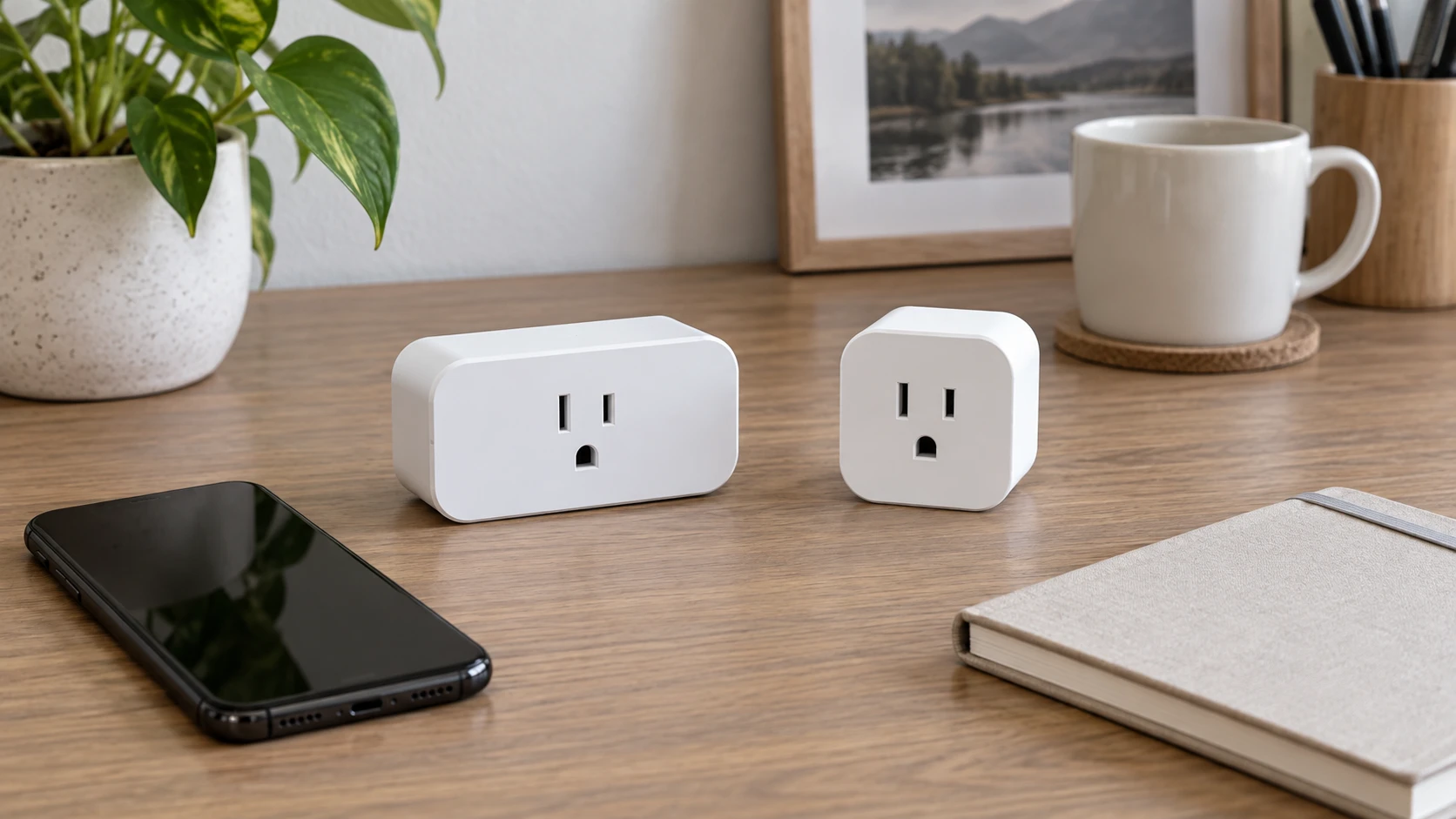
If your KP125M won't connect, read its status light before repeating setup. A plug waiting to be added, a plug connecting to the network and a plug already connected need different next steps. Then establish whether you are using the Kasa Smart app or adding the device through a Matter ecosystem.
The procedures here come from TP-Link's KP125M(US) V1.6 User Guide, particularly its appearance and setup sections. Confirm that the actual unit, region and applicable instructions match before following the button timings or setup details. The retail offer below names KP125M but does not identify the hardware revision. Keep your current model-specific instructions alongside this guide if their screens or behaviour differ.
Identify the plug and the setup that failed
The Kasa KP125M four-pack offer names Matter, energy monitoring and 2.4 GHz Wi-Fi in its title. Its description discusses the Kasa app, scheduling and remote control. Choose the setup route before interpreting its prompts. Start by naming the app in which the problem occurred and whether this is the first ecosystem or an additional one.
Describe what you actually see. The app might never find the plug, setup might stop while joining the network, or the plug might appear connected while an expected ecosystem control remains unavailable. Keep the exact message with a brief description of the stage that failed.
Keep this investigation about connection and commissioning. Follow the unit's electrical and intended-use instructions throughout. A successful network connection does not approve the appliance, load or placement you intend to use. This guide supplies no mains-wiring, appliance-connection or electrical-repair procedure.
Kasa plug LED meanings separate the next steps
For Kasa plug LED meanings, use the chart for the matched KP125M guide. Alternating amber and blue means the plug is ready for setup. Rapidly flashing blue means it is connecting to the network. Solid blue means it is connected to the network. These indications describe different stages, so note the pattern as well as the colour.
The same chart gives rapidly flashing amber for a factory reset. Solid amber covers initializing, rebooting or no network connection. That last indication has several stated meanings. A solid amber light during startup does not, on its own, establish a permanent network fault or a failed unit.
Suppose an imaginary setup attempt ends with alternating amber and blue. That observation identifies the ready-to-set-up state in this guide; it does not show a completed connection. If the light changes to rapidly flashing blue, the stated stage is connecting. Look at the current app result with that stage in mind instead of recording both patterns simply as blinking.
If it becomes solid blue, the guide identifies a network connection. Continue checking whether the intended app or ecosystem has completed its own setup. A network indication alone does not demonstrate that every voice assistant, schedule or additional ecosystem is already configured.
For the Kasa app, select the actual model
The matched guide's Kasa route begins with the Kasa Smart app from the App Store or Google Play. Open it and sign in with your TP-Link ID, or create one if needed. Use the plus button, choose Add Device, then Smart Plugs, and select the actual model. Follow the app's steps to complete setup.
That model choice is a useful checkpoint when a household has more than one kind of smart plug. Different smart plugs can share a shape or voice-assistant name while using different setup instructions. Identify which physical unit you are adding before proceeding through an app's model list.
The KP125M offer specifies a 2.4 GHz connection. Do not substitute a 5 GHz-only network just because a phone can use it. If you cannot establish which band or network you are selecting, use the applicable router information to identify it. This article gives no universal router menu or instruction to weaken wireless security.
The Archer AXE75 and ROG router guide makes the relevant distinction with actual router examples: support for a newer band does not replace the band an older or simpler client requires. Its smart-plug discussion explicitly mentions 2.4 GHz. The AXE75's 6 GHz feature and ASUS multi-gig ports do not establish this plug's connection requirements.
Matter smart plug setup checks need a matching ecosystem
For Matter smart plug setup checks, the KP125M guide requires a Matter-supported controller and a smart-home app belonging to the same ecosystem. It advises keeping them current. Having an app installed is not the same as establishing that the required controller is present and supported.
For the documented Matter setup, turn on Bluetooth on the phone. Open the chosen smart-home app, scan the Matter QR code or enter the provided numeric setup code, and follow that app's instructions. The guide notes that the setup process can differ between ecosystems. Keep the selected app's actual prompts with this route.
TP-Link distinguishes the first ecosystem from an additional one. The Matter code on the device applies to the initial ecosystem. To add the plug to another ecosystem, the guide calls for a new setup code generated in the smart-home app of an ecosystem already established in the home. Repeatedly scanning the original printed code is not the documented additional-ecosystem method.
Check which of those cases you are in before changing anything. A plug that already works through one ecosystem has different starting information from a new unit. Record the ecosystem that already controls it and use its applicable sharing or setup process rather than treating that existing connection as though it never happened.
Check the Matter discovery window and network
The matched KP125M guide says Bluetooth turns off 15 minutes after the device is powered up. Its stated response is to restart the device to re-enter setup mode. If you left the setup activity for a long time, that documented window is a specific thing to check. Do not turn the 15-minute statement into a universal timing rule for other smart plugs.
Under failed Matter setup, the guide advises connecting the phone to a stable 2.4 GHz Wi-Fi network with internet access instead of a 5 GHz network. It also lists restarting the device, controller or phone and checking that IPv6 is enabled on the router. These are separate checks; a band selection does not establish controller readiness or IPv6 status.
Identify the unresolved prerequisite before changing router settings. If you do not administer the network, ask its administrator to verify the relevant requirement. The guide's IPv6 requirement does not supply a configuration sequence for every router, and a change made for one model should not be copied blindly to another network.
After addressing the specific failed prerequisite, return to the intended app's setup process and observe the result. Keep the LED pattern and any remaining app message together. If setup still stops at the same point, give those details, the actual hardware identity and the chosen ecosystem to model-specific support.
Distinguish a Wi-Fi reset from a factory reset
The KP125M appearance chart documents different button actions. Holding the button for five seconds, until the LED alternates amber and blue, resets Wi-Fi while retaining previous settings. Holding it for ten seconds, until amber flashes rapidly, performs a factory reset. The longer hold is a different operation with a different stated result.
Use the applicable operation deliberately after confirming the actual unit and the instructions. For example, the documented Wi-Fi reset is relevant when you need that network reset while keeping settings. Continuing to hold the button into the factory-reset action does not preserve that intention.
The Matter section lists a factory reset among its setup prerequisites. That belongs to its documented commissioning context. An existing plug already used in a home should not have its established setup discarded merely because you are checking a light or investigating an additional ecosystem. Establish the intended setup route and its consequences before choosing a reset.
Give support the stage that remains unresolved
A useful support request can name the unit and its revision, the app or ecosystem, and the exact light pattern at the failed step. Explain whether this is its first setup or an attempt to add another ecosystem. If a plug is already controllable in one app, include that observation instead of describing it as completely unconnected. Keep any error message in its original wording. These details let support distinguish a discovery problem from an additional-ecosystem question without asking you to discard an established setup merely to describe the fault.
Keep the other mini-plug offer separate
The NOBRAND mini smart-plug four-pack, SKU sku-18817465075, describes 2.4G Wi-Fi and app, timer and voice controls. It names HomeKit and several other platforms, with UPC 757060626342. Those statements do not identify it as KP125M or establish Matter support, the Kasa app, the same LED meanings or the same button timings.
Keep its own instructions and identity with any investigation of that offer. A similar 15A headline is an electrical-rating statement, not a common software interface. The surge-protector label guide likewise separates actual mains, USB-current and surge labels. Those distinctions help keep a connection problem separate from an assessment of electrical suitability; the other products' ratings approve no load on this plug.
Keep a purchase separate from a connection diagnosis
If you are considering a smart plug through republeq.com and prefer crypto such as USDT, establish the exact model and its setup requirements before choosing an order. Mentioning USDT in a guide does not establish that the method is offered for a particular purchase. Read the payment options actually presented at checkout and any applicable conditions before selecting an available method you understand. If USDT is absent, leave it out of the order plan. A payment preference does not provide the Matter controller, supported network or correct app needed for setup. Confirm the actual package, hardware identity and regional information when those details affect the instructions you will use. The KP125M retail title does not establish the revision supplied to you, so confirm that separately rather than assuming every unit follows a saved manual exactly. The NOBRAND four-pack should retain its own instructions; similar platform names do not transfer Kasa button timings to it. Read the actual delivery information and applicable return terms if you are deciding on a replacement. An unresolved setup problem does not by itself prove that another purchase is necessary. First identify the failed prerequisite or obtain model-specific support for the actual unit. If you change the selected model, obtain the setup answer for that model. Any order confirmation belongs with the purchase records. The diagnostic record can retain the light pattern, app message and ecosystem involved. Choosing USDT, using another available method or making no purchase changes none of those connection facts. Finish by checking whether the intended setup now completes, rather than treating an order as evidence of recovery.
Confirm the intended connection result
When the KP125M won't connect, the useful sequence is to identify its state, verify the chosen setup route and resolve the missing prerequisite. Check the completed app setup alongside the matched guide's network indication. If a problem remains, keep its exact stage visible for support.