Crypto Commerce
HP Series 5 524SH dual-monitor bundle vs KS Doublesight Dual Monitor Kits
Compare HP Series 5 524SH dual-monitor bundle by panel detail, shared stand, cables, desk space, and setup requirements.
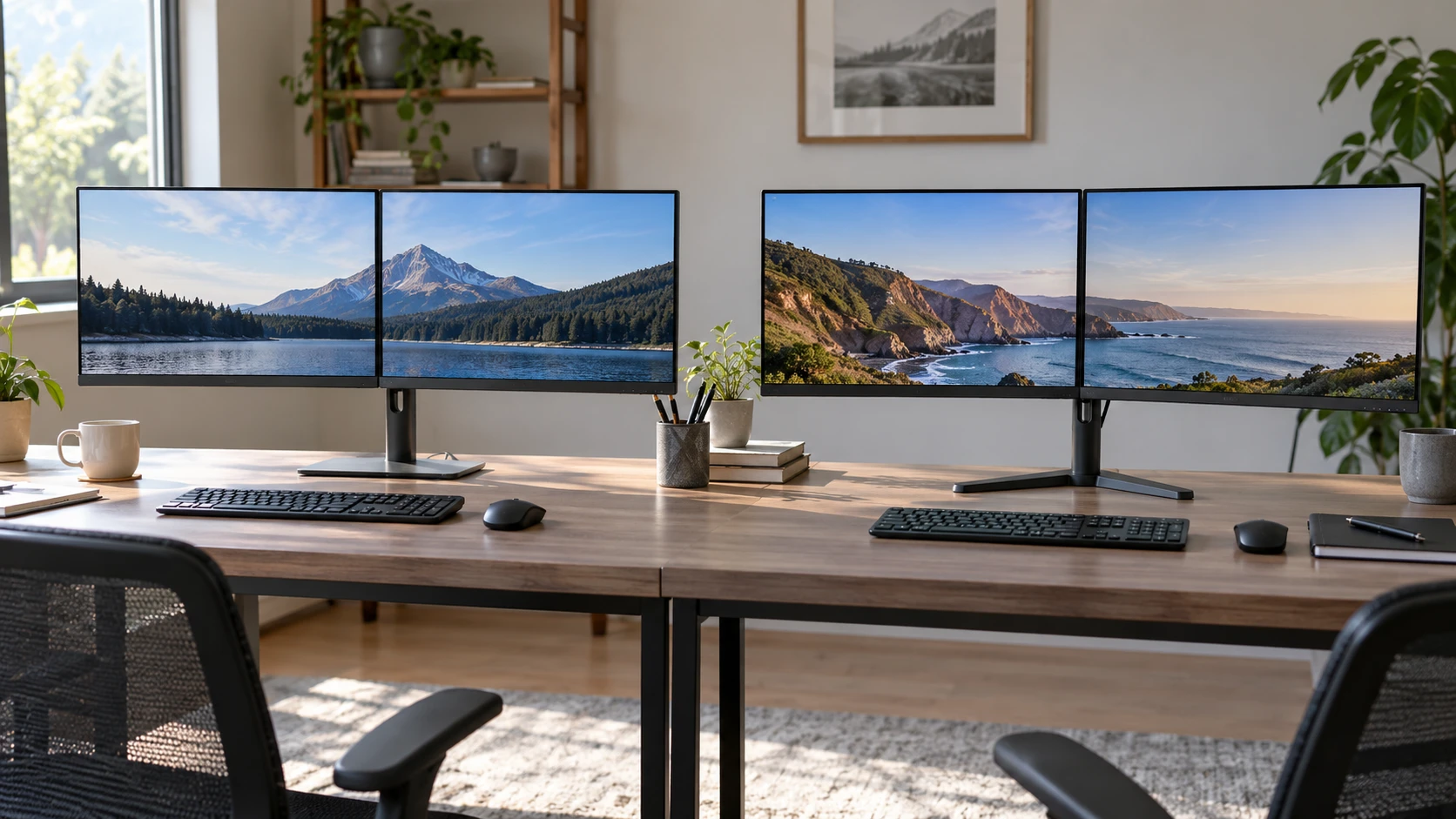
A two-screen desk can give a person room for a document beside a call, a dashboard beside a spreadsheet, or a reference page beside the work being written. The HP Series 5 524SH bundle and KS Doublesight DS-2400A kit both list two 24-inch Full HD displays. Their saved descriptions put the emphasis in different places. HP gives more panel and accessory details; KS Doublesight expressly includes a dual monitor stand and a 75 Hz refresh rate. The choice depends on the physical desk and the computer that must drive both screens.
The catalog rows are not a complete installation plan. They leave unanswered questions about stand dimensions, cable routing, port behavior, and some display settings. Use the figures here to build a check list for the current Republeq's catalog listing and the actual workstation, then test the assembled setup before making it a standard across many desks.
Two 24-inch screens on the desk — monitor desk-space planning guide
The HP Series 5 524SH dual-monitor bundle contains two 24-inch displays. Each is described as Full HD at 1920 by 1080 pixels. Two panels can keep two applications visible at once without making every window small. The saved row calls the profile slim and the bezel three-sided micro-edge, which may reduce the visible separation between adjacent screens. Measure the complete pair, including any stand bases and the space needed for cables, before assuming a tidy product photo will fit a particular desk.
KS Doublesight also supplies two 24-inch 1920 by 1080 displays. The distinctive item in its saved package list is a dual monitor stand. A shared stand can recover some desk area compared with two separate bases, depending on the base dimensions and how the arms position the screens. The row does not state the stand’s footprint, mounting method, height range, or maximum adjustment. Check those dimensions and whether the stand clamps, sits on a base, or attaches in another way before ordering for a shallow or crowded desk.
Put a tape measure across the intended viewing area. Two 24-inch panels are substantially wider than one, and the user may turn their head often if the active application sits on an outer edge. Some people prefer one screen centered and the second angled toward them; others need a symmetric pair with the seam in the middle. Test the arrangement with a chair at its normal position. Check that neither panel blocks a window, meeting-room sightline, or access to another device.
The two kits list the same pixel dimensions per screen, so each provides the same nominal desktop grid before operating-system scaling. That does not guarantee identical text appearance. Panel coatings, brightness, contrast, and software settings affect how comfortable a long work session feels. Put the same document on both screens and check whether text size is readable without leaning forward. A mixed set of applications may work better with one display in portrait orientation, but neither saved row establishes whether its stand supports rotation.
Picture information you can actually compare — KS Doublesight DS-2400A dual-monitor kit
HP describes each 524SH as an IPS panel with 300 nits brightness, 99 percent sRGB coverage, and a 1500:1 contrast-ratio claim. Those figures are useful starting points for a bright office or work involving web graphics. The row does not include an independent measurement or calibration report. A color-coverage percentage is not proof of color accuracy across individual units. If matching two displays matters, inspect them side by side with the same image and settings, then consider calibration for work that demands predictable color.
The HP listing also names an anti-glare coating, flicker-free operation, and an Eyesafe-certified low-blue-light filter. Those features may influence comfort, but they cannot eliminate an awkward viewing angle, a bright reflection, or a desk that forces the user to sit too close. Check the monitors in the lighting the office uses at midday and after dark. The saved row does not specify the brightness setting used for its 300-nit claim or exactly how the filter changes color, so compare the available modes with your normal work.
KS Doublesight lists a 75 Hz refresh rate and says it can make motion look smoother. Its row does not provide panel technology, brightness, color-gamut coverage, contrast, or coating information. Do not fill those gaps with HP’s values simply because the two kits use the same size and resolution. Ask for the current DS-2400A specification if picture characteristics are important. A simple in-person check with text, a moving window, and a familiar image can reveal whether its screens are suitable for the work at hand.
The HP row does not give a refresh rate, so there is no fair numerical comparison with KS Doublesight’s 75 Hz figure from these saved descriptions alone. Confirm the supported modes on each monitor and in the computer’s display settings. A higher refresh setting must be supported by the output port, cable, and monitor together. For ordinary office work, a stable image and a comfortable layout usually deserve attention before chasing a small numerical difference.
Connection planning for two displays — monitor desk-space planning guide
HP’s saved description names HDMI 1.4 and VGA connections for the Series 5 screens. That makes the kit a candidate for computers with a mix of newer digital and older analog outputs. Confirm the exact port count on each monitor and whether the computer can drive two independent displays at 1920 by 1080. A laptop with one external video port may need an approved dock or adapter. Two physical monitors plugged into a splitter will not necessarily give two separate desktops.
The HP bundle lists three HDMI cables, more than the two monitors ordinarily need for one HDMI input each. That may provide a spare, but the row does not specify cable lengths or versions. Plan the distance from computer or dock to each screen, route cables so they do not snag on an adjustable stand, and identify the correct input on each monitor. If VGA is used for an older computer, ask whether a VGA cable is included; the saved bundle list only names HDMI cables.
The KS Doublesight package list includes two HDMI cables, but the saved row does not spell out all input ports on the displays. Verify that HDMI is available on each unit and that the computer has two suitable video outputs or an approved dock. The row lists one power adaptor and one power cord for two monitors. Confirm how that power arrangement is intended to work and whether any additional lead is supplied in the current package. Do not assume a single cord can power both panels without the manufacturer’s instructions.
After connecting the kit, open the operating system’s display arrangement and label the screens. Drag a window across the seam to confirm the left and right order. Set each panel to its native 1920 by 1080 resolution and select a supported refresh rate. Then test sleep, wake, and docking. A setup that works once at installation can still frustrate users if windows jump to the wrong screen every morning.
Stand adjustment and daily ergonomics — KS Doublesight DS-2400A dual-monitor kit
HP says its monitors tilt from minus 5 to plus 25 degrees and mentions integrated cable management. The row does not specify height or swivel adjustment or describe how the two supplied monitors are supported in the bundle. Check the actual stands, mounting compatibility, and whether the screen centers can be aligned at the user’s preferred eye height. Tilt is helpful for avoiding glare, but it does not replace a usable height setting.
KS Doublesight’s dual stand is a clear package difference, though the saved description gives few mechanical details. Ask for the stand’s weight rating, adjustment range, and installation instructions. If it attaches to the desk, confirm the desk edge or grommet can accept it. If it uses a base, check whether that base leaves enough room for a keyboard, notebook, and other tools. A shared stand may look compact while still projecting farther forward than expected.
The published monitor desk-space planning guide compares different monitor forms, but its practical question applies here: how much usable desk area remains after the screen is placed? Use that question to assess the two-kit layouts. The guide is not a specification source for the HP or KS Doublesight stands.
Have the actual user sit at the desk before finalizing the placement. Adjust chair and screens so the person can read without craning the neck or rotating repeatedly between the far edges. Position the primary application where it is easiest to view, then use the other display for reference or secondary work. The right arrangement can differ between someone editing a long document and someone monitoring several live dashboards.
What is in each box — KS Doublesight DS-2400A dual-monitor kit
The HP bundle’s saved list includes two monitors, three HDMI cables, a surge protector, cable ties, a screen-cleaning kit, and a screen protector. Check the current package and the protector’s fit before planning installation around those items. The row does not itemize power cords, stand hardware, or adapters, so verify them with the Republeq's catalog. A bundle with many accessories can still be missing the one cable or mount needed for a particular desk.
KS Doublesight’s row explicitly lists two displays, one dual monitor stand, one power adaptor, one power cord, two HDMI cables, and a user manual. That is a clearer stand-and-video package, subject to confirming the power arrangement and assembly hardware. Ask whether tools are required, how long assembly takes, and whether a replacement part is available if a stand component is damaged. Its saved row does not mention cleaning accessories or a surge protector; include those only if they matter to the local installation plan.
The catalog snapshots show both listings as available, but price and stock can change. Compare delivered cost, warranty, return policy, and who supports the complete bundle if one display fails. A replacement monitor with a different panel revision may look unlike its mate. Confirm with Republeq how a partial return or replacement would work for a two-display package before outfitting several desks at once.
Which bundle to test first — KS Doublesight DS-2400A dual-monitor kit
The HP kit is the more detailed screen choice in the saved evidence: IPS panels, stated brightness and sRGB coverage, anti-glare treatment, tilt range, and HDMI plus VGA. It also includes desk accessories that may save separate purchases. Confirm its stand hardware and refresh modes for the exact bundle. The KS Doublesight DS-2400A dual-monitor kit is the stronger starting point if a supplied shared stand is central to the desk plan. Confirm its adjustment range, picture specifications, inputs, and one-adaptor power layout.
Before buying multiple sets, assemble one at a representative workstation. Measure the occupied desk area, connect both screens through the intended dock or computer, set native resolution, and put real work on them for a day. Record any missing parts, awkward cable runs, glare, or wake-up problems.