Crypto Commerce
Gawfolk GF270G 4K monitor vs BenQ GW2790T displays for games and desk work
Compare Gawfolk GF270G 4K monitor by 4K versus FHD resolution, refresh rate, connection requirements, stands, eye-care claims, and bundle contents.
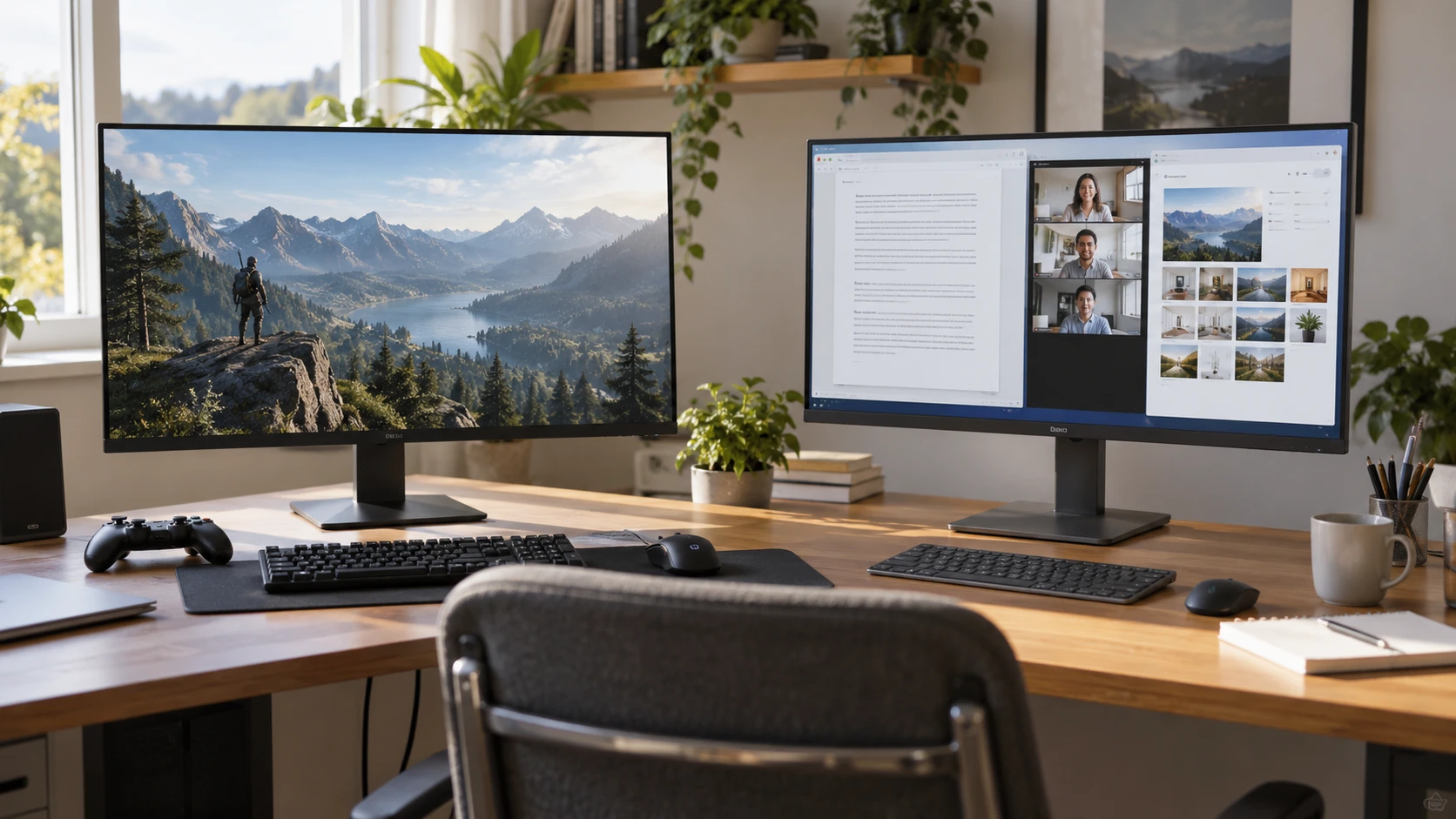
The Gawfolk GF270G 4K monitor and BenQ GW2790T both have a listed 27-inch screen, but they aim at different desk setups. Gawfolk advertises 3840 by 2160 resolution and up to 144 Hz through particular inputs. BenQ lists 1920 by 1080 resolution and 100 Hz, along with a height-adjustable stand and a bundle of desk accessories. If games at high resolution are the priority, the Gawfolk specification is the stronger starting point. For a computer used mainly for documents, calls, and everyday browsing, check how much resolution you actually want at this size and which included accessories you would use.
Both stated pixel grids have a 16:9 shape. The published guide on screen aspect ratio for monitors explains why content shape and display shape matter. Its examples are general, not tests of these exact screens. Gawfolk's 4K grid has four times as many pixels as BenQ's FHD grid, calculated from their listed widths and heights. At the same 27-inch diagonal, that can give finer image detail when the source and software support it. It does not guarantee that text will look comfortably sized without adjusting the operating system's display scaling.
Think through the work on your screen — screen aspect ratio for monitors
A 27-inch 4K desktop can show fine detail in photos, video, and game scenes. It can also make interface elements small at a default scale. Check what scaling options your computer offers and how your most-used applications behave at those settings. A person who keeps several windows open may prefer the sharper text and flexible layout; another may find a simpler FHD workspace easier to manage. BenQ's 1080p grid spreads fewer pixels across the same diagonal. Before deciding, compare a paragraph of text, a spreadsheet, and a familiar website at your normal viewing distance if you can see both monitors in person.
Resolution is only one part of readability. The BenQ listing names low-blue-light and flicker-free features, plus TÜV Rheinland and Eyesafe 2.0 certifications. These are claims for the advertised package, not a promise that every user's eyes will feel comfortable. Gawfolk names an EyeGuard set of features with flicker-free operation and a low-blue-light mode. Ask how those modes affect color and brightness on the exact model. If you edit photos or other color-sensitive work, you may want a different setting for that task from the one used during long reading sessions. Room lighting and viewing distance deserve attention alongside the feature names.
The Gawfolk description claims 16.7 million colors and 128 percent sRGB coverage. The saved title says “IPS / VA panel,” while the description specifically calls the panel VA. That conflict should be resolved with the current model specification before buying based on panel technology. The source does not explain its color-coverage measurement method or calibration state either. For critical color work, request a trustworthy measurement or examine the exact unit rather than treating a percentage as a guarantee. BenQ's saved excerpt does not give a comparable gamut or panel-type figure, so the two sources cannot support a measured color-quality ranking.
For games, consider the computer or console that will supply the image. A 4K display is most useful when the source can output a suitable 4K signal and render the games you play at an acceptable frame rate. The Gawfolk listing claims AdaptiveSync with AMD FreeSync to reduce tearing, but it gives no complete compatibility matrix in the short description. BenQ lists 100 Hz without a variable-refresh claim in its excerpt. That absence is a reason to check the manual, not proof that a feature is unavailable. Think about whether your games favor sharp scenery, fast motion, or both, and verify the relevant source settings.
Match refresh rate to the connector — BenQ GW2790T 27-inch monitor
The Gawfolk description ties its highest claimed mode to particular connections: HDMI 2.1 or DisplayPort 2.0 for 4K at 144 Hz with RGB output. It lists DisplayPort 1.4 at 4K and 120 Hz, and HDMI 2.0 at 4K and 60 Hz. Those are stated input-mode capabilities, not a guarantee that every graphics card, cable, and game will deliver that combination. Check the ports on your computer, the cable specification, and the graphics settings before paying for a 144 Hz target. If your current system has only an older HDMI output, the monitor may run at a lower mode until you upgrade the source.
The saved description says Xbox Series X and PS5 can reach 4K at 120 Hz on Gawfolk, subject to the stated connection path. Verify the current compatibility list and the exact console settings, particularly if a switch, receiver, or capture device sits between console and monitor. A chain is limited by its least capable link. BenQ's listing gives the panel's 100 Hz refresh rate but does not identify detailed port versions or a console-mode table. Ask for its supported-timing chart if you plan to connect a console. A 100 Hz label alone does not establish what every input can accept from every source.
Higher refresh can make motion look smoother when a computer delivers enough frames. It cannot make a game render faster by itself. A screen used mostly for static documents may see less benefit from 144 Hz than one used for fast games. Conversely, a 100 Hz office display may still feel responsive for cursor movement and scrolling compared with a lower-rate panel. Compare normal use at the actual settings you can drive. The 4K-versus-FHD choice and the attainable refresh mode are linked: a system that handles 1080p easily may struggle to produce high frame rates at 4K in demanding games.
BenQ's excerpt mentions a one-click device-switch function and multiple ports without spelling out their exact types. This could be useful when a laptop and another source share the screen. Verify which input the button cycles to and whether any source needs an adapter. Gawfolk's listing names HDMI and DisplayPort generations but does not explain quick-switch behavior. If you alternate work and gaming devices daily, draw a simple connection plan. Count the cables, check each source's output, and see whether the monitor can remain connected to both without frequent unplugging.
Check the stand and the desk footprint — BenQ GW2790T 27-inch monitor
Gawfolk's stand is described as adjustable for height, swivel, and pivot, with tilt from minus 5 to 10 degrees. Its listing also gives a 75 by 75 mm VESA mount pattern. Those specifications may help on a desk where the screen must rotate or be mounted on an arm. Confirm the full movement range, stand footprint, and weight before buying an arm. A mount pattern tells you how the back attaches, but it does not establish that every arm can safely support the complete monitor. The saved description does not provide the weight needed for that check.
BenQ's listing calls its stand height-adjustable. It does not specify swivel, pivot, tilt range, VESA pattern, or dimensions in the short excerpt. If you need the screen to rotate for long documents, ask for the current stand diagram. The 27-inch diagonal is the panel measurement, not the width of the whole product on your desk. Measure available space between speakers, shelves, and windows, then include the stand base. An adjustable screen still needs room to move. Check that raising it will not hit a shelf or place the top edge above a comfortable line of sight.
The BenQ offer is listed as a four-item bundle containing the monitor, screen cleaner, HDMI cable, and a three-port USB-C hub. Verify that those pieces are included in the exact current offer and that the hub suits your computer's port and power needs. A bundled cable may save a purchase, but it should still support the signal mode you plan to use. Gawfolk's saved excerpt does not describe a comparable bundle. Compare the actual box contents and return terms rather than assuming the monitor price includes the same accessories from every Republeq's catalog.
Cable routing matters more once several devices are connected. Leave space behind the monitor for plugs and enough slack to raise or pivot the screen. If you use an arm, check where the cable exits and whether movement strains the connector. Put the hub where its ports remain reachable if you expect to swap accessories regularly. A desk setup that is tidy in a product photo may be inconvenient when a laptop, console, and power supply all need connections. The listing details can tell you what to ask for, but a dimensioned rear view is often what settles placement.
Resolve the claims that affect your choice — BenQ GW2790T 27-inch monitor
Gawfolk's VA description conflicts with the IPS/VA wording in its title. Get a model-specific panel answer and the current supported-mode table if either panel type or 4K at 144 Hz determines the purchase. Ask whether the advertised 128 percent sRGB figure refers to a tested mode and whether the stand and VESA details apply to the exact unit. BenQ's bundle and input-switch wording need similar confirmation: identify the included hub, cable, and available input ports. Both listings leave warranty and return terms outside their short excerpts. Those terms matter if a pixel fault or connectivity issue appears after setup.
The BenQ GW2790T 27-inch monitor provides an FHD and 100 Hz starting point with a named height-adjustable stand and desk bundle. Gawfolk offers a denser 4K grid and higher claimed refresh modes, provided your source and cable support the intended connection. Check the unresolved panel wording, view text at your usual distance, and map the cables before ordering.