Product Compatibility & Accessories
External webcam compatibility for video calls and Windows Hello
Check external webcam compatibility for video calls, Windows Hello, USB-A host routes and mounting options in the Lenovo Mc60 and CODi Allocco offers.
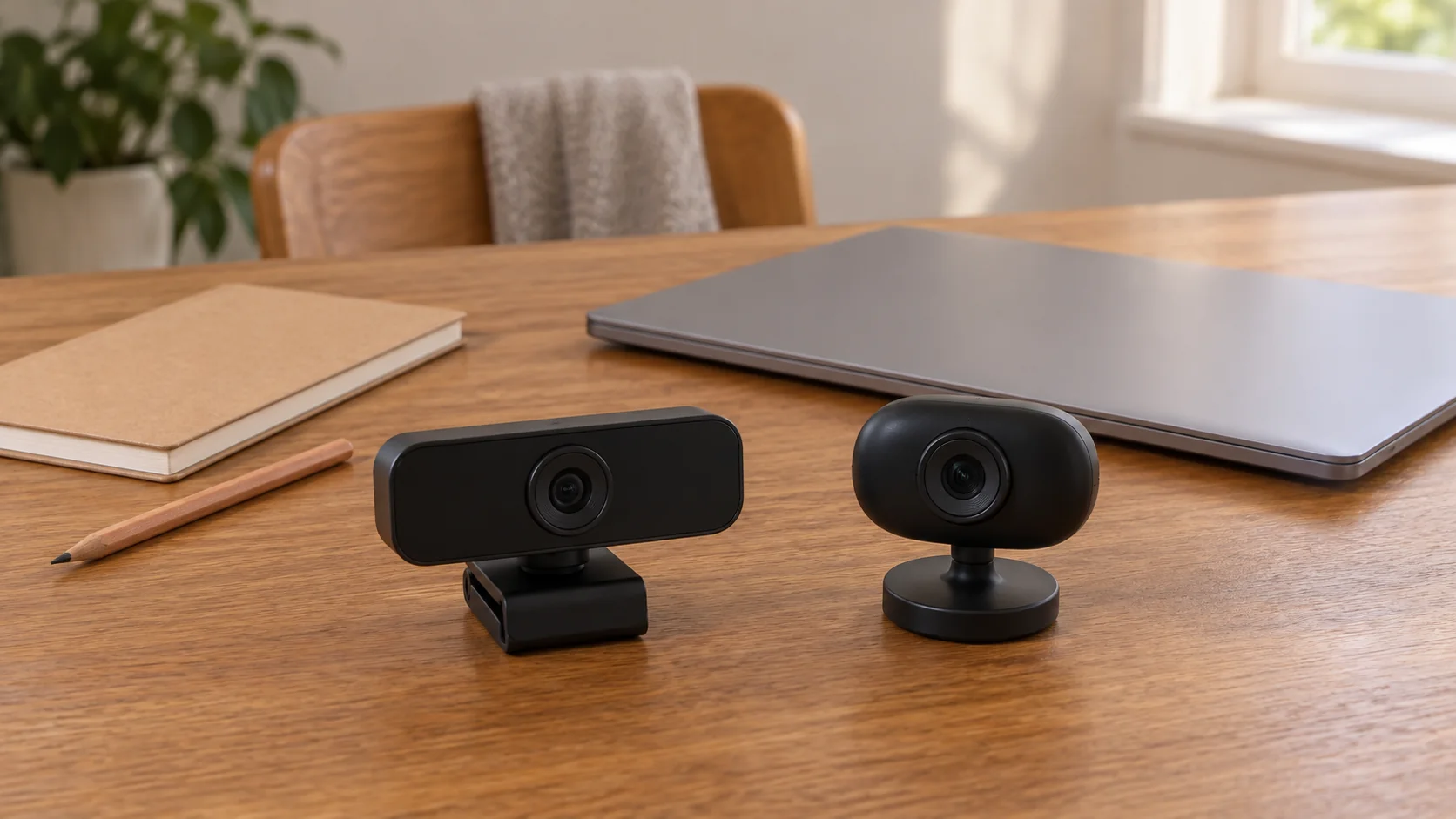
External webcam compatibility begins with the job you need the camera to do. Joining a video call and using facial recognition for Windows Hello are different requirements. A Full HD video specification addresses the picture the camera can capture. An explicit Windows Hello statement addresses another feature; it should not be inferred from the resolution number.
The Lenovo Mc60 and CODi Allocco A05023 offers both describe USB Type-A webcams with built-in microphones. CODi additionally names infrared facial recognition compatible with Windows Hello and support for Windows 10 and 11. Lenovo's short description does not supply an equivalent sign-in statement. Choose the required function first, then check the computer connection and the proposed mounting arrangement.
Webcam video and Windows Hello support
Start by deciding whether your requirement is a meeting picture, Windows Hello facial recognition or both. Someone replacing a camera for a weekly call may have no need for a sign-in feature. Someone buying specifically for Windows Hello needs that feature established, even if ordinary video already works through another camera.
Keep webcam video and Windows Hello support separate when reading an offer. The CODi Allocco A05023 infrared webcam explicitly describes infrared facial recognition compatible with Windows Hello. That is a documented feature to investigate for this requirement. Its 1080P and 30FPS video labels are separate parts of the description.
The source also states support for Windows 10 and Windows 11. It does not give a complete list of tested computers, organizational permissions or every configuration needed for sign-in. Match the feature to the actual computer's applicable information before treating the purchase as a complete working arrangement. This article gives no Windows Hello enrollment or security-setting procedure.
The Lenovo Mc60 webcam, model 4XC1J05150 describes video up to 1920 by 1080 and a 95-degree field of view. It does not name infrared facial recognition or Windows Hello here. The omission leaves sign-in support unconfirmed.
Use the actual computer as the starting point
Identify the computer that will use the camera, including its operating system. A desk shared by a personal notebook and a work computer has two host requirements. Check both if both will be part of the routine. A connection demonstrated on one computer does not establish the other computer's software support.
Lenovo describes the Mc60 for desktops, laptops or compatible monitors and says it connects and receives power through USB Type A. It does not enumerate operating-system versions in this account. The word compatible matters: the description does not promise that every monitor with a USB-shaped opening can serve the same role.
CODi names Microsoft Teams, Zoom, Skype, Webex and GoToMeeting among its software compatibility claims. Compare those application names with the software you actually use. The description does not establish every current release, organization-managed setting or additional camera-control feature. Keep the operating system and intended application together in the purchase question.
USB-A webcam connections through a dock
For USB-A webcam connections through a dock, draw the proposed route before counting sockets. Put the webcam at one end and the actual computer at the other. Between them may be a display, a dock or another intermediary. The complete data and power route needs support, not merely a place where the plug appears to fit.
Suppose the notebook you will use has no suitable free Type-A port, while a monitor on the desk has several USB connections. The monitor's available sockets do not by themselves show how the webcam reaches that notebook. Identify which part of the arrangement provides the computer connection and what the monitor or dock documentation says it supports.
The OWC Thunderbolt 3 and Dell UD22 desk-connection guide distinguishes a USB-C connector's shape from the host functions behind it. It also notes that a connection used for a host or display is not automatically free for another peripheral. Those actual port-planning questions help establish the webcam route. Neither dock's charging or display specification certifies these webcams.
If an adapter or a different dock becomes part of the proposal, give it its own compatibility check. Neither selected webcam description supplies an adapter matrix or a complete tested-hub list. There is no basis here for prescribing a particular adapter, power arrangement or extension length.
Picture framing is another part of the choice
Lenovo supplies a 95-degree field-of-view statement. Consider who and what the desk camera needs to show. A single person close to a monitor presents a different framing question from several people sharing a table. The number does not establish the appearance of your actual room or how far the camera will sit from the subject.
CODi describes 1080P video at 30FPS and automatic low-light correction. Its source gives no directly comparable field-of-view figure here. Low-light correction is a stated feature rather than evidence that the camera will produce the picture you want in every room. The two descriptions supply no matched image-quality test.
The Cisco Webex and TONGVEO desk-or-room camera guide separates a personal desk view from a meeting-table view. Its complete USB-path discussion also asks whether a display port actually reaches the conferencing computer. Use those concrete planning questions for your own seats and host. The other cameras' zoom, mounting options and video modes do not transfer to either offer here.
Define the intended view before comparing the offers. You may need one seated person visible at an existing desk, or several people within the available view. Neither Full HD label supplies a guarantee about that composition. Resolve the intended view alongside the connection rather than buying solely on the largest number in a title.
Keep microphone needs with the call arrangement
Both descriptions name an integrated microphone. Lenovo gives no detailed pickup specification in this account. CODi describes noise-reduction processing intended to minimize background sounds. Those disclosures do not provide a measured comparison of voice pickup, keyboard noise or what a remote participant will hear in your room.
Decide whether the camera's microphone is part of the proposed call or whether you already intend to use another audio device. Keep the microphone and camera roles distinct when checking the application you use. The presence of a microphone does not establish the full listening arrangement, and this guide does not supply application control instructions.
If audio is the reason for replacing equipment, define the observed problem before assuming a new camera will answer it. A clear local picture can coexist with a separate microphone or call-path question. The Cisco and TONGVEO guide makes that distinction for its actual products; it supplies no pickup-radius or sound guarantee for the Mc60 or Allocco.
Match the mounting option to the actual surface
CODi describes a 360-degree rotating clip-on for monitors and laptops and support for standard quarter-inch tripod threads. These are specific stated mounting options. Confirm the actual display or proposed support against the selected camera's applicable information rather than treating the word universal as a complete fit test.
The description does not provide every clip dimension, support clearance or tripod requirement here. If one of those determines whether the camera can occupy the intended position, establish it before adding a separate support to the order. A thread statement answers one part of a proposed pairing, without supplying a full placement account.
Lenovo's short account does not enumerate the same clip or tripod options. Do not copy CODi's quarter-inch-thread or rotation statements into the Mc60 purchase. The Lenovo offer's size field is simply 1, which supplies no measured mounting dimension. Ask for the relevant physical information when the selected location requires it.
Work through one ordinary shared-desk case
Imagine a desk where a person wants a weekly video call from one computer and Windows Hello sign-in on another. Those are hypothetical requirements, not a claim that either selected webcam serves that entire desk. Begin with two named tasks and their actual hosts instead of making a single broad request for a better camera.
For the call computer, check its operating system, intended meeting application and supported USB route. For the sign-in computer, establish the actual Windows Hello requirement and camera support. CODi's explicit infrared and Windows 10/11 statements give that second inquiry a starting point. Lenovo's Full HD statement alone leaves it open.
Then consider where the camera will sit for each task. A mounting arrangement that serves one monitor may not answer a second location. If equipment will be shared, check the actual supported arrangement rather than assuming the same clip, dock path or software behavior follows every move. No mounting or switching sequence is prescribed here.
Judge the call through the route you will actually use
A normal call check should concern the proposed arrangement rather than a different computer chosen only for a demonstration. If the webcam is intended to work through the desk's monitor or dock, the relevant question includes that route. A successful picture from another connection is useful evidence about that demonstration, but it leaves the planned desk arrangement to establish.
When a suitable demonstration or permitted trial is available, consider both the local picture and what another participant receives. The Cisco and TONGVEO guide specifically distinguishes a local recording from a live call. If those results differ, investigate the application and connection path before deciding which component caused the difference. A webcam title alone cannot identify that cause.
Keep the viewing task ordinary. Ask whether the intended person is visible from the position they will actually use and whether the agreed microphone serves the conversation. A demonstration with a different room, seat or audio source may answer a different question. This is a way to define what a useful trial would show, without prescribing camera settings or promising a particular image or sound result.
A video-call result still does not settle Windows Hello. Keep that separate feature requirement with the actual host and the applicable sign-in information. Likewise, a confirmed sign-in feature would not establish that every meeting application supplies all the controls or video modes a user wants. Decide which result matters for each task so one successful demonstration does not quietly stand in for both.
Finish with the accessory requirement still visible
Name the required function, actual host, supported connection and intended mounting option in the purchase plan. Give any additional cable, adapter or support its own confirmed role. A webcam's built-in microphone, automatic correction or plug-and-play description does not settle an unanswered Windows Hello or host-compatibility requirement.
For the Mc60, the supported source facts are its USB Type-A power and connection, Full HD video, 95-degree field of view and built-in microphone. For the Allocco, they additionally include the stated infrared Windows Hello feature, Windows 10/11 support and named clip/tripod options. Keep those accounts distinct when making the final external webcam compatibility decision for your own computer and task.
An external webcam compatibility plan separates the intended video or sign-in task, the actual computer connection and the proposed mounting support.