Crypto Commerce
EVOLVE III X2-32A6V monitor vs Samsung UJ59 for 32-inch 4K desks
Compare EVOLVE III X2-32A6V monitor by panel claims, refresh rate, local dimming, connections, two-source layouts, and desk setup.
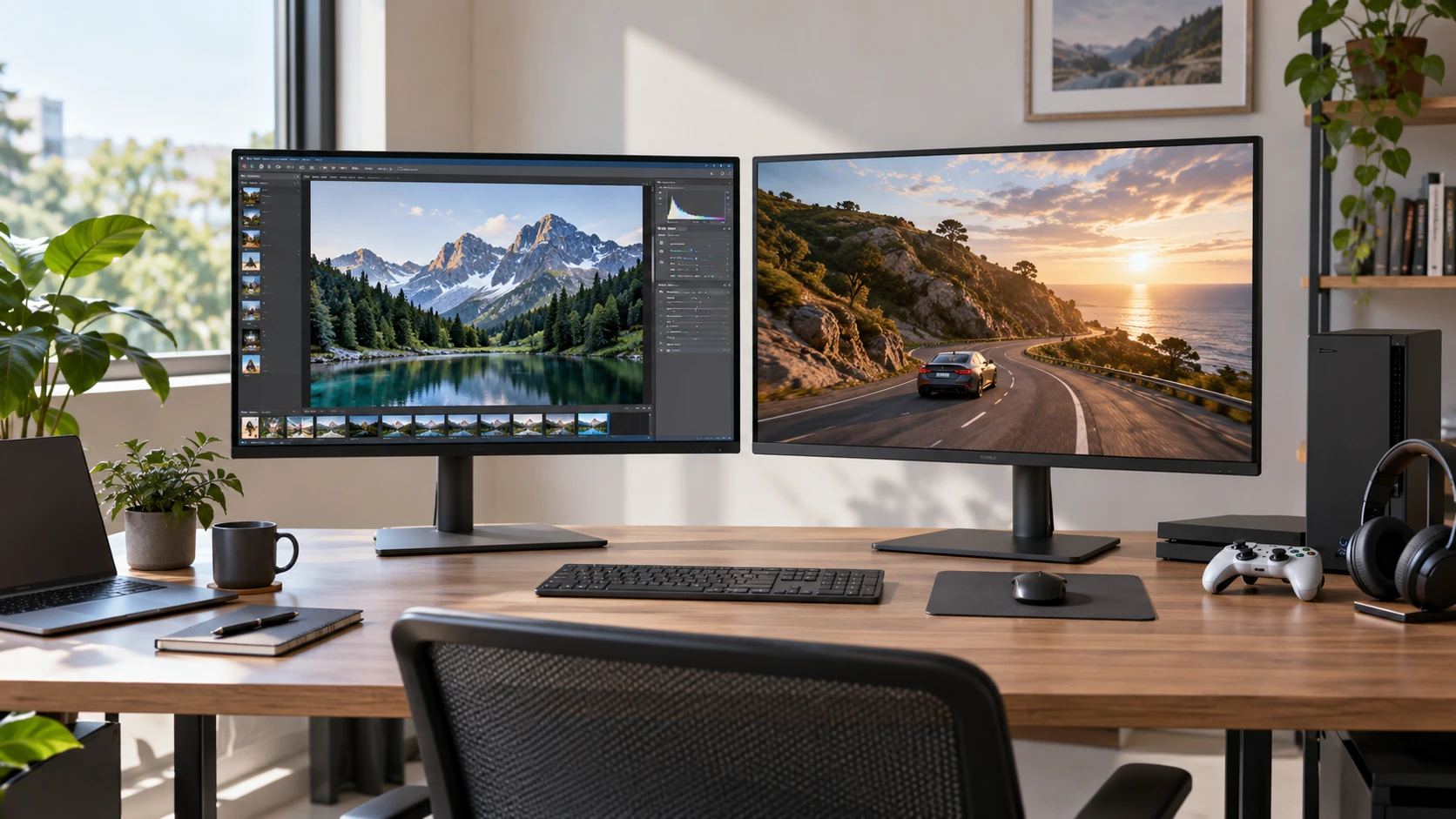
The EVOLVE III X2-32A6V monitor and Samsung UJ59 are both listed as 32-inch 3840 by 2160 displays. EVOLVE III describes an IPS panel, 144 Hz refresh, Mini LED local dimming, and several kinds of ports. Samsung describes a VA panel, AMD FreeSync, and picture layouts for two connected devices. The shared size and resolution make the difference easier to frame: check the computer connection, the motion you want to see, and whether one screen must serve two machines at once.
The published guide on display connection planning explains why a screen and source must have a compatible signal path. It does not test either model. List the laptop, desktop, console, and audio equipment you intend to connect. Then identify the port and cable for each. A monitor can have a useful picture feature and still be inconvenient when its inputs do not match the equipment on your desk.
Match the 4K signal to the computer — Samsung UJ59 monitor
Both saved descriptions state 3840 by 2160 resolution, about 8.3 million pixels. That can provide space for several windows or detailed video, but the benefit depends on a readable scale at your normal seating distance. Try a document, spreadsheet, browser, and familiar photo rather than comparing only a demonstration wallpaper. Text may need operating-system scaling on a 32-inch panel. The excerpts do not provide a measured text-readability test or a recommended seating distance for these exact displays.
EVOLVE III lists two HDMI inputs, one DisplayPort input, one Type-C input, one audio output, two USB-A ports, and one USB-B port. The saved source does not give the port versions, Type-C power delivery, or a supported refresh-rate table for each input. Those details matter if you want 4K at the stated 144 Hz. Check the monitor manual and your computer's video output before buying a cable. A Type-C connector alone does not prove that it charges a laptop or carries the full video mode you expect.
Samsung lists HDMI and DisplayPort connections without stating their counts or versions in the short excerpt. It also describes Picture-by-Picture, which displays two connected devices side by side, and Picture-in-Picture, which places a resizable second source over the main image. Those features are particularly relevant to a work computer plus personal desktop. Confirm which combinations of inputs they accept and how resolution and refresh behave in each layout. Two cables plugged into a monitor do not automatically mean every source can use its full screen at once.
If you switch devices during the day, try the sequence you will actually use. Wake one computer, change the active input, return to the other, and check where sound comes from. EVOLVE III's source lists an audio output; Samsung's short source does not specify speakers or an audio jack. Verify the complete audio route for both. If you need a keyboard and mouse to follow the active source, check for a separate switching arrangement. A video layout feature should not be mistaken for a full dock or KVM.
Compare motion with actual workloads — display connection planning
EVOLVE III lists a 144 Hz refresh rate and a 0.5 ms response-time claim. Samsung's saved description does not give a refresh or response number, although it names AMD FreeSync, Low Input Lag, and a Fluid Tactical Gaming mode. The absence of a number in this excerpt is not a measured result or proof the Samsung is slow. Check a model-specific specification sheet and test the exact unit. Motion depends on the display, the chosen mode, the video connection, and the frame rate the computer can render.
AMD FreeSync appears in both product descriptions. EVOLVE III says it helps reduce tearing and ghosting, while Samsung says it helps reduce tearing. Confirm the supported range and video inputs for the graphics hardware you own. A game running below the chosen refresh rate may benefit from variable refresh, but a compatibility label alone does not establish smoothness in every game. Play a familiar scene with the same settings on both screens and look for tearing, blur, and distracting changes in brightness.
For office work, scrolling can feel smoother at a higher refresh rate, but much of a day may be spent reading still text. Decide how much you value motion alongside window management and picture appearance. A 4K game may also demand a powerful graphics card to maintain high frame rates. The saved sources do not state system requirements, so confirm what your current computer can output before giving EVOLVE III's 144 Hz number full weight. If the connection falls back to a lower mode, the advertised panel rate may not be what you see.
Judge contrast and color in the room — Samsung UJ59 monitor
EVOLVE III describes an IPS panel, HDR 1000, 1,152 Mini LED local dimming zones, and a 150000:1 contrast claim. Samsung describes a VA panel and factory-calibrated one-billion-color rendering, without a directly comparable zone count or contrast figure in the saved excerpt. Those labels describe different panel designs and marketing tests. They do not give a common side-by-side measurement of black levels, halos around bright objects, or color accuracy. View dark video and a high-contrast desktop on the actual units if possible.
Mini LED local dimming may change how EVOLVE III renders bright highlights against dark areas, but its source does not describe the algorithm or behavior in each mode. Try a night scene with subtitles, a dark desktop with a small white cursor, and an ordinary web page. Look for distracting glow or brightness shifts from your normal seat. On Samsung, check dark scenes and off-center viewing the same way. Panel type and contrast claims are useful starting points, not substitutes for an image you have inspected.
Samsung names Eye Saver Mode and Flicker-Free mode. EVOLVE III lists ambient light sensing that adapts its output and a backlight lighting effect. These features affect different parts of use, and their saved descriptions do not offer a matched comfort test. Set each display to a comfortable brightness for the room and work for a while. If you edit photos, check whether comfort settings change the color appearance. If decorative lighting would be distracting, find out whether EVOLVE III's effect can be turned off.
Color-sensitive work calls for more than a billion-color phrase or an HDR label. Check the exact color modes, supplied calibration information, and whether the settings you need remain available at the chosen refresh rate. Samsung's saved source says it is factory calibrated but does not provide a measured accuracy figure in this excerpt. EVOLVE III's excerpt gives no color-gamut or factory-calibration figure. A shared test image and, where needed, a measurement of the actual panel will tell you more than comparing unlike marketing terms.
Plan the physical desk — Samsung UJ59 monitor
EVOLVE III lists a height-adjustable stand. Samsung's source does not specify stand adjustment or mounting pattern. Check whether the screen can sit at a comfortable eye level without a riser, and verify arm compatibility before ordering a mount. At 32 inches, either panel needs desk width and viewing depth, but the saved excerpts do not provide complete exterior dimensions or weights. Measure the available space beside speakers, lamps, and a laptop, then check the actual stand footprint.
A large screen can encourage multiple windows, yet a full 4K desktop shared in a video meeting may make text tiny for colleagues watching on a laptop. Try sharing one application window instead of the whole display. Samsung's Picture-by-Picture can also divide its pixels between two live sources, so check whether the resulting window sizes suit your apps. EVOLVE III's description does not confirm an equivalent two-source display mode. If simultaneous sources are essential, test that exact function rather than assuming multiple ports provide it.
Confirm the purchase configuration as carefully as the panel specification. Ask what video cables, power supply, stand, and warranty come with each offer. The saved EVOLVE III excerpt lists ports and stand adjustment but not box contents. Samsung's excerpt also omits a complete package list. If one computer needs a Type-C cable or a particular DisplayPort cable for its intended mode, include that cost and availability. A correct cable is part of a working desk, not an optional afterthought.
Before finalizing a purchase, read the model identifiers on the current listing and the unit's own label. The Samsung product URL uses ViewFinity wording while the saved catalog title and description identify UJ59. Resolve that naming difference with the Republeq's catalog so the specification sheet, warranty, and delivered monitor refer to the same model. Do the same for EVOLVE III's X2-32A6V suffix. A useful comparison depends on receiving the configurations described, not a similar-looking 32-inch display with different ports or panel behavior.
The Samsung UJ59 monitor has a stated two-source picture layout and familiar HDMI and DisplayPort connection types. EVOLVE III has a more detailed port list, a stated 144 Hz panel, and Mini LED dimming claims. Start with the number of computers you need to see, confirm the precise signal modes they can send, and inspect motion and dark images on the actual screen. That sequence makes the shared 32-inch 4K specification useful rather than decisive by itself.