Crypto Commerce
Dell Plus S3425DW ultrawide monitor — One wide canvas or a high-resolution OLED?
Compare Dell Plus S3425DW ultrawide monitor by screen shape, USB-C power, refresh rate, input paths, and everyday content fit.
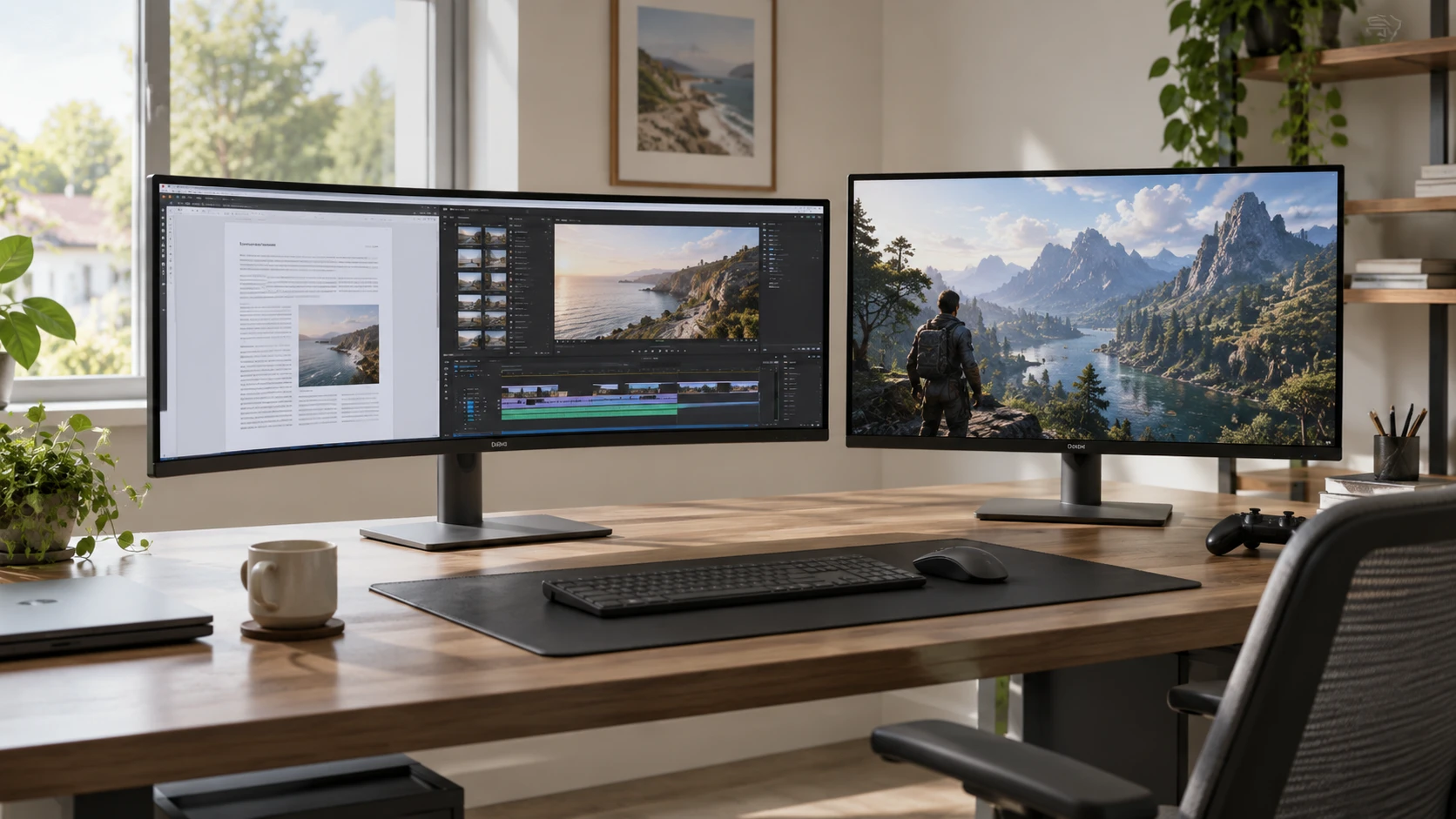
The Dell Plus S3425DW ultrawide monitor is listed as a 34-inch, 21:9 UW-QHD VA display. Its broad shape can put a document next to a reference window or give a timeline more horizontal room. The saved description also names a USB-C connection for data and power delivery up to 65W. If one laptop is used for work during the day and entertainment later, the cable arrangement may matter as much as the screen's color claims.
Before choosing a size from a diagonal measurement, read the published guide to fitting content to a screen aspect ratio. A 34-inch ultrawide and a 32-inch 4K monitor occupy different shapes even though their diagonal numbers are close. Open a few examples of the work, videos, and games you use most. Check how much width is useful, where letterboxing or unused space might appear, and whether the desk allows a comfortable viewing position.
The Samsung Odyssey G80SD OLED monitor is a 32-inch 4K UHD display listed at 240Hz with HDMI 2.1 and DisplayPort connections. The source emphasizes OLED contrast, a 0.03ms gray-to-gray response figure, and Gaming Hub and Smart TV apps. It does not list the Dell's 65W USB-C laptop-power route. For a desk shared by a laptop and a gaming system, check the exact ports and power needs before assuming either monitor replaces a dock.
Choose the shape before the specification race — fitting content to a screen aspect ratio
Dell's 21:9 screen gives extra horizontal space relative to a conventional rectangular display shape. A person editing a wide timeline may be able to keep controls and source material visible together. A spreadsheet or writing workflow can also use two side-by-side windows. That does not guarantee every app handles 21:9 gracefully. Some full-screen games, video formats, and presentations may leave unused bands or crop to fill the space. Check the particular content you care about instead of assuming the wider panel is always more immersive.
Samsung's listing specifies 4K UHD rather than Dell's UW-QHD. Those labels indicate different pixel formats, but the saved Dell description does not give an exact pixel grid for a numerical density calculation here. A 4K desktop can show detailed images and text when the computer drives it at the intended resolution. It can also prompt scaling choices so interface controls remain legible. Test the applications and operating-system scaling you will actually use rather than buying by pixel count alone.
Diagonal inches are a weak substitute for desk measurements. Measure the usable width between speakers or lamps, viewing distance, and the reach needed for keyboard and mouse. The listings used here do not provide a complete footprint or stand-adjustment comparison. If a monitor arm is planned, verify mounting requirements and weight for the exact model. A display that fits across the desk may still block a window or force an uncomfortable seat position.
Window management should be part of that physical test. On the Dell, try the two application widths you would actually keep open during work; a wider screen is useful only if the text remains readable without moving your head constantly. On the Samsung, try a full-screen 4K image and then the same everyday windows with your preferred scaling. Count how often you still need to switch applications. The better layout depends on those habits and on the operating system, neither of which the product descriptions can decide.
The guide on aspect ratio is relevant to a shared work and gaming setup because the content keeps changing. A wide project timeline, a standard video call, a streamed film, and a console game do not necessarily fill the same shape. Test a sample of each on a display with the proposed ratio if possible. A layout that looks ideal in one screenshot might be less useful when a call's controls or a game's fixed interface take space at the edges.
Understand what the panels claim — Samsung Odyssey G80SD OLED monitor
The Dell uses a VA panel with a listed 3000:1 contrast ratio. Its description claims 99% sRGB and 95% DCI-P3 coverage, HDR-ready performance, and ComfortView Plus blue-light reduction. Those are separate specifications and product claims. Color-gamut coverage is not a measured guarantee that a particular unit arrives calibrated for professional work. HDR-ready does not describe the full HDR brightness behavior. If color decisions are part of paid work, use a real calibration and sample evaluation.
The Samsung uses OLED and its listing describes deep contrast and wider color range. It gives a typical brightness figure of 250 nits. The saved description does not provide the same sRGB or DCI-P3 coverage percentages as Dell's, so those particular numbers cannot be compared side by side from this evidence. Similarly, Dell's 3000:1 VA contrast figure and Samsung's OLED description are different types of claims. A controlled image test would be needed to judge which rendering you prefer in your room.
Samsung's NQ8 AI Gen3 processor is described as upscaling lower-resolution content close to 4K in Gaming Hub and Smart TV apps. That is a scoped claim about certain on-monitor content paths. It does not prove that every computer input, game, or video file gains the same treatment. If you plan to connect a PC, test that PC's native output and any scaling option you intend to use. The app processor is not a substitute for checking what the source device sends.
The OLED listing also names a Pulsating Heat Pipe, Dynamic Cooling System, and predictive brightness adjustments meant to manage heat and reduce burn-in risk. Those mechanisms are worth understanding if static windows or toolbars remain on screen for long periods. They do not amount to a guarantee against burn-in. Review current warranty terms and your own pattern of static content before selecting the OLED for an all-day work station.
A mixed-use schedule can make that decision easier to test. If the display shows a fixed spreadsheet frame or editing toolbar for most of the workday, ask whether the monitor settings and warranty fit that routine. If it spends more time showing changing video and games, evaluate it with those sources too. The saved listing describes Samsung’s heat-management features but gives no burn-in test duration, so it cannot establish a personal risk estimate for either schedule.
ComfortView Plus in Dell's listing is described as reducing blue-light emissions to no more than 35% without compromising color fidelity. That is a product claim, not a medical promise that long sessions cannot cause discomfort. Whichever monitor you choose, set brightness to match the room, take breaks, and check whether the text size is comfortable at your viewing distance. The source does not provide a controlled eye-comfort comparison between the two displays.
Separate motion from connection limits — Samsung Odyssey G80SD OLED monitor
Dell's saved description gives AMD FreeSync Premium and a refresh rate up to 120Hz. Samsung is listed at 240Hz with HDMI 2.1 and DisplayPort, plus the 0.03ms gray-to-gray response claim. A competitive player may value the higher advertised refresh ceiling. A person mostly editing documents or watching ordinary video may see less benefit. Either way, the source device, cable, display setting, and game performance have to support the chosen mode before the screen can show it.
Do not treat 120Hz and 240Hz as a measured side-by-side response test. Refresh rate describes how often a display can update; response time describes a different behavior of pixels. The listings do not report the same test conditions for both products. Dell's product title includes a 0.03ms response claim even though its VA description gives no matching measurement method. Samsung's text labels its 0.03ms as gray-to-gray. An exact motion-quality ranking needs comparable independent testing.
For a laptop desk, Dell's USB-C connection is unusually specific: data and power delivery up to 65W over one connection. That may reduce cable clutter for a compatible laptop. Check the laptop's charging requirement, video-output support, and what the monitor's port can carry at the settings you intend. A laptop needing more than 65W under load may still require its own charger. The source does not establish how every laptop behaves when connected.
Samsung's HDMI 2.1 and DisplayPort paths are the clearly listed inputs for its high-refresh 4K use. Confirm the graphics card or console output, cable rating, and monitor settings for the desired refresh rate. Its source also names Gaming Hub and Smart TV apps; those are separate from a computer's display connection and may have their own account and network requirements. The saved description does not enumerate those requirements, so check them on the current product page if the apps are a buying reason.
Test the desk the way it will be used — Samsung Odyssey G80SD OLED monitor
Build a short checklist around the real devices. Connect the work laptop and verify its charging state, text scaling, and the number of open windows you can read comfortably. Connect the game system or desktop and confirm the active resolution and refresh mode in its settings. Play a familiar video with the aspect ratio you usually watch. That trial can expose a port, cable, or layout problem before the return period ends.
For Dell, the case rests on a broad 21:9 work area, 120Hz motion claim, VA contrast specification, named color coverage, and the 65W USB-C route. For Samsung, it rests on 4K OLED presentation, a 240Hz ceiling, HDMI 2.1 and DisplayPort inputs, and its built-in gaming and TV paths. The saved listings do not include a controlled comparison of viewing quality, stand ergonomics, or long-term reliability. Choose according to the shape and connections that fit the desk, then verify those claims with the actual source devices.