Crypto Commerce
BenQ GW2786TC 27-inch monitor vs ASUS BE279QFK for a video-call desk
Compare BenQ GW2786TC 27-inch monitor by USB-C charging, webcam, microphone, stand adjustment, and laptop connections.
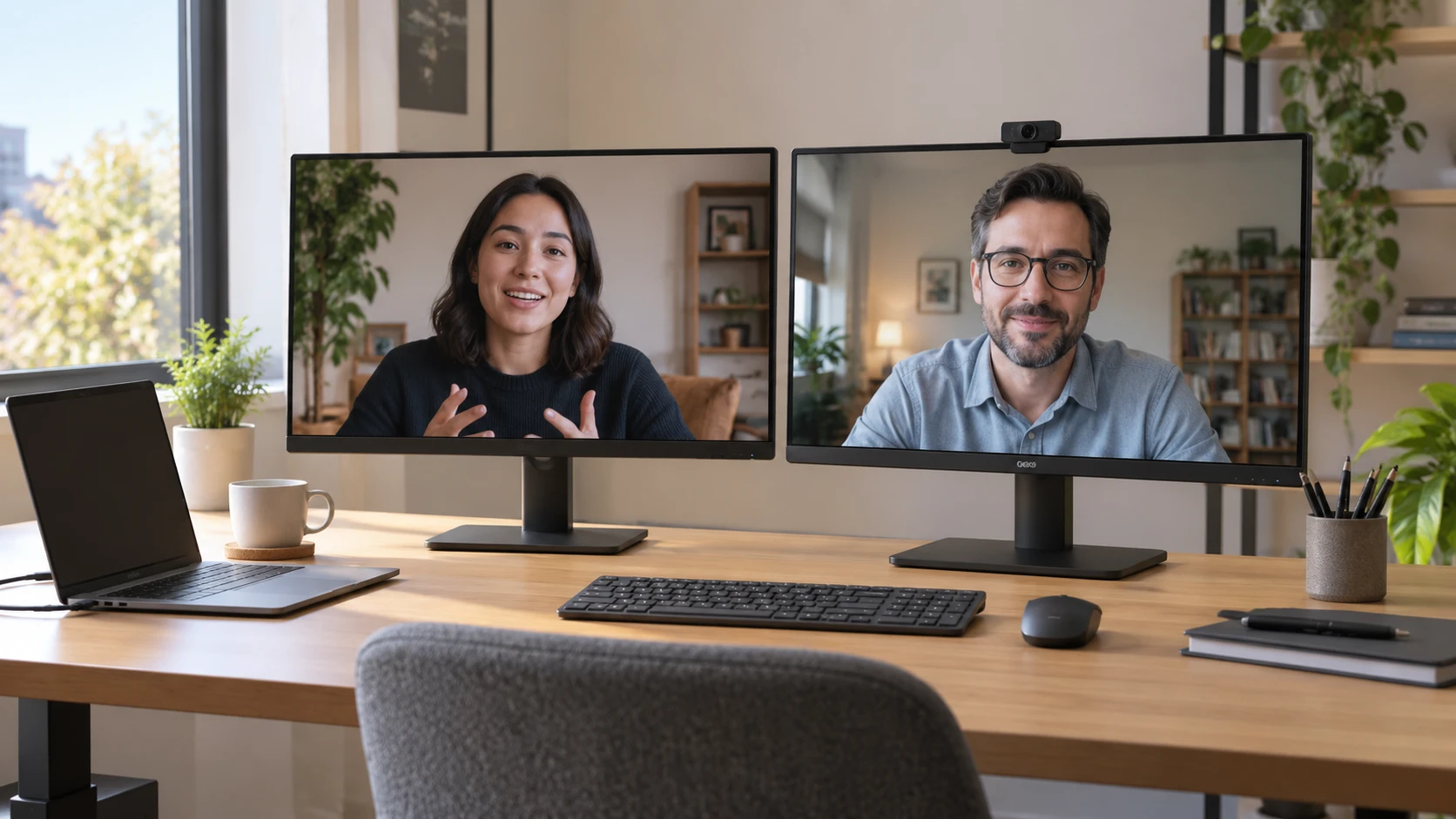
A 27-inch monitor used for calls has to do more than show a large image. The laptop needs the right connection, the camera needs a useful angle, and voices have to sound clear to the people on the other end. BenQ's GW2786TC and ASUS's BE279QFK are both listed as Full HD IPS displays with a 100Hz refresh rate. The BenQ row emphasizes one-cable USB-C operation, a built-in microphone, and a flexible stand. The ASUS row emphasizes a built-in webcam, speakers, and conventional video inputs. Choose around the equipment already on the desk, then test the whole call path.
The BenQ GW2786TC 27-inch monitor listing says its USB-C connection carries audio and video while providing up to 65W charging. It also names a noise-cancellation microphone, tilt, pivot, swivel, height adjustment, and daisy chaining. The ASUS listing says the BE279QFK includes a webcam and speakers, with HDMI, VGA, and DisplayPort inputs. Its saved row gives a 250-nit brightness figure and a 5ms response time. The two products solve different parts of the same desk setup; neither row supplies a matched test of camera image, microphone clarity, or laptop compatibility.
Map the cable from laptop to screen — display connection checks before choosing a monitor
Start with the exact laptop port. A USB-C socket can carry power, data, and video in different combinations, and the connector shape alone does not confirm all of them. If the laptop supports the video mode and charging requirement, BenQ's stated 65W one-cable path could reduce desk clutter. Check the laptop's power demand and the monitor's current cable and port specifications. A high-power workstation may still need its own charger during demanding work. Run the laptop on the planned connection for a normal call and a longer work session before removing the original power adapter from the desk.
ASUS lists HDMI, VGA, and DisplayPort inputs. That gives a clear starting point for a desktop PC, older machine, or dock with one of those outputs. Its catalog row does not name USB-C video or laptop charging, so do not assume either from the product's conferencing label. Check the full manual if a single cable is the goal. For any monitor, note whether the planned cable connects directly to the computer or through a hub. A chain of adapters can complicate troubleshooting when a screen goes blank just before a meeting.
The related display connection checks before choosing a monitor guide helps turn a product list into a cable list. Write down the output on each computer, the input on the monitor, whether the computer expects charging through that cable, and which cable will actually be supplied. If a second screen is planned, draw that route too. BenQ's row mentions daisy chaining, but it does not specify the required host support, connection standard, or limit on attached displays. Confirm the complete chain against the current manual before buying two panels around that feature.
Decide what should capture your face and voice — ASUS BE279QFK conferencing monitor
ASUS describes a built-in webcam. For a desk with no external camera, that could remove one device from the monitor edge and one cable from the work area. The row does not give camera resolution, field of view, privacy shutter information, or low-light performance. Place the monitor at the intended height, then inspect a test call on the receiving side. A camera mounted in the display may sit too low if the screen is below eye level, or too high if the stand is raised for reading. Angle and light matter more than the mere presence of a lens.
The BenQ row names a built-in noise-cancellation microphone and says it reduces ambient noise to emphasize speech. That is a claim in Republeq's catalog, not evidence that it will outperform the laptop's microphone or a headset. It does not name a webcam. If a camera integrated into the display is essential, confirm BenQ's exact hardware rather than infer absence from a short description. If microphone quality is essential, record the same spoken passage with the BenQ mic, laptop mic, and any headset already owned. Listen for words lost when a fan starts or a keyboard is used.
ASUS lists built-in speakers but its saved description does not describe a microphone. A conferencing label cannot establish the complete audio path by itself. Before a meeting, open the operating system's settings and select the intended camera, microphone, and speaker separately. The display may show the call while the laptop handles voice input and the monitor handles output. Test an actual call rather than trusting a settings screen: ask the listener whether your voice is clear and check that their reply comes from the desired device without echo.
Read Full HD at the distance you will sit — ASUS BE279QFK conferencing monitor
Both listings describe a 27-inch Full HD screen. At a typical desk, that is a large physical area for the same 1920-by-1080 pixel grid, so individual interface elements can appear generous. Whether text looks sharp enough depends on seating distance, eyesight, scaling, and the work being done. Open a spreadsheet, document, and video-call window side by side on a sample 27-inch Full HD display if possible. If you regularly need dense text or fine image detail, a higher-resolution monitor may be worth considering, but these two rows do not provide that option.
Both also list IPS technology and 100Hz refresh. The higher refresh rate compared with a common 60Hz desktop baseline can make cursor motion and scrolling feel smoother, provided the computer and connection actually output 100Hz at the selected resolution. Check the operating system's display settings after connecting. ASUS lists a 5ms response time; the BenQ row does not give a comparable figure. That omission cannot support a gaming-performance ranking. These are primarily desk and call candidates, so prioritize the content and connections you use every day.
ASUS specifies 250 nits of brightness and 16.7 million colors. BenQ's saved row does not state a brightness number or a directly comparable color gamut. A numerical image-quality ranking would need more than one product's figure. Put the monitor where it will be used and note daylight, reflections, and any lamp behind you. The camera's picture can suffer from backlighting even if the screen itself is readable. A call desk often benefits from controlling room light before replacing the display.
Stand adjustment affects the call frame — ASUS BE279QFK conferencing monitor
BenQ explicitly lists tilt, pivot, swivel, and height adjustment. That can help align the webcam, document windows, and viewing angle with the person at the desk. Pivot is also useful for long documents when the connection and operating system support portrait orientation. Check how the stand moves in the available desk space and whether the base crowds a keyboard or notebook. Raise the panel to a comfortable viewing position, then decide where the camera should sit relative to the eyes.
The ASUS row does not enumerate stand adjustments. Verify the current specification before concluding that it has a fixed stand or needs an arm. A built-in webcam changes the usual monitor-arm plan: moving the screen moves the camera too. If you share the desk with another person, test how quickly each setup can be adjusted without disturbing cables. A good call position should be repeatable at the start of a meeting, not a ten-minute balancing exercise.
BenQ lists Brightness Intelligence with a customizable B.I.Gen2 mode and viewing presets for coding, ePaper-style reading, and care. Its description also names Low Blue Light Plus. These options may be useful for someone who moves between bright daytime work and evening reading. They are comfort claims, not proof that one monitor prevents eye strain. Try the presets with your real applications and keep the one that makes text readable without washing out the content. ASUS's row provides no matching menu detail, so current documentation is needed for an options comparison.
Run one full meeting rehearsal — ASUS BE279QFK conferencing monitor
Connect the laptop and monitor the way they will be used every day. Launch the conferencing app and check the camera selection, microphone selection, output speaker, screen-sharing behavior, and charging status. Join a call with a second device placed in another room so you can judge the outgoing picture and sound. Share a document, switch between windows, and listen for feedback. Then close the laptop lid if that is part of the routine and see whether the monitor, camera, and audio stay available as intended.
Repeat after restarting the computer. A one-time successful connection does not show whether a webcam, microphone, or USB-C video mode will be selected consistently. If the setup includes a dock, unplug and reconnect it once. Keep a note of the cable and port that passed the test. That makes the first troubleshooting step clear when the desk is moved or another laptop visits. Neither catalog page can guarantee how a particular conferencing application chooses its default devices.
The ASUS BE279QFK conferencing monitor is worth examining when the integrated webcam, speakers, and HDMI/VGA/DisplayPort inputs address missing pieces of the desk. BenQ's GW2786TC gives a clearer catalog path to USB-C video and 65W charging, a microphone, and stand flexibility. Both share the same listed size, resolution, panel family, and refresh rate. The better fit is the one whose tested cable and call devices work cleanly with the computer already on the desk.