Garden Care & Watering
B-hyve remote watering fails while Bluetooth still works
Trace a failed remote command through the timer, its matching hub and the hub’s Wi-Fi connection. Keep nearby Bluetooth control, device-group linkage and generation-specific instructions separate.
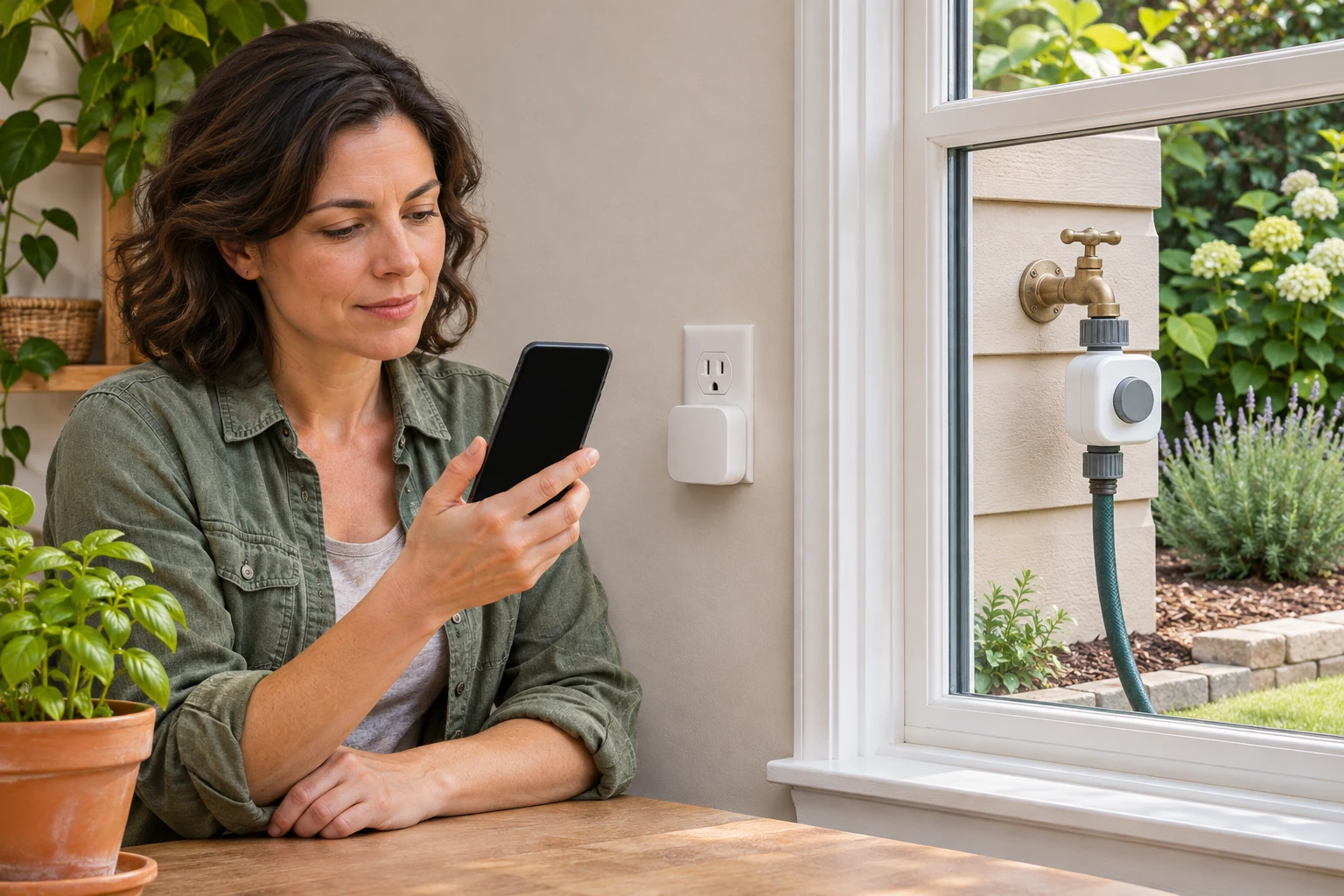
A nearby Bluetooth command can work while B-hyve remote watering remains unavailable. The documented Orbit 21004 arrangement has an outdoor hose timer and an indoor Wi-Fi hub, with a separate connection from the hub to the home network. A useful investigation follows the remote command through those components. Begin with the connection shown in the app and the equipment actually installed. The 21004 guide supplies the component arrangement used here. Its operating instructions belong with the matching device and document version.
Start with the command that failed
Consider an imagined owner, Mara, who can control her garden timer while standing beside it. Later, she tries from elsewhere and receives a disconnected indication. Her two observations belong in separate entries. Write where the phone was, which timer was selected and what the app reported for each attempt. Keep any uncertainty about the physical watering result visible. The fictional example establishes a question to investigate, without supplying an answer about Mara's equipment. Her useful next decision is which part of the remote route remains unconfirmed. Repeating the successful nearby action would add little to the observation she already has. A specific connection check can address the unresolved part.
Keep the retail examples and their pictured contents separate
The Orbit 21004 timer offer identifies model 21004 in its native details. Its gallery shows a complete light-colored timer with a projecting battery tray and a separate plug-in hub. The catalog's Black color field is preserved in the captured account, while this article identifies the example by its model and reference. The gallery also shows a phone and connected garden equipment in use-context images. The held phone and connected garden equipment illustrate the app context in those pictures.
The Orbit 21207 four-timer set names four timers, a four-port manifold and a Wi-Fi hub. Inventory pictures show darker timers and a hub marked GEN 2. Another lifestyle image shows four older light-colored timers. Retain that generation variation when checking the actual supplied equipment. This example remains a set comparison here. Read those as offer details and pictured inventory when confirming the contents of an actual order. The operating path below stays with the documented Gen 1 arrangement.
Match the hub and link the timer to it
Orbit's current written Gen 1 walkthrough identifies a light-gray hose timer with wings projecting from its battery tray. It explicitly requires a first-generation hub for that first-generation timer and says a second-generation hub is incompatible. For timer and hub pairing, establish the actual generation before continuing. A hub already appearing in an account leaves the timer's association with that hub to be checked.
The walkthrough describes a timer added before its hub. After adding the hub, the home screen can still show Bluetooth because the two devices need linking. Its documented path goes through My B-hyve, Devices and the selected timer, then Move to Device Group and the intended hub. Return to the home screen and read the connection indication after linking. Verify the selected device against its MAC address while following the applicable setup instructions. A familiar display name can be shared or edited. Keep the equipment identifier with the account entry you actually select.
Check the hub's position and the time after a battery change
The 21004 guide places the hub in an indoor outlet near the outdoor timer and within Wi-Fi range. It advises avoiding signal paths through more than one wall, dirt or thick steel barriers. The timer's battery instructions also say that removing or changing its batteries requires reconnecting over Bluetooth to set the correct time and date. Include that event in the investigation if it actually happened. Record the present hub location and current app status when comparing the two connections.
Use the network-change questions before changing settings
Orbit's device-finding help page begins with several useful questions. Establish whether the device previously connected to Wi-Fi, whether the home network changed recently, whether its current password has been entered in the app, whether the network has separate 5 GHz and 2.4 GHz names, and whether Bluetooth is enabled on the phone or tablet. Answer those questions for the installation in front of you. If the router was replaced yesterday, retain that specific event alongside the remote failure. If nothing about the network is known to have changed, record that answer with its real limit. The household member investigating the timer may have missed an earlier password change. Check with whoever manages the network before entering credentials remembered from an old setup. These questions help select an applicable connection branch. Keep those answers with the selected connection branch. An existing account entry can remain available while you establish which network and device the app is trying to find.
Update the hub after a router or password change
For a changed router, Orbit's hose-timer and hub reconnection article directs the user to My B-hyve, Devices, the Wi-Fi hub and Update WiFi Settings. This selection matters because the hub owns the Wi-Fi connection in this arrangement. The app searches for the hub, which then searches for available networks. The article offers Refresh when the expected network is missing and moving the hub closer to the router during reconnection. A secured network requires its current password. For a network that does not broadcast its name, the documented Advanced option accepts its connection details. Check the actual network name before submitting those details. The article also describes connecting to Bluetooth near the timer and then disconnecting Bluetooth to reconnect through the hub when that reconnection branch applies. Keep the updated hub and the intended timer together in your observation. A successful network update on one hub leaves another hub's state unchanged. Record which device completed the step before evaluating a later remote command.
Keep a reconnection separate from a fresh setup
Orbit's general connectivity article covers Wi-Fi and Bluetooth connection issues, incorrect battery reporting, incorrect time or date, and an unresponsive device. It separates rebooting from factory resetting, then describes reconnecting after a reset. For a Wi-Fi hub, its listed app path selects the device and updates its Wi-Fi settings. Its hose-timer instructions use the connection symbol to connect over Bluetooth, followed by disconnecting Bluetooth. Use the section that matches the device and the event that actually occurred. Someone who has already reset a hub needs to restore its network connection; someone investigating a timer after battery replacement has a different starting record. Keep Bluetooth and Wi-Fi control labeled through that process so a nearby connection does not silently become the claimed remote result. Use the applicable equipment instructions to determine physical handling and the starting conditions for any intervention. The useful result here is a clearly identified connection state that can be compared with the state before the intervention.
Investigate repeated disconnections before erasing the setup
Orbit's frequent-disconnection article recommends its OrbitAssist application for a network scan and the resulting recommendations. It then describes rebooting the router and additional network components, reconnecting and testing when the issue continues. Plan that interruption with the person responsible for the household network. A recorder, work session or another shared service may be using it. Preserve the actual network arrangement and the result of the scan so a later enquiry has something specific to assess. The same support article treats a complete reset and reconnection as a final effort. It warns that this deletes saved programs and zone information. That consequence belongs in the decision before a reset is selected. An existing watering arrangement can contain settings someone else maintains. Establish how those settings will be restored and use the applicable device-specific directions if that final branch becomes necessary. A repeated remote failure deserves a recorded outcome from each applicable check, with uncertainty carried forward when the cause remains unresolved.
Compare the resulting observations
Return to Mara's imagined case after the selected connection check. Suppose the app now identifies the intended hub and reports a remote connection. That new indication answers a connection-state question. Her next observation should describe what actually happens when she uses the intended remote control, including any message or uncertain physical result. If the same disconnected indication remains, keep it with the exact hub and network she checked. If a different symptom appears, give it its own description. Avoid rewriting the first event to make the sequence look successful. A short before-and-after record lets the next person see which observation changed. It also makes a support conversation more specific than a report that everything was tried. The fictional sequence leaves the actual outcome for the equipment owner to observe.
The travel router connection modes guide separates a client's local network connection from the upstream service feeding a router. It can help with that separate network question. Its hotel modes, port assignments and tethering instructions belong to its documented travel routers.
If communication is restored and an attached spray bar remains stationary, the oscillating sprinkler motion guide addresses that equipment symptom and its maker-specific cleaning restrictions. Keep the observed motion and spray with the sprinkler's own instructions when deciding what to investigate next.
Keep a later purchase attached to the equipment decision
If the applicable checks eventually lead to a replacement purchase, settle the equipment model, matching hub and supplied contents before choosing payment. Someone considering crypto, including USDT, through republeq.com still needs those equipment answers. Keep any unresolved generation question with the merchant enquiry and confirm the instructions that accompany the actual supplied item. Review the exact basket, quantity, delivery and return terms for the order you intend to place. Payment choices should be checked in the current transaction. Use the checkout presented for the selected basket to establish the available assets and networks. Read the selected method's instructions, including the amount, any displayed fees, receiving details and relevant time limit. Clarify an unfamiliar or incomplete instruction before authorizing the transaction. Keep the merchant's order confirmation together with the payment reference so an uncertain status can be reconciled before another payment is considered. Review the cancellation and refund terms that apply to the chosen method and keep the terms you accepted. A purchase record documents that transaction. The earlier connection issue retains its own evidence and outcome. Confirm how a proposed replacement will serve the equipment you intend to keep before completing that purchase. You can leave an order pending while a model or connection question is resolved. If another household member places the order, pass along the exact confirmed selection and any supplier clarification. That gives the buyer a checkable request instead of a description remembered from a picture. Keep the actual payment result with the order it belongs to, and use the transaction's support route for an unexplained status. The existing troubleshooting record remains available for the person responsible for the equipment decision.
For B-hyve remote watering, keep the current connection state with the exact device you checked, then preserve the outcome of the applicable next step.