Crypto Commerce
AuroraLink ODP95-4K Blu-ray burner vs USB-C Blu-ray drive for disc projects
Compare AuroraLink ODP95-4K Blu-ray burner for disc playback, archival burns, computer ports, software, and verification.
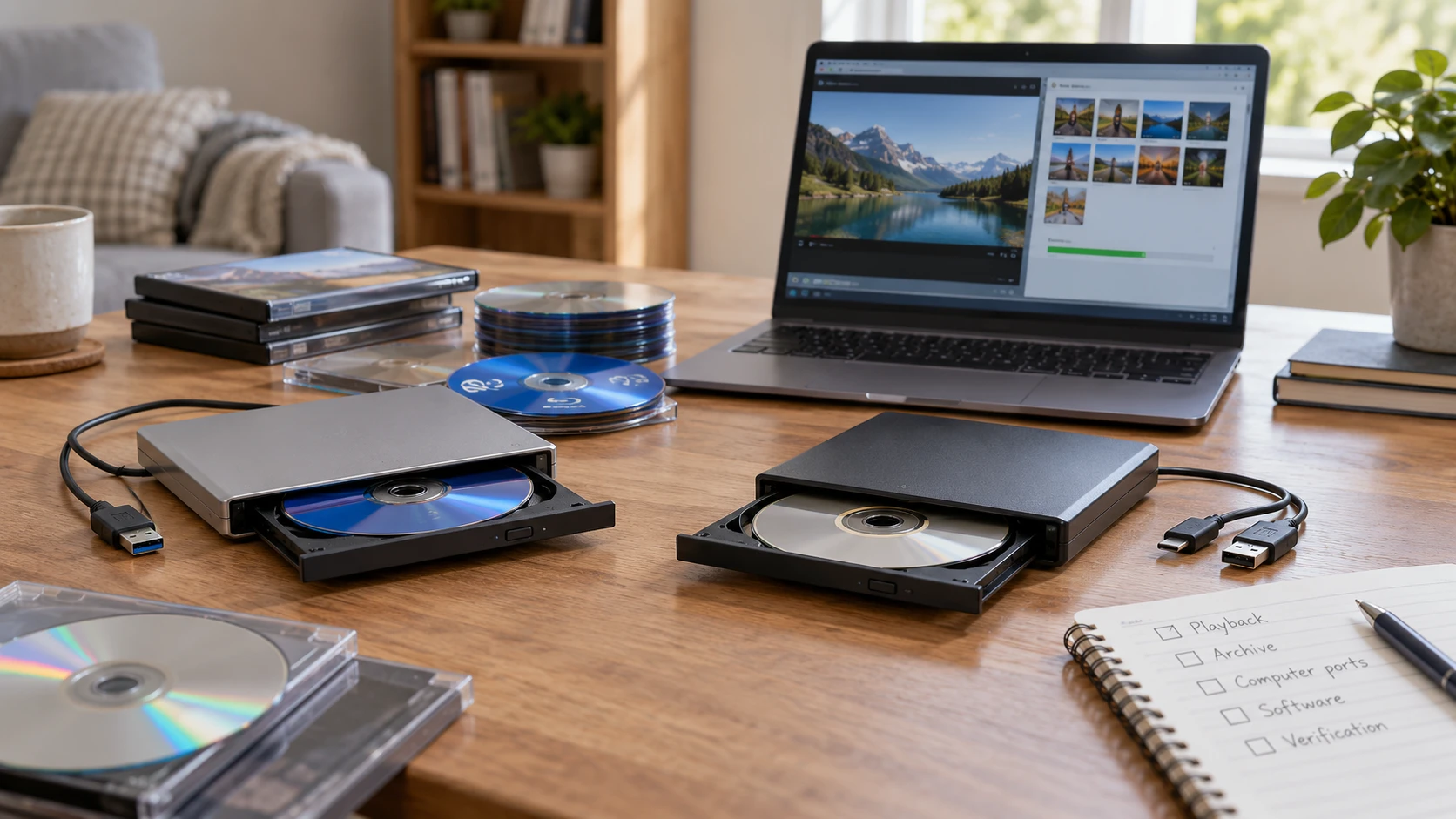
An external optical drive can be bought for several different jobs: reading an old DVD, burning a data archive, or watching a particular Blu-ray movie. Those jobs share a tray, but they do not share every software, disc, and computer requirement. The AuroraLink ODP95-4K and a portable USB 3.0/Type-C recorder both list Blu-ray, DVD, and CD handling. AuroraLink gives a clearer warning about software for Blu-ray tasks. The other listing gives clearer claims about 25GB and 50GB media and two connector types. Before choosing, write down the exact disc and computer that must work together.
The AuroraLink ODP95-4K Blu-ray burner row describes a portable aluminum drive with an included USB 3.0 cable, a front eject button, and an indicator light. It says the unit reads and burns Blu-ray, DVD, and CD media, including 3D Blu-ray discs, and that Blu-ray reading or disc burning needs compatible software. The disc playback compatibility checks guide is a useful first stop for a movie collection. The USB 3.0 and Type-C Blu-ray recorder listing names BD, CD, DVD, VCD, 3D Blu-ray, 25GB and 50GB media, a low-noise motor claim, and a recessed groove that stores its data cable.
Name the disc rather than only the drive — USB 3.0 and Type-C Blu-ray recorder
A data CD, a video DVD, a Blu-ray movie, a 3D Blu-ray title, and a writable BD disc have different requirements. The two product rows list several of those categories, but a short catalog description cannot guarantee every specific disc will work on every computer. Put the original disc label or blank-media package beside the computer's operating-system version and the software you intend to use. If the goal is a commercial movie, check playback software, region, display path, and any copy-protection requirements for that exact title. The drive is one component of a playback chain.
AuroraLink's title includes “4K,” yet its saved description does not establish a complete Ultra HD Blu-ray movie playback setup. The generic recorder also makes broad format claims without naming a licensed playback application. Do not buy either device solely from a 4K label if UHD movie discs are the main purpose. Verify the exact drive model's UHD support, the computer platform, and a compatible player before purchase. A drive that reads a data Blu-ray disc is not automatically a solution for every encrypted film release.
For simple DVD or CD use, AuroraLink's row says basic playback requires no driver installation. That statement is narrower than a promise that all movie discs will play without software. Many computers still need a media player application, and burning needs a writing program. The second row calls its unit plug-and-play, which describes the connection experience in broad terms; it does not settle Blu-ray movie decoding or authoring. Run a small test with a disc of the exact type you care about during the return period.
Plan archive capacity around files, not labels — USB 3.0 and Type-C Blu-ray recorder
The USB 3.0/Type-C recorder's description explicitly names 25GB and 50GB media. Those are useful nominal capacities for planning a data archive, subject to the actual blank-disc format and usable space. AuroraLink's row says it writes Blu-ray media but does not state the supported blank-disc capacities or layers. If 50GB discs are part of the workflow, confirm that exact support from the manufacturer's current specification. Do not assume every burner in a family handles the same rewritable or dual-layer media.
Collect a representative project folder and check its size before buying blanks. A finished video file may fit easily while its camera originals, audio, graphics, and project files exceed one disc. Decide whether the optical copy is a delivery copy, a selective archive, or a full source backup. An archive split over several discs needs a clear numbering scheme and a manifest so a future reader can find every piece. Keep an independent copy of important files until the burned disc has been verified on another reader.
Blank-disc quality and storage conditions matter alongside drive compatibility. Label the case with a date, project name, and disc number, and avoid writing on the data surface. Store media according to the manufacturer's guidance, away from heat and direct sunlight. Neither saved Republeq catalog record makes a verified longevity claim for any particular blank disc. The burner cannot turn an unsuitable disc or a single untested copy into a permanent archive.
Check the computer's port and power path — USB 3.0 and Type-C Blu-ray recorder
AuroraLink lists USB 3.0 and says the cable is included. The second row advertises USB 3.0 and Type-C interfaces and describes a recessed groove for storing the cable. The wording does not state the exact connector on both ends or the cable length for the generic recorder. Compare photographs and the manual with the computer's ports before ordering. A Type-C plug describes shape; the host port's data and power capabilities still matter. If you normally use a hub, include that hub in the test.
An optical drive spins a disc and moves a laser assembly. A connection that drops during reading is annoying; a drop during writing can ruin the blank and leave an incomplete archive. Use the power method required by the exact drive. The saved rows do not give a full power budget or promise that an unpowered hub will work. Connect the unit as instructed, then burn a disposable test disc before trusting it with a large job. Do not move the laptop or tug the cable while writing.
AuroraLink names Mac, desktop, and laptop use with a USB interface. That is a broad compatibility statement, not a list of tested operating-system releases and Blu-ray software. The generic recorder's row does not enumerate current operating systems. Check the writing and playback applications you plan to use, including their support for the OS and hardware. A drive may appear in the file manager while the desired disc format remains unsupported by the installed program.
Evaluate the physical controls in the place they will be used — USB 3.0 and Type-C Blu-ray recorder
AuroraLink's front eject button and indicator light are concrete details if the drive sits beside a desktop tower or behind a monitor. Put it where the tray can fully open and where the cable is not stretched. The generic recorder's rear cable groove may help keep a travel bag organized, provided the cable fits without sharp bends. Its Republeq's catalog also calls the motor low-noise. That is a claim without a measured sound level or matched comparison, so listen during a full read or burn if the drive will operate in a quiet office.
Thin portable drives can be easy to pack, but the saved rows do not provide enough dimensions or weights for a precise portability ranking. Check the manufacturer's measurements if the drive must fit a specific case. Keep a rigid sleeve or protective space in the bag so the tray and connector do not take pressure from other gear. A drive used only a few times a year may benefit more from reliable storage and a labeled cable than from a slightly smaller shell.
A front indicator can show activity, but it is not a file-integrity receipt. Wait for the writing software to complete and eject the disc cleanly. If it offers verification, use it. Then mount the disc again and open representative files from the start, middle, and end of the archive. For a project worth keeping, compare checksums of the source files and the disc copy when the workflow supports it. Record the burn date and the software or file format used; a future computer may need that context.
Keep playback and authoring separate — disc playback compatibility checks
Reading a data disc, playing a movie, and authoring a video disc are separate tasks. A folder of MP4 files burned to BD may be readable by a computer but not behave like a menu-driven Blu-ray movie in a living-room player. AuroraLink explicitly says Blu-ray reading and disc burning require compatible software, while the generic row lists read/write formats and plug-and-play operation without explaining authoring. Confirm the exact output format required by the recipient before starting. If the recipient expects a player-compatible disc, test it in the target player, not only on the computer that burned it.
Three-dimensional Blu-ray titles add another layer of compatibility. Both listings mention 3D Blu-ray, but neither explains the display, graphics, software, and glasses path required for a complete viewing experience. Check the published guide's disc-player compatibility questions, then verify the rest of the system. A drive's ability to read a disc is necessary, yet the computer must also decode and display it in the intended mode.
If the archive is for business or family records, consider who will read it years later. Use common file formats where possible, keep an index outside the disc, and plan periodic migration to a current medium. Optical media can be a useful additional copy, especially for files that should stay offline, but it should not be the only copy of irreplaceable footage. Periodic read checks will reveal a problem while another copy is still available.
A short acceptance test before buying blanks in bulk — USB 3.0 and Type-C Blu-ray recorder
Borrow or buy one suitable blank of the intended type and prepare a small test folder with mixed file sizes. Connect the drive to the exact computer and port that will be used, burn the folder, and run the software's verification. Read the disc on a second compatible machine if that is part of the real workflow. For movie playback, use a legitimate disc that matches the required format and confirm the software and display path. Document any error before choosing a different blank or software setting.
The generic USB 3.0/Type-C recorder is the catalog-backed candidate when two connector types and explicit 25GB or 50GB media claims answer known needs. AuroraLink gives clearer physical controls and a more candid software prerequisite for Blu-ray reading and burning. Neither description alone proves UHD movie playback, silent operation, or lasting archival quality. Decide from a test of the exact disc, computer, application, and recipient that the drive must serve.