Computers & Gaming
Understand Android theme choices across system and apps
Start with the reading or viewing task that matters to you, then choose the applicable instructions. Keep a proposed preference separate from any result you have not observed.
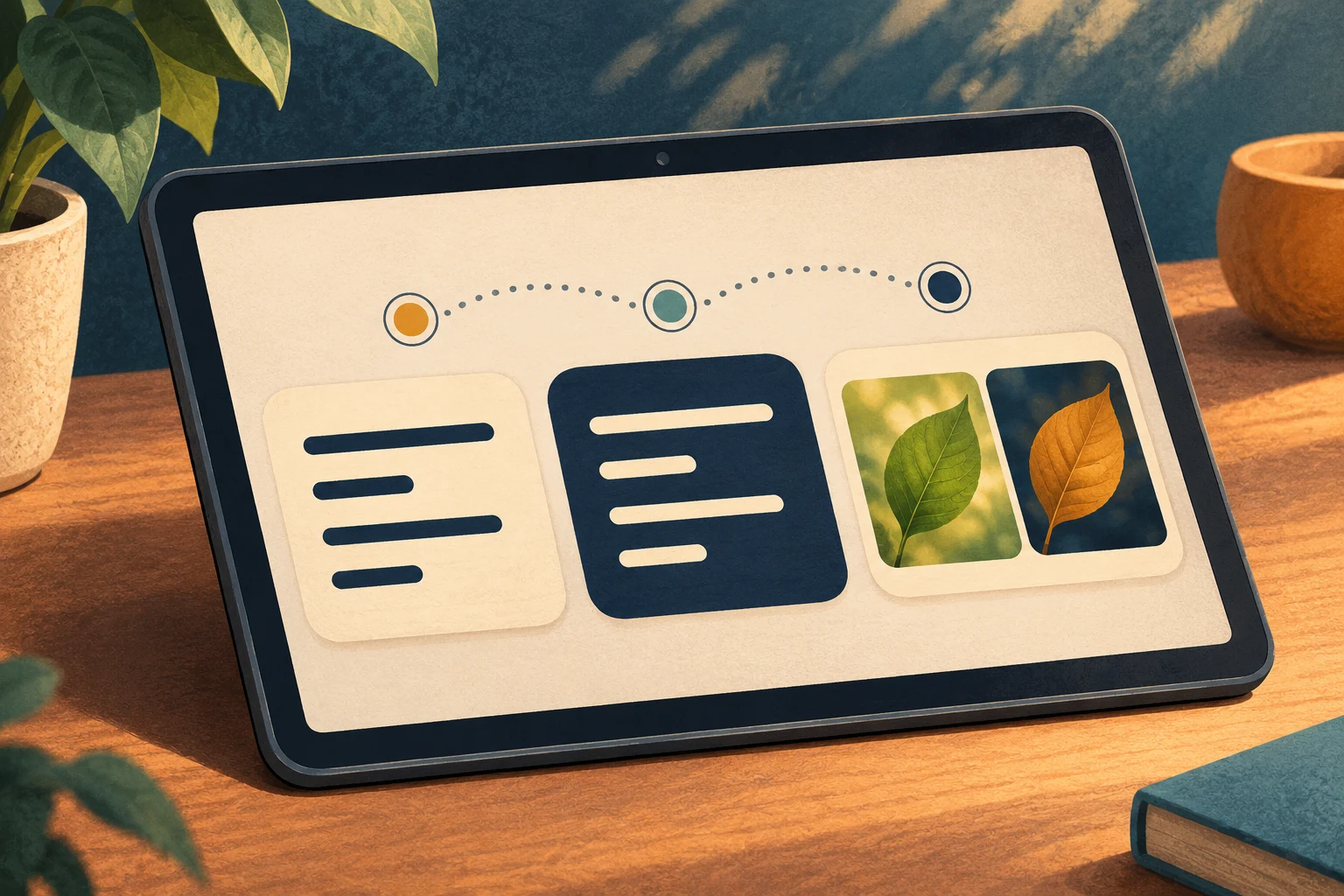
Conceptual system, app and inversion choices; no exact Android interface, product authentication or successful change is shown.
Android theme choices concern device appearance, individual apps and screen-wide colour treatment.
This guide explains the controls in Google's actual Android, Chrome, Gmail, YouTube and Docs Editors help articles. The examples are fictional preferences, not settings changes performed here. The two native tablet accounts provide hardware context; their photographs do not establish the Android version, installed apps or options available on a delivered unit.
Separate the device choice from the app choice
Google’s Android guide gives Settings, Display, then Dark theme. Battery Saver may enable it. Apps can have their own Theme or Display options. The page marks some instructions as requiring Android 13 and up.
Imagine Nora preparing an invitation draft for a fictional family gathering. She wants to read comfortably while checking the wording and talking with a colleague. She is deciding which change would help that work. Before choosing an option, she can name what she wants to keep and what she wants to change.
Another reader might want everything to follow the device choice. That request points towards the following options described below. It is different from selecting a permanent-looking light or dark preference independently in each app. Read the available labels before deciding which relationship you want.
Understand what inversion changes
Google's separate Android Accessibility guide says color inversion reverses screen colours and applies to everything, including media. Its documented route is Settings, Accessibility, Color and motion, Color inversion, then Use color inversion. This is a different operation from choosing an app's background option.
For Nora’s fictional invitation, a photograph and its short heading need a deliberate design review. Her colleague has suggested a shorter welcome and a clearer date line. The invitation is for relatives visiting from another town. Nora wants to judge those suggestions against the draft before deciding which content changes to make.
The accessibility guide allows inversion with the dark setting on Android 10 and up. On Android 9 and lower, only one can be used; enabling the dark setting turns inversion off.
Google’s Android work also warns that its Expanded option may alter images or make text over them hard to read. Do not assume a theme universally leaves pictures unchanged; this guide supplies no Expanded setup procedure.
Read Chrome's three appearance choices
Chrome’s Android help gives More, Settings, Theme: System Default, Dark or Light. System Default follows the device’s dark setting or Battery Saver. It names the homepage, toolbar, settings and some other pages; it does not promise to darken every website.
Suppose Leon is checking a fictional train timetable while planning a family visit. He wants to find one departure row quickly and then return to a message. He has the departure station and destination written down, so the proposed appearance preference can be considered against that particular reading task. The example identifies his purpose without supplying a browser or website result.
If the toolbar and a website's article area look different, describe those areas separately. Leon can point to the browser controls he means rather than using the whole screen as one ambiguous example. That makes the question more precise without claiming that a browser setting has changed the website.
Chrome's help also notes that an Incognito window may appear dark. Appearance alone should not be used as an instruction about private browsing. This article concerns colour preferences; it does not change an account, choose a guest session or establish what browsing information is retained.
Choose Gmail's app preference on its own terms
Gmail’s Dark theme is available on Android 10 and up. Its route is Menu, Settings, General settings, Theme: Light, Dark or System default. Personal-photo backgrounds are an additional computer option.
Nora can decide how she wants to handle a long reply before changing a preference. She may want an uninterrupted reading session, or she may be scanning for one proposed wording change. A useful choice should serve that actual task.
Keep the platform in view when reading help. Instructions about choosing a personal photograph on a computer do not establish that the Android app offers that control. A tablet's larger screen does not by itself turn an Android app into the computer version of Gmail.
Nora might read a long invitation reply while keeping a separate list of changes she wants to discuss. She can decide which part of that work is difficult to follow before requesting a different appearance. That keeps the discussion attached to the reading task rather than a photograph of somebody else’s setup.
Distinguish YouTube's viewer and Studio controls
YouTube’s Android 10-and-newer viewer path is profile picture, Settings, General, Appearance, then Use device theme or a light or dark choice; its older Android branch differs. Studio uses profile picture, Settings and Dark Theme under Device. The work also requires device dark mode for Ambient mode.
Asha might have a draft video title and a thumbnail idea ready for discussion. She can decide whether today’s task concerns watching the video or preparing its accompanying material. Those are concrete intentions to explain before investigating a preference. Keeping the task clear helps her ask a useful question; no video was uploaded, edited or viewed for this example.
Separate a personal document view from shared appearance
Google’s independent Docs Editors help gives Android Docs, Sheets or Slides, Menu, Settings, Choose theme, then Dark, Light or System default. It says collaborators cannot see the theme you choose. For a light preview in Docs or Sheets, open the document or sheet, choose More, then View in light theme. The preview procedure is not given for Slides.
The Docs Editors work says the dark setting automatically adjusts documents and sheets to fit the theme. In Nora’s invitation example, checking a personal reading view and discussing a proposed design change are separate activities. Neither activity supplies a result for the other.
Suppose Nora is discussing an invitation draft with a colleague. She wants a comfortable personal view while the colleague checks the design. Those are separate requests. A private viewing preference should not be reported as a change that the colleague must now see in the shared draft.
Editing the invitation itself is a separate task. Nora’s proposed design change might replace a large photograph with a short heading. Nora’s colleague may accept the welcome but suggest moving the arrival date nearer the heading. Nora can consider that specific proposal independently of the other comments, then decide what she actually wants to change. Her proposed heading names the gathering and arrival date. The photograph is intended to welcome relatives visiting for the first time. She can explain that proposal directly, instead of treating a colour difference between screens as evidence that an edit occurred.
Agree the purpose of that conversation before choosing a control. The distinction prevents two people from talking past each other while looking at the same work. No shared document was edited, restyled or published for this example.
Build one coherent set of preferences
Use the task to decide what a useful preference would accomplish. Nora can identify the part of the invitation she is reviewing and the question she wants to discuss with her colleague. She can return to the draft’s wording when comparing proposals. That gives the decision a concrete purpose without supplying a result on her behalf.
Use device instructions for a device-wide preference. Use an app’s instructions for its independent choice. Consider the broader colour operation only when that is your request.
Change one relevant preference for any ordinary personal comparison, rather than introducing several unrelated changes at once. Choose a page or task you can set aside safely. Then consider whether the result suits the intended use. The fictional arrangement does not supply a successful result or prove that every listed option exists on your device.
Read the tablet accounts without inventing software results
The TCL Tab 8 account and TCL TABMAX account each have a native gallery showing one complete bare tablet. No independent charger, case, cable, stylus or keyboard is pictured or explicitly supplied in those native descriptions; their microSD expansion references concern separately sold cards. The decorative screen images do not authenticate an installed Android interface, a maker label or a full factory model.
The published MESWAO and Veidoo tablet guide owns screen, travel, connection and software-environment purchasing questions. The COM1950s and Galaxy Tab A8 guide owns call, media, variant and bundle questions. Their hardware comparisons do not supply the system-versus-app appearance choices explained here.
You can investigate a software preference on existing equipment before considering a purchase. If you later need a particular feature on another device, ask about the exact delivered model and software. A catalog reference to Android, a colourful screen photograph or a large display is not a completed compatibility check for your intended app.
For Android theme choices, return to the question that brought you here. Decide whether the proposed preference is worth considering for your own work or whether you need a different enquiry. Keep that intention separate from any result you have not actually observed.
Treat a possible tablet order on republeq.com as a separate decision from the appearance preferences described above. Nora can investigate her current apps without placing an order. If a future purchase becomes relevant, identify the exact delivered model, selected configuration and unresolved software requirement before choosing how to pay. This guide establishes no current USDT option, crypto checkout, accepted payment or completed order for either native tablet account. Any available payment method must be confirmed from the responsible service's actual transaction information. If cryptocurrency is offered for your intended purchase, review the applicable instructions and terms before authorizing anything. Check the item identity, variant, quantity, delivery arrangement, full charge and return conditions. Confirm the asset, network, amount, fees, receiving destination and order reference requested for that specific transaction. A familiar currency name does not provide those details, and an instruction from a different order should not be substituted. No wallet address, transfer recommendation, promised discount or refund outcome is supplied here. Ask the responsible service how cancellation or a refund would be handled for the offered payment method, and retain its answer with the order details. If an order or transfer has an uncertain status, reconcile that uncertainty before considering another transaction. Silence from a service is not evidence that an earlier action had no effect. Keep any payment record distinguishable from the answer to your software question: one does not establish the other. You can postpone a purchase while checking the exact feature or configuration you need. A frustrating background colour or an unanswered app question does not create an obligation to replace equipment, connect a wallet or send funds.