Crypto Commerce
Acer Nitro XF320QK gaming monitor — A game display and a touch display solve different desk problems
Compare Acer Nitro XF320QK gaming monitor: a 31.5-inch high-refresh gaming display with a 27-inch touch monitor, including an unresolved Acer resolution…
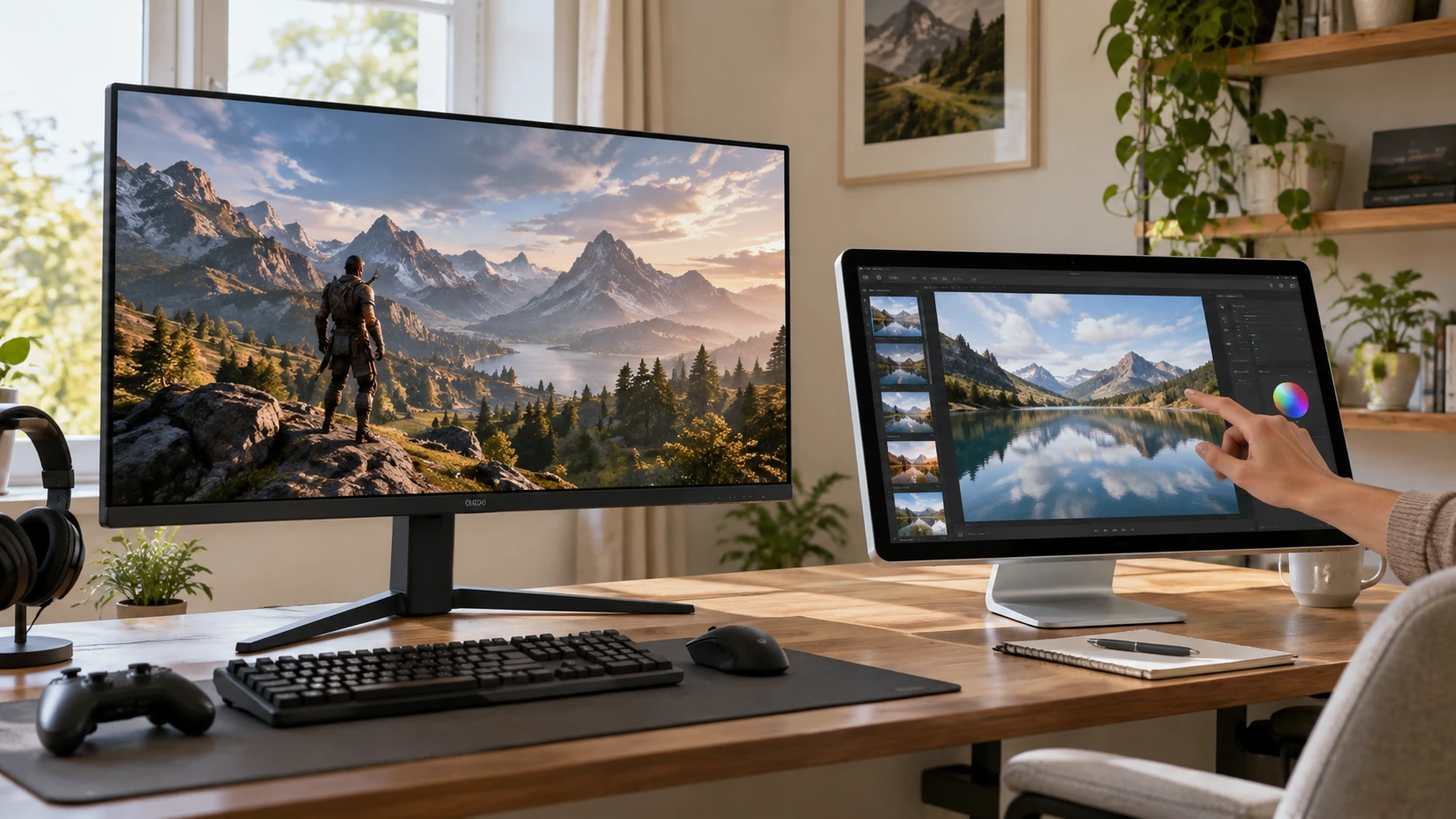
The Acer Nitro XF320QK gaming monitor is described as a 31.5-inch display with a 144 Hz refresh rate, a 1 ms response-time claim, and AMD FreeSync Premium. The ALOGIC Clarity Pro 27C4KPDWT is described as a 27-inch capacitive touchscreen with a 4K UHD panel, 5 ms response-time claim, and 400-nit brightness. Those headline numbers point toward different uses. Decide whether the desk primarily needs a fast, broad game view or direct interaction with on-screen controls before ranking specifications.
There is a basic specification problem to resolve first. Acer's saved title says 3480 by 2160, while the product details say 3840 by 2160 UHD. The latter is a conventional 16:9 UHD pixel count; the two figures cannot both be the same native panel resolution. The article on a separate monitor resolution conflict shows why a title and detailed specification should be reconciled before comparing displays. That guide concerns other models, so ask Acer or the Republeq's catalog for the current XF320QK P0bmiiphx specification sheet and exact model identifier. Do not quietly correct the listing from the more familiar number.
ALOGIC's excerpt calls its panel 4K UHD and says it has more than eight million pixels, but it does not print the exact horizontal and vertical counts. Request the model-specific specification if your work requires a particular pixel grid. A 4K label also does not establish the sharpness of text at your chosen scaling or viewing distance. Physical size and pixel density affect how a screen feels at a desk. Compare your usual text size and window layout on a 27-inch and a 31.5-inch display before buying from the labels alone.
The Acer discrepancy also affects what to ask when testing a connected computer. Have the Republeq's catalog show the operating system's reported native mode for the exact model, then compare it with the manufacturer's written specification. A screenshot of an output setting is useful evidence about that computer's current signal, though an adapter or graphics setting could still limit the available modes. The product identity on the box and rear label must match the specification being used. Do not substitute a similar Nitro model simply because its resolution seems more plausible.
Match the interaction to the job — ALOGIC Clarity Pro touch monitor
For games with quick camera motion, Acer's listed 144 Hz and FreeSync Premium are relevant. A higher refresh rate can show new frames more frequently when the computer and connection can deliver them, but the saved description does not state which input ports support 144 Hz at the panel's confirmed native resolution. It also does not describe color depth, cable requirements, or console limits. Check the manual's timing table and the outputs on the machine you intend to connect. A high refresh figure printed on a box does not guarantee that every device will offer that mode.
ALOGIC's touchscreen is described for point-of-sale, hospitality, and retail applications. Direct touch may reduce reliance on a separate mouse where someone must select large on-screen controls repeatedly. Yet the saved listing does not describe its touch-controller connection, operating-system support, number of touch points, or software requirements. HDMI is listed as a video input for PCs, Blu-ray players, and current gaming consoles. An HDMI image alone does not prove that touch input will work on a console or computer. Verify the required host connection and drivers with ALOGIC for the exact 27C4KPDWT model.
A shared workspace can create a different priority. If someone presents information to customers from the same screen they operate, test the angle, reach, and mounting height of the touch surface. A 27-inch panel placed too far back may be awkward to touch, while moving it close can crowd paperwork. Acer's larger panel could show more windows, but it is not described as touch-enabled. Map the actual workflow: which controls must be touched, which information must stay visible, and who stands or sits in front of the screen. That map will make the feature choice much clearer.
Try the intended software with touch before selecting ALOGIC. Some applications present controls too small for comfortable finger use, even when the panel itself recognizes touches accurately. Other workflows involve repeated typing and may still need a keyboard near the screen. Check whether the display will face one operator or several people, and whether its mount permits a position that works for all of them. These are workflow questions the saved hardware description cannot answer. A touch feature only pays off when the software and workstation are designed to use it.
Do not equate either response-time number with a complete picture of motion quality. Acer's 1 ms and ALOGIC's 5 ms are claims without measurement method in the saved excerpts. Real-world blur, overshoot, and input lag depend on settings and tests that those numbers do not reveal. Look for independent measurements under the modes you plan to use. For competitive play, motion handling may outweigh touch. For a kiosk or creative review station, touch reliability and viewing position could outweigh a higher refresh rate.
Check the connections and physical setup — ALOGIC Clarity Pro touch monitor
The ALOGIC listing names HDMI and VESA mounting. It does not state an HDMI version, the full set of ports, the VESA pattern, or whether a stand is included in every package. It says wall or stand mounting is possible, but the mount must still support the display's weight and pattern. Acer's saved excerpt gives no port list or mounting specification. Get the manuals for both displays before selecting a desk arm, wall mount, cable, or dock. Confirm that every video and touch function you need works through the actual connection path, including any adapter.
Acer lists a stand with tilt from minus 5 to 25 degrees, 360-degree swivel, and 3.93 inches of height adjustment. Confirm the meaning and mechanical limits of the swivel figure in its current manual before relying on it for a corner desk. The description also mentions a narrow bezel, flicker-less operation, low dimming, and a ComfyView coating. Those features may make a long session more comfortable, but they do not replace fitting the screen to the viewer's eye level and viewing distance. The ALOGIC excerpt gives no stand-adjustment range, so ask whether its supplied or compatible mount allows the position you need.
Measure the desk as carefully as the screen. A 31.5-inch panel can occupy more horizontal field of view than a 27-inch one at the same distance, and it may push speakers or a laptop farther apart. Neither excerpt supplies overall width, depth on the stand, cable reach, or weight. Check those before ordering a monitor arm or placing either display under a shelf. For touch use, include the clearance needed for a hand to reach the entire active surface. For gaming, consider where keyboard, mouse, and speakers sit relative to the screen center.
The ALOGIC source says its touch surface resists dust, oil, grease, and water globules. That is a description of surface treatment, not an ingress-protection rating or permission to operate in a wet location. Ask for cleaning and environmental instructions if the display will be used in a kitchen, service counter, or public space. Regular touch can leave fingerprints even on a resistant coating. Acer's ComfyView coating likewise needs its own cleaning instructions; do not assume the two surfaces tolerate the same chemicals or wiping method.
Separate picture claims from measured performance — monitor resolution conflict
Acer lists 99 percent sRGB coverage. That is a gamut claim, not a guarantee of factory calibration, uniformity, or color accuracy in every mode. ALOGIC's excerpt gives no gamut or color-error figure, although it names 400-nit brightness. Neither short description establishes HDR performance. If photo editing or design approval matters, request model-specific calibration information and independent measurements. If the display is for ordinary office work, look at text clarity, reflection control, and viewing position rather than paying for a claim you will not use.
ALOGIC's 400-nit figure is a stated brightness specification without a measurement condition in the saved source. Acer does not give a brightness value there. Do not declare one brighter based on an absent comparison number. Ask for comparable sustained brightness and reflectance tests if the screen faces a window or strong store lighting. A glossy or treated touch surface may also look different from a gaming display's coated surface in the same room. Inspect the screens under lighting close to your own if possible.
Both listings omit some practical purchase details. Acer's exact native pixel count needs resolution; ALOGIC's touch host requirements need confirmation. Neither saved excerpt specifies warranty terms, included cables, power consumption, or service arrangements. Get those from current manufacturer documents and the actual Republeq's catalog package. If the screen is central to a business counter, replacement and support time may matter as much as the display features. If it is mainly for gaming at home, verified timing modes and motion measurements may be the stronger tie-breakers.
The ALOGIC Clarity Pro touch monitor is the clearer starting point when the task requires direct screen interaction and a 27-inch footprint. Confirm its touch connection and software support before assuming HDMI carries everything. Acer is the clearer starting point for a large, high-refresh game screen, subject to a corrected native-resolution specification and confirmed input timing. Put the intended computer, cables, desk dimensions, and daily tasks on one checklist. Once those facts are verified, the choice becomes a fit decision rather than a contest between unrelated headline numbers.