Printers & Scanners
Check the page turn for two-sided printing in Word
Use the actual supported Word printing controls to select a page-turn edge and inspect a representative sheet before committing the document.
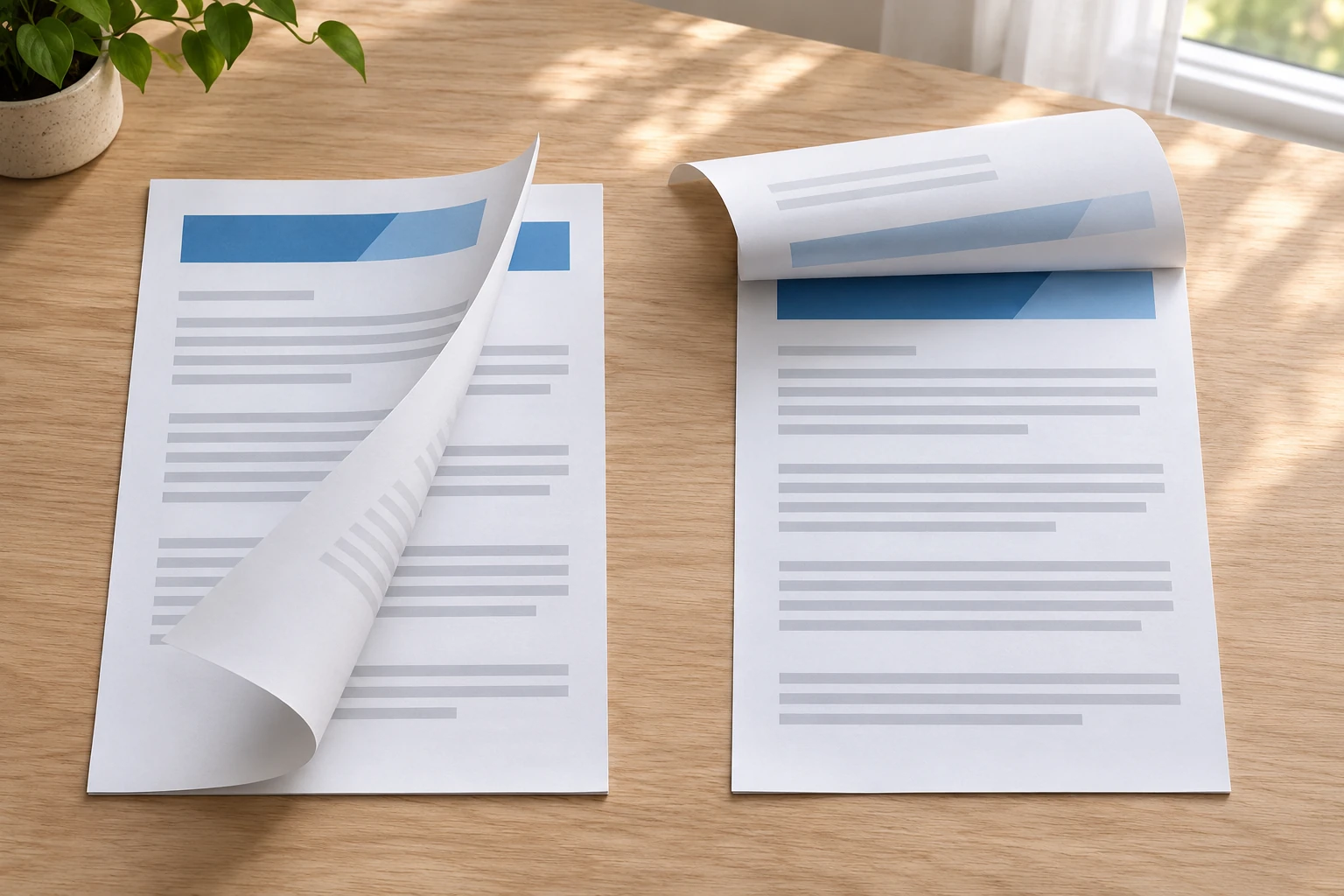
For two-sided printing in Word, decide how the reader will turn the finished sheet before sending the whole document. Microsoft distinguishes automatic duplex printing from manual reloading. Its Word for Mac instructions also name long-edge binding and short-edge binding. Use the route supported by the actual printer and the Word interface in front of you.
Begin with an ordinary reading action. Will the recipient turn a page across the side, or lift it over the top? Put a sample sheet on the desk and show the intended action to the person preparing the document. Agree on that preference before making a print-setting choice. This is a proposed preparation step, not a result from a printer test.
The Xerox B315/DNI offer describes a monochrome laser multifunction printer and automatic duplex printing. Its photograph shows a scanner and feeder above the output area. The Xerox VersaLink C7000 offer shows a standalone color printer with a deep upper output well. Its short description does not state a duplex mode. Neither stock photograph establishes your computer’s Word version, installed driver or available print controls. Follow this guide only with an actual supported, configured setup.
Choose the reading action before the menu item
Keep the document’s purpose beside the sample. A briefing someone reads while holding a packet may have a different preferred turn from a checklist someone lifts while working at a counter. Ask the intended reader to demonstrate the motion they want. You can write a plain instruction such as “turn across the side” without pretending that this preference identifies a printer setting on every system.
Then look at the document you intend to print. Keep its existing page layout separate from the chosen reading motion. If a page already appears sideways in the file, resolve that file question before using it to judge a two-sided output. Select a representative part of the actual document for the first check. A spare cover page with none of the ordinary content may leave the reader’s real task untested.
Agree on what the small check must establish. For this task, the question is whether the recipient can turn the sheet in the intended way and continue reading the reverse. It does not need to settle every printer feature or produce a complete packet. Keep the remaining run out of that first decision until you have inspected an output that answers the reading question.
Use the Word preview for the document you mean
Microsoft’s Office printing article describes Word’s combined Print and Preview view. Open File, then Print. Use the preview arrows to inspect pages and the zoom slider to read them. The settings also let you choose copies and a page range; Print All Pages leads to choices including Current Page or Custom Print. The Back control returns to the document without printing.
Keep the selected range with your reading plan. Choose pages that represent the actual front-and-back relationship you want to inspect. If someone else prepared the file, agree which part of it belongs in that check. A selected range is an instruction for this attempt. It should not silently become a statement that every section in a longer document has already been inspected.
Read the preview before deciding to submit anything. If the selected content is wrong, return to the document and settle that choice. If the content is the one you intended, keep its identity with the selected printer and your reading preference. This gives the later paper check a specific comparison. You can ask whether this output belongs to this file and this intended turn, rather than assessing an unidentified sheet.
Check the Windows Word duplex route
Microsoft directs Windows Word users to File, Print, then Settings and Print One Sided. If Print on Both Sides is available, the selected printer is set up for duplex printing. Its instructions distinguish that option from Manually Print on Both Sides, where Word prompts for reloading. Microsoft recommends a test to determine the correct reload direction for the particular printer.
Choose the actual destination before interpreting what its menu offers. If the controls you expect are missing, keep that observation with the selected printer name and applicable software details. Use its current manufacturer guidance to resolve the route. This guide does not turn a missing menu item into a diagnosis of an internal printer fault or supply a driver-reset procedure.
A manual route needs the exact printer’s paper-handling instructions. Leave the rest of the document unsubmitted while you find them. Record which instruction applies to the media and tray you intend to use, and make the bounded check it permits. Avoid carrying a remembered face-up or rotation direction from another printer into this one. An unanswered reload question is a reason to pause the paper task.
Compare long-edge binding and short-edge binding
For Word on Mac, Microsoft gives File, Print, then Copies & Pages and Layout. Under Two-Sided, long-edge binding flips pages on the long end; short-edge binding flips them on the short end. Match the applicable option to the reading action you chose. If automatic duplex printing is unavailable, the same article describes an odd/even manual route and warns that rotation and ordering depend on the printer model.
Keep that Mac route with the Mac task. A colleague using Windows should use the applicable Windows interface and printer guidance instead of searching for an identical menu layout. Likewise, keep a manual-paper instruction tied to the printer it describes. The useful agreement between colleagues is the intended reading action and the actual setup, followed by the controls that apply to each setup.
The two edge choices are alternatives to evaluate against a reader’s preference. Give the person preparing the run a concrete example of how the recipient will handle the sheet. If the reader changes that preference, return to the selected controls before making more copies. Preserve the distinction between a requested change and a setting that has actually been selected.
Try the choice on the intended document
Consider an original planning example. Pat is preparing a meeting brief that Ren wants to turn across the side. Ren also has a counter checklist that should lift over the top while it is being consulted. They keep the two intended reading actions on separate notes. The example proposes a document-preparation conversation; it does not report a successful print or a repaired printer.
Pat starts with the meeting brief and the applicable Word route for the configured printer. The first check concerns that brief alone. Ren’s checklist remains a separate task, even if both files were created in the same application. Pat should not mark the checklist ready because a preference has been written down for the brief. Each document still needs its own selected setup and observed result.
When a representative sheet is available, Ren holds it as the brief will be held and makes the intended turn. Pat compares the reverse with the content selected for the check. Their note should describe what Ren actually observed. If they have only inspected the preview, the paper-reading result remains open. The planning example supplies no substitute for inspecting a real output from the actual configuration.
Suppose Ren changes the brief’s reading preference before the full run. Pat can return to that document’s selected print controls and prepare another bounded check under the applicable instructions. The earlier note still describes the earlier intention. Keep the change visible rather than treating two different preferences as one completed task. Nothing in this example requires changing the other document or guessing its result.
A helper taking over needs the current intention and the last observation. Pass along the identified file, selected printer and applicable route, then say whether a physical sheet was inspected. Include the chosen reading action in plain language. The helper can continue the same document task without interpreting an undocumented preference or assuming that a preview was a finished paper check.
Inspect the result before committing the run
Use the representative sheet as the intended recipient would. Turn it at the chosen edge and continue with the reverse. Compare that reading action with the plan you agreed on. If the result is unsuitable, retain the actual observation while you check the selected controls and applicable instructions. Do not report that the full document is ready on the strength of an uninspected first sheet.
Keep the scope of a useful result narrow. A checked sheet belongs to its actual file, range, printer and settings. If a longer packet contains other layouts, choose additional representative content deliberately before calling the packet ready. This article provides no rule that one setting certifies every mixed-orientation document. The document owner can decide which remaining sections need a separate check.
If the application and the instructions leave a question unanswered, name that question in the handoff. You may still need the printer’s supported duplex route, its permitted manual reload direction or clarification of a selected control. Preserve the file and setup details with that request. A visible result can support a specific observation without establishing the cause of every printing problem.
Keep file finding and queue control separate
The stuck print job guide concerns selecting, cancelling or resuming a submitted request and reconciling actual output before another submission. This guide chooses a reading edge before committing a Word run. It does not add queue-clearing or reprint instructions.
The downloaded file guide follows a wanted file through browser records, folders and Windows search. Use it for that separate location question. Finding a document does not select its Word print range or establish how its reverse will read after a page turn.
Before sending the remaining document, return to the recipient’s reading action and the result you actually inspected. Keep the selected setup with that result for this run. For two-sided printing in Word, proceed only as far as the supported route and observed paper allow. If the page turn is still unresolved, leave the full run pending and give the next person the precise question that remains.
Keep an optional purchase with its actual order
If you plan to purchase an item on republeq.com, check the particular offer and current checkout before ordering. This guide does not establish that any cryptocurrency payment option is available. If USDT is offered for the intended order, verify the requested asset, network, amount, receiving destination and order reference with the responsible service before authorizing a transfer. Review the actual product identity, selected variant, quantity, delivery details, total charge and applicable terms. Use the confirmed order details when checking the payment instructions. Confirm any fee, conversion term or exchange rate from the current transaction information. Determine the applicable cancellation, return and refund process, including how a refund would be handled for the selected payment method. Keep the relevant instructions and transaction records, with dates and confirmed references. If essential instructions change, ask the responsible service to confirm the change against the exact order. An acknowledgement should identify the order and the agreed details; it does not replace checking whether the selected product is the one you intended to buy. If payment or order status remains uncertain, reconcile that status before considering another transfer. Do not treat an unresolved transaction as evidence that nothing happened. This article supplies no wallet address, transfer guarantee, recovery procedure or assessment of a counterparty. A product enquiry does not authorize a payment or resolve an uncertain order. If support provides an answer, retain the exact question and response so a later reviewer can understand what was confirmed. Decide whether to proceed only when the conditions of the particular transaction are clear, and retain the confirmed transaction information with the exact order.