Troubleshooting & Repairs
Silent playback on an audio recorder: check file and output
Separate stopped playback, speaker muting and headphone output with the actual Zoom H1essential and Philips DVT8010 manual checks.
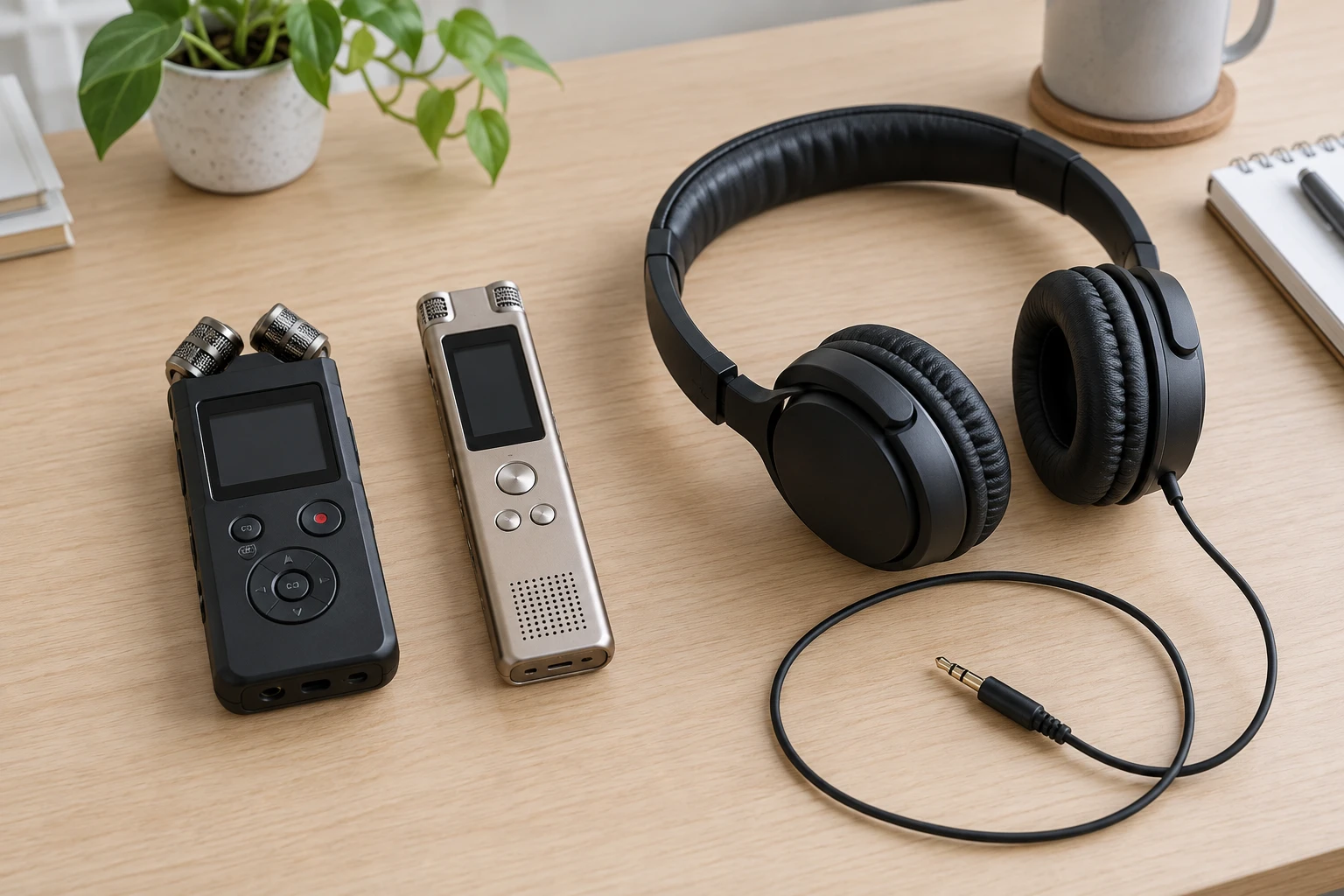
When troubleshooting silent playback on an audio recorder, separate the saved file from the route carrying sound to your ears. A muted speaker, an attached headphone cable and a file that never starts playing can all sound like silence. They require different checks. Keep the original recording intact while establishing which part of the playback path is involved.
The examples here are the Zoom H1essential and Philips DVT8010. Their manuals describe particular speaker, headphone and playback controls. Use the branch for the device you actually have. The checks below do not require deleting recordings, formatting storage, resetting the recorder or making a new recording over an important file.
Establish which file is selected before changing sound controls
Note the selected recording's name or identifying position, its folder and the playback position shown on the device. A familiar-looking file number is not enough when several folders contain recordings. Select the file you intended to hear before interpreting silence as a problem with that recording.
Philips's manual explains that the DVT8010 has separate internal-memory and memory-card folder indicators. Its recording folders and music folder also have different roles. Check the actual displayed location when selecting a file. The manual's playback procedure begins with selecting the required recording, rather than assuming that the currently displayed item is the intended one.
On the H1essential, the manual describes a File List Screen for selecting playback files. Starting playback from the Home Screen opens playback of the most recently recorded file. If that is not the recording you meant to inspect, select the correct file through the documented list before investigating its output.
Distinguish playback that has stopped from playback you cannot hear
Observe the recorder's playback state while you use its playback control. Does the display indicate playback, or does the device remain stopped or paused? Write down that observation. Raising volume cannot make a stopped file advance, so this separates an operation problem from an audible-output problem.
For the Philips models covered by its manual, pressing the play/pause key starts the selected file. The record/play indicator lights green during playback. Pressing the same key pauses playback and the green indicator blinks. These observations provide a more precise description for a support enquiry than saying that the recorder is silent.
The Philips troubleshooting table treats failure to play recordings separately from absence of speaker sound. For the former, it lists the keypad lock and absence of saved recordings. If the controls are locked, follow its HOLD-switch direction for the actual device. Do not treat a disabled control as evidence that the audio data has disappeared.
Check recorder speaker and headphone output separately
The phrase recorder speaker and headphone output describes two places you might listen. Identify which one is expected to produce sound during your check. A cable left in an output socket may matter even when the headphones at its other end are sitting unused on the desk.
Both selected models' manuals explain that attaching headphones disables their built-in speaker output. On the Philips, the headphone connection is labelled EAR. On the Zoom, the relevant connection is PHONE/LINE OUT. Inspect the correct connection for your device rather than assuming that any cable going into the recorder has the same function.
If you intended to listen through the speaker, an attached headphone connection is a direct explanation to investigate before judging the file. If you intended to use headphones, keep the headphone connection and its listening level in view. Change one part of the listening arrangement at a time so that any result has an identifiable cause.
Use the Philips headphone connection at a moderate level
Philips instructs users to turn down the recorder's volume before connecting headphones, insert the stereo plug into EAR and then raise volume to a comfortable listening level. Its hearing guidance calls for moderate volume and avoiding prolonged intense sound. Follow that order rather than starting a silent-playback check with the output set high.
The DVT8010 troubleshooting table lists an incorrect headphone connection and the lowest volume setting as possible causes of no headphone sound. It lists an attached headset and the lowest volume setting for no speaker sound. The overlap concerns volume; the connection question differs according to where you expect to listen.
Keep the selected file and its playback state unchanged while checking the listening arrangement. Otherwise, a different recording may begin playing at the same moment a connection changes, leaving the result ambiguous. A short note identifying the file, output and observed playback state can prevent that confusion.
H1essential Volume Control settings affect the headphone branch
The H1essential Volume Control settings offer a model-specific explanation when moving the volume control does not change headphone output. The manual provides Knob and Fixed modes for PHONE/LINE OUT. In Fixed mode, operating the normal volume control has no effect on that output's level.
For that branch, the manual's menu route is Output, then Volume Control. Knob enables the normal volume control for the output; Fixed uses the separate Fixed Level setting. Read the current choice before deciding that a control is broken. Preserve any existing output arrangement needed by connected equipment rather than changing it without understanding its purpose.
The manual makes an important exception: speaker volume remains adjustable with the volume control regardless of this setting. Do not use Fixed mode as a universal explanation for every silent H1essential speaker. The setting belongs to the headphone/line-output branch, while the speaker connection and level checks remain separate.
Live input monitoring is a different listening task
A recorder can monitor incoming sound as well as play a saved recording. Establish which task is happening before comparing results. Hearing a live microphone says something about the current input and monitoring path. It does not establish that the selected saved file contains the same sound.
The H1essential manual states that its built-in speaker cannot monitor input while recording. It describes headphone monitoring through PHONE/LINE OUT instead. Therefore, silence from the speaker during recording should not automatically be diagnosed as failed file playback. First return to the task you intended to test and its applicable output.
Keep an external microphone connection distinct from the listening connection as well. Philips's manual explains that connecting an external microphone changes the recording source and switches off the device microphone. That is an input question to investigate if a recording contains unexpected material; it is not a reason to swap the EAR and microphone connections.
The Zoom offer separates the recorder from its accessories
The selected Zoom H1essential offer describes two-track, 32-bit-float recording, built-in X/Y microphones, a mic/line input and USB-C functions. Its native account also lists a memory card and other bundle items. Those features identify the advertised configuration; they do not establish the contents of a recording already saved on a particular unit.
Keep a disclosed bundle discrepancy visible: the same account lists four AA batteries with a charger while describing recorder operation on two AAA batteries. Do not infer that the supplied AA batteries fit the recorder. Consult the device's actual battery requirements and resolve the offered accessory question before ordering or inserting batteries.
The Philips offer describes a meeting recorder
The selected Philips DVT8010 Voice Tracer offer identifies a gold remote-control recorder. Its native description promotes recording participants around a meeting table with a 360-degree recording arrangement. Keep that advertised capture claim separate from a diagnosis of an existing file or a guarantee about every seat in an actual room.
The model's manual supplies the playback and connection checks used here. It covers several related Philips models, with model-specific sections marked accordingly. Use the instructions that include DVT8010. A remote-control description in the offer does not make the Zoom menu names or controls applicable to the Philips recorder.
Return to a passage after the output is audible
The related DR-40X loop-playback guide concerns selecting, repeating and clearing a passage on that recorder. That can be a later listening task once playback is audible. Its controls belong to the DR-40X, so do not transfer its loop-button procedure to either selected model.
The monitoring-headphone and listening-bundle guide compares different listening arrangements. Use its product discussion when considering that separate equipment question. A headphone bundle's contents do not establish which output socket or setting is active on a recorder you are troubleshooting.
Preserve the result of each check
Record what happened after each change: the same file became audible through headphones, speaker playback returned after the headphone connection was removed, or the file remained inaudible despite the documented output checks. Use those observations to describe the next enquiry and the faults that still need investigation.
If the documented checks do not explain the problem, retain the recording and describe the exact model, selected file, playback state, connection and current output setting to the applicable support service. Avoid changing unrelated settings simply to produce activity. The useful result is a reproducible description of the remaining fault.
For a reproducible support note, record whether the playback counter advanced through the same interval, such as the passage you expected to hear. Then identify the listening output used for that interval. This lets the next person distinguish a file that did not start from one that advanced without audible output.
Keep the recorder bundle clear when arranging payment
Before paying for an audio-recorder order with USDT, retain the exact model and the offered accessories. The selected Zoom account describes an H1essential bundle and carries a battery-size discrepancy that should be clarified before ordering. The Philips account identifies a DVT8010 meeting recorder with a remote-control description. Keep those distinctions with the current order at republeq.com rather than treating all portable recorders as equivalent packages. Obtain the merchant's answer about unclear accessories or contents before committing to the order. Once the goods and destination are clear, read the transaction's actual payment instructions. A general cryptocurrency payment category on a product page does not identify the asset, transfer network or receiving information required for a particular checkout. Verify those details against the current instructions before approving a wallet transfer. Keep any written answer about the bundle together with the order confirmation and payment reference. That record can separate an accessory-content enquiry from a transaction or delivery enquiry later. Review shipping information for the intended destination and read the merchant's published cryptocurrency conditions before deciding to proceed. The cryptocurrency policy rules out refund returns. Its exchange route is conditional on eligibility and on goods being available. A manufacturer's own warranty has its own scope and should not be substituted for those merchant conditions. When the package arrives, check its recorder identity and included accessories against your saved purchase details. Consult the supplied operating instructions for that exact equipment. Use the applicable reporting process for a discrepancy. A USDT transaction does not verify recorded audio, establish a headphone connection or diagnose a silent file. Those questions still require the actual recorder and its documented playback checks.