Troubleshooting & Repairs
R500s laser not working: check the battery indicator
For an R500s laser not working, use Logitech’s indicator meanings and battery guidance, then distinguish pairing, held-button functions and image problems.
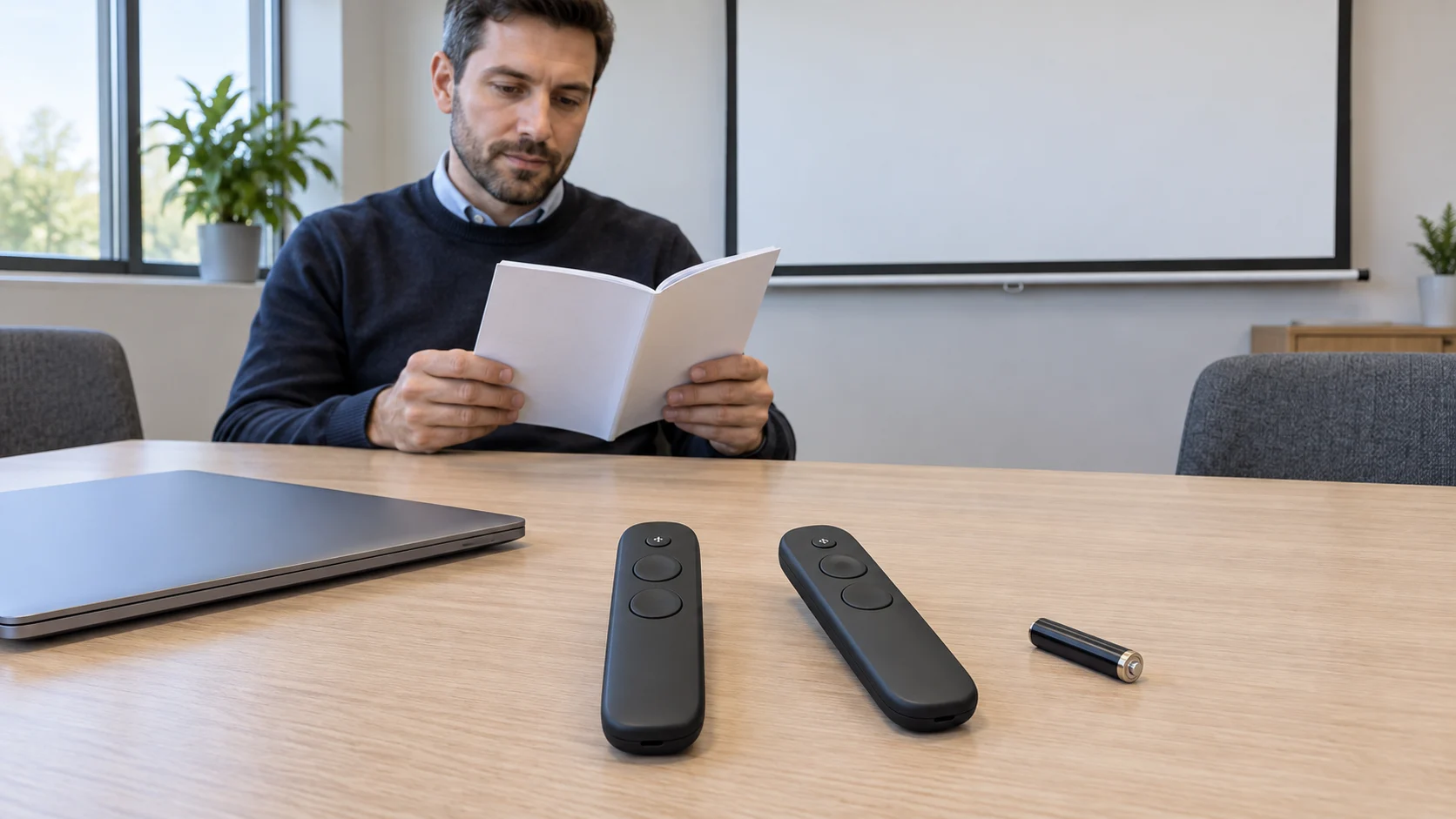
With an R500s laser not working, check the indicator before deciding that the pointer has failed. Logitech documents a low-battery mode that disables the laser to conserve power. A missing laser can be the first battery symptom you notice.
Separate a stopped laser from a remote attempting to pair or a presentation whose image is absent. Logitech gives the R500s specific indicator meanings and a battery-status check. Use those instructions for a confirmed R500s; another Logitech presenter can have different functions and power arrangements.
Start with the actual presentation remote and symptom
The LOGITECH R500S laser remote offer identifies UPC 097855171368 and SKU 2455769828. Its description names Bluetooth or USB connectivity, a red laser pointer and a 20-metre range. It lists PowerPoint, Keynote and Google Slides. These are the offer's stated features, not evidence that a particular computer connection or presentation is working now.
Identify the remote in your hand before using the R500s instructions below. Then describe the immediate problem in ordinary terms. Are the slides visible but the expected laser missing? Is the remote's indicator pulsing red? Is it blinking rapidly white? Or is there no presentation image to point at? Keeping these observations separate helps choose the relevant check.
Also distinguish the R500s pointer from the projector that displays the presentation. A projector's light source and a handheld presentation remote's laser are separate equipment questions. A missing slide image does not become an R500s battery diagnosis merely because the remote is nearby. Likewise, visible slides do not establish the battery condition of the remote.
A pulsing red R500s indicator has a documented meaning
A pulsing red R500s indicator means low battery, with the laser disabled to save power, according to Logitech's R500s getting-started guide. The same guide says the device enters a power-saving mode when its battery is low. Check this indicator state before buying a replacement presenter.
Logitech's battery-status check is to press and hold the laser button and observe the LED. Its control diagram identifies the laser button separately from Next and Back: the laser control is the small round button below the indicator. Identify that control on the actual R500s using the applicable diagram, and follow the laser-use warnings while checking it. Do not aim a laser at people or look into its output.
For this documented check, a steady white LED means the battery is good. A pulsing red LED means the battery is low and the laser has been disabled. Write down the state you actually observe. If you cannot distinguish the colour or pattern, leave the result uncertain rather than choosing the nearest-looking meaning.
These meanings depend on the pattern as well as the colour. The guide assigns rapidly blinking white to a device attempting Bluetooth pairing. That is different from steady white in the battery check. A note saying only “white light” leaves out the distinction needed to interpret the result.
Consider a hypothetical presenter whose slides are already visible and whose R500s shows pulsing red during the documented battery check. Low-battery laser suppression is then an applicable manufacturer explanation. It does not establish that the projector, computer or every remote function is fault-free, but it gives the missing-laser problem a specific next step: address the R500s battery using its instructions.
Replace the battery using the R500s guidance
Logitech's separate R500s battery article specifies one AAA alkaline battery. Its replacement instruction requires the battery to face the direction shown in the supplied diagram. Use that actual R500s illustration when fitting the battery; this article does not substitute a guessed polarity description for it. Keep the R500s diagram available while checking the orientation.
Match the replacement to the specified battery type and follow the applicable handling instructions. If the compartment or markings on your unit do not match the documented R500s, stop and resolve the model or instruction mismatch before continuing. Do not force a cover, improvise a contact repair or treat an unfamiliar compartment as though it were the one illustrated.
After the battery has been fitted according to the applicable instructions, use the documented battery-status check to observe the new state. If it changes from pulsing red to steady white, the reported battery status has changed. Then assess the intended laser function using the normal model instructions and laser precautions. A changed indicator alone is not a complete test of the presentation setup.
Record whether the original missing-laser symptom is resolved. If the indicator still pulses red, or the laser remains unavailable despite a steady white battery result, keep those outcomes separate. The first is an unresolved low-battery indication; the second needs further model-specific investigation beyond the explanation supplied by that indication. Neither result justifies opening the electronics or naming a failed internal component.
The battery article describes expected life as up to 12 months and qualifies it by use and computing conditions. Its extra-week language concerns conserving power for continued presenting after the low-battery mode disables the laser. It does not promise a week of laser use, and it is not a reason to postpone a necessary battery check before an important presentation.
Separate R500s laser and slide-button functions
The R500s laser and slide-button functions have different documented actions. Logitech says to hold the laser button to activate the laser. A simple press of Next moves forward, while a simple press of Back moves backward. The getting-started guide marks the held Next action for starting a presentation and the held Back action for a blank screen as requiring Logi Options+.
Keep the simple and held actions distinct when describing a problem. “Back does not work” is less useful than saying whether you expected a previous slide from a simple press or a blank screen from the held action. The app requirement attached to those held actions should not be silently applied to every other control, or ignored when that particular feature is the one you need.
The guide also documents automatic power management. The R500s enters deep sleep after 30 minutes of inactivity and immediately when it is not connected to a computer. It stops the laser automatically after a continuous two-minute press. If a laser stopped during a prolonged hold, retain that timing in your description rather than immediately treating the stop as a broken pointer. There is no need to perform a prolonged laser test to reproduce it.
For rapidly blinking white, follow the connection question instead of treating it as the pulsing-red battery state. Logitech identifies that pattern as an attempt to pair using Bluetooth. Use its applicable R500s connection instructions for the computer, tablet or phone involved. This guide supplies no universal operating-system menu path and does not assume that a listed Bluetooth capability proves a completed connection.
Work through the action that actually failed
In one hypothetical presentation, the slide image is visible, the expected laser is missing and the R500s battery check produces pulsing red. Start with the documented battery branch. After fitting the specified replacement according to the diagram, check the indicator and the intended laser result. If those recover, there is no reason to change the projector input merely because a presentation accessory had a problem. A separate image fault would need its own observation.
In another case, the battery check is steady white and simple forward and backward slide navigation works, but holding Back does not produce the expected blank screen. That is a different reported action. Logitech attaches the Logi Options+ requirement to the held blank-screen function. Check the applicable app and feature information for that action instead of treating the result as evidence that the laser battery is low. This example does not establish which software is installed on your computer.
Before a presentation, identify the actions you actually intend to use. Someone who needs simple slide navigation has a different feature check from someone relying on the held start-presentation or blank-screen actions. Use the guide for each selected function and the actual computer involved. An unfamiliar held action should not become the basis for declaring all three buttons defective.
Keep a Spotlight presenter outside this battery diagnosis
The Logitech Spotlight model 910004654 offer identifies SKU 278103176 and UPC 097855127754. Its native colour is Gray while the source title calls the finish Slate. The description lists three buttons, a Bluetooth receiver, USB interface, a 2.4 GHz frequency band and a lithium-polymer battery. It mentions presenter functions without naming them.
That description does not establish the R500s red-laser function, LED legend or AAA alkaline replacement procedure for the Spotlight. If the unit in your hand is the Spotlight rather than an R500s, use its own applicable documentation for the symptom. In particular, the R500s battery step above is not a general instruction to put a AAA battery into any presentation remote.
This difference can matter in a shared meeting room where several similar-looking accessories are stored together. Identify which presenter is actually involved before borrowing an instruction from a colleague's device. A successful R500s battery check supplies a result for that R500s, not for every remote used with the same computer or projector.
Use the right guide for a missing image or an unfamiliar light
The BrightLink 575Wi and EF12 no-image guide distinguishes a visible “No Signal” message from an absent image and gives different Epson checks for the two actual projectors. That is relevant when the problem is the presentation image itself. The EF12's Blank check and the BrightLink's source-search instructions remain specific to their documented projector cases; they do not supply an R500s battery or pointer procedure.
The Pro-60E stapler status-light guide illustrates why a light needs its own model's legend. Its actual automatic stapler description names a three-colour indicator but does not provide the colour meanings. The R500s case is different because Logitech publishes the specific steady-white, rapidly blinking-white and pulsing-red meanings used above. No stapler state or control instruction becomes a presentation-remote instruction.
Verify the original task and keep any remaining fault specific
For an R500s laser not working after a pulsing-red battery indication, a useful resolution includes both the updated battery state and the intended laser result. Check those observations using the actual instructions instead of concluding that the whole device is repaired as soon as the light changes. If the presentation also had a separate slide-control problem, verify that task on its own.
A short support description can now be precise: the confirmed model, the observed indicator pattern, whether the documented battery replacement was completed, and whether the original laser symptom remains. Include whether the slides are visible and which simple or held action was involved if that is relevant. Choose the next model-specific check for the remaining symptom, keeping any resolved battery question separate.
Conceptual scene for an R500s laser not working, with whole generic presentation remotes and a separate AAA battery illustrating the R500s battery topic; no exact model or shared battery compatibility is depicted.