Crypto Commerce
Plan shared screen privacy before a workplace presentation
A workplace photography review puts the audience boundary in practical terms. Imagine a presenter showing a selection of photographs for an office lobby display. The room is meant to see the proposed images and discuss which ones suit the space. The photographer's full contact sheets, staff correspondence, and unfinished captions belong outside that presentation. This fictional review provides a way to plan what people will see before anyone connects a computer to the room screen.
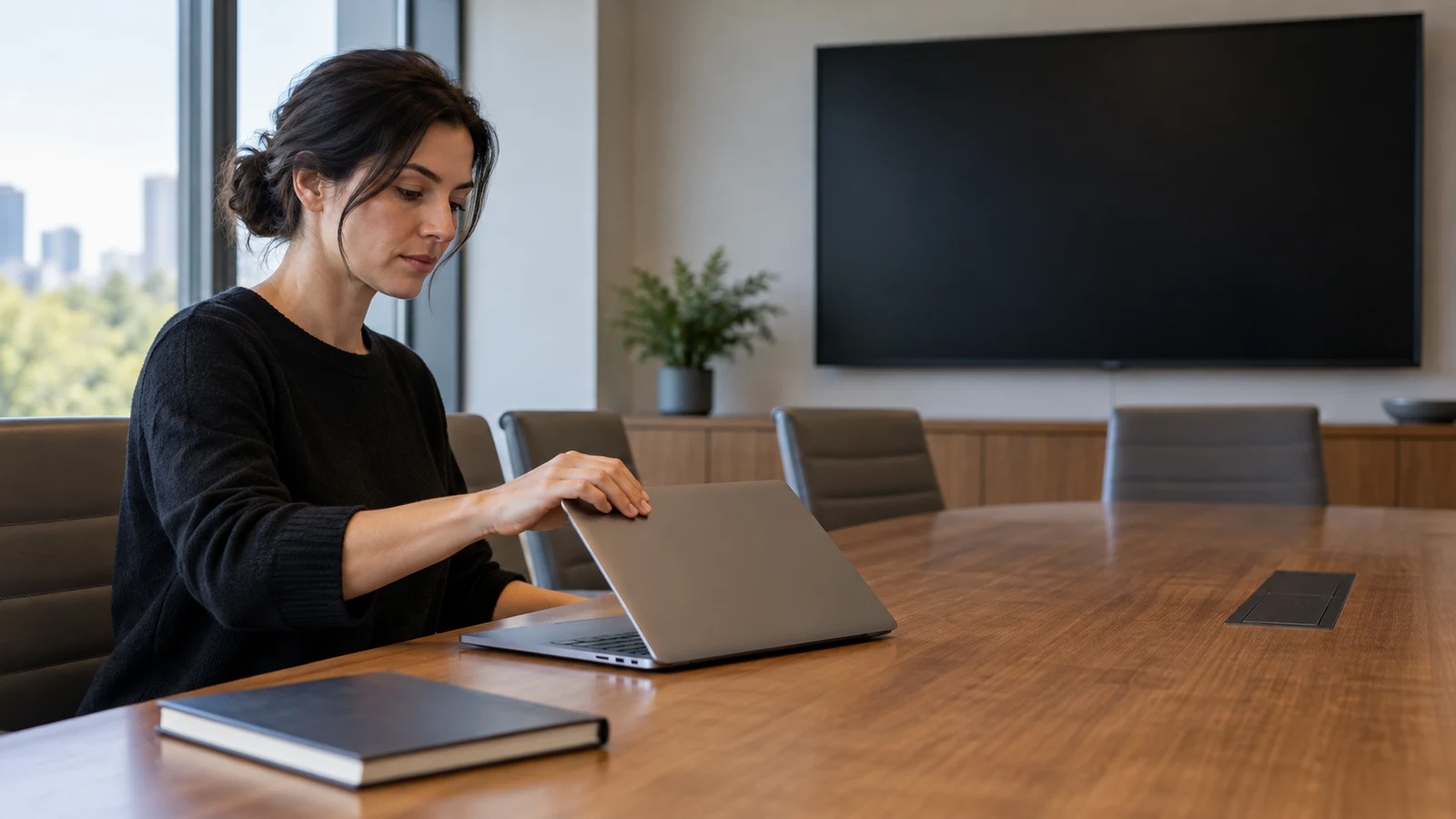
A workplace photography review puts the audience boundary in practical terms. Imagine a presenter showing a selection of photographs for an office lobby display. The room is meant to see the proposed images and discuss which ones suit the space. The photographer's full contact sheets, staff correspondence, and unfinished captions belong outside that presentation. This fictional review provides a way to plan what people will see before anyone connects a computer to the room screen.
Prepare shared screen privacy around the actual viewing sequence. Decide which images are ready for this audience, how you will move between them, and what will remain visible when discussion runs longer than expected. Then rehearse those actions on the intended equipment. A file that contains only approved material gives you a useful starting point, but you still need to inspect what appears when you open it or leave it.
Presentation Slide Planning For An Audience-Ready Photo Selection
Begin by defining the audience's task. In this example, colleagues will compare photographs for a lobby display. They need enough visual detail to discuss the selection, along with any captions cleared for the meeting. They do not need access to every photograph taken during the shoot. Decide who can approve the material for this particular audience before building the presentation, especially if the selection includes recognizable people or information visible in the background.
Review each proposed photograph at the size you expect to show it. Look beyond the intended subject: a desk label, handwritten board, or document on a table may also be visible. These are inspection prompts, not claims about what any actual photograph contains. If you find something unsuitable, arrange an approved replacement or edit before the meeting. Avoid making an improvised crop in front of the room while the original remains visible.
Keep the meeting selection separate from the working collection. For the fictional review, prepare a presentation containing only the photographs approved for discussion, with a simple identifier beside each image. Those identifiers let colleagues ask about a particular photograph without requiring you to open a contact sheet. Check the final presentation itself after preparation; moving an image into another file does not establish that its contents are appropriate to show.
The companion guide to presentation slide planning covers how to explain a recommendation through slides. Here, the content has a different job: it must support a visual selection while keeping the rest of the shoot outside the audience's view. Settle the approved selection before rehearsing the screen sequence so you can test the material you will actually present.
Presentation Slide Planning For Details And Captions
A request to inspect a detail can change the viewing sequence. Suppose someone wants a closer look at the background of one lobby photograph. Prepare an approved detail view if that comparison matters to the meeting. Place it within the presentation and give it a recognizable label. This lets you rehearse the move to the detail without opening an editing application or searching through original image files.
Check captions separately from photographs. A clean image can still sit beside an unfinished caption or a name that was never cleared for display. Read the exact wording in the audience file and remove drafting instructions. Keep any private explanation you need in a form whose visibility you have tested. Do not assume that notes remain private because they occupy a different area of the presenter's screen.
Interactive Presentation Board Setup Before People Arrive
Identify every place the presentation will be visible. In a room-only meeting, that may be a single audience display. If remote participants are included, add their received view to the rehearsal. A correct room screen does not establish what a remote viewer receives. Assign someone to inspect each audience-facing output you intend to use, or find a way to observe it yourself before admitting the audience.
For equipment research, the listed Dell Inspiron laptop is one product to consider in connection with shared screen privacy. That link does not establish that the laptop conceals notes, limits sharing to a particular window, or protects material during transitions. Check the exact listing for product details and test the display behavior required for your presentation. Keep the equipment decision separate from approval of the photographs.
The listed TIBURN interactive presentation board is another product reference for a possible room setup. Its product category does not establish how it connects to the listed laptop or what either device displays during a source change. Treat the products as separate examples unless you have verified the intended connection. No privacy feature or compatibility between them is assumed here.
Choose the opening view before connecting in front of attendees. For the photography review, use an approved page that names the lobby selection and explains the discussion. Rehearse reaching that page from the computer's starting state. Watch for any folder contents or other material shown along the way. If setup exposes the working collection, change the preparation sequence and check it again before the audience arrives.
Decide who will operate the presentation. If a colleague will advance images while you lead the discussion, rehearse with that person. Show them the approved navigation route and explain what should happen if someone requests an image outside the selection. Avoid leaving the operator to infer which nearby files are safe to open. Their instructions should identify the prepared material and the limits of this meeting's review.
Presentation Slide Planning For Questions Without Opening The Archive
During the fictional review, a colleague asks whether another photograph from the same shoot might suit the lobby better. The working archive is outside the approved presentation. Record the request with enough detail to find the image later, then continue with the cleared selection. If the additional photograph needs review, arrange that after its contents and caption have been checked for the intended audience.
A second question concerns how two shortlisted images compare. Prepare a comparison page when you expect that decision to arise. Confirm that it contains the same approved versions used elsewhere in the presentation. If you cannot answer a new comparison from the prepared material, describe what you need to check and take the question away. The meeting does not need to become a live search through the photographer's files.
Make discussion notes deliberately. If you plan to type comments where everyone can see them, tell participants that the notes are part of the shared view. Record the selection decision or image identifier without opening private correspondence for context. If comments need to remain offscreen, test the method you will use to capture them and check that changing focus does not alter the audience output.
Presentation Slide Planning For A Pause In The Review
Choose an approved holding page for interruptions that require your attention elsewhere. For this review, it could state that the image discussion is paused, without displaying a photograph while you handle another matter. Test the exact steps needed to reach it and return to the current image. A holding page is useful only if getting to it does not reveal the material you intended to exclude.
If an unrelated prompt appears during rehearsal, inspect what was visible and which action preceded it. Change the setup or presentation sequence, then repeat that part of the test. During the meeting, use the tested way to pause or end the audience view before troubleshooting private material. If you cannot verify a dependable way to do that, resolve the uncertainty before using that sequence live.
Allow for someone else taking over. Agree on an image identifier where a substitute presenter can resume, and keep the approved presentation accessible through a rehearsed route. Do not make a last-minute handoff depend on browsing another person's desktop. If the substitute needs different equipment, check its output before continuing; the earlier rehearsal only covered the setup and actions you observed.
Interactive Presentation Board Rehearsal From The Room
Ask a rehearsal partner to watch the audience display while you run the photography review. Give them the expected sequence: opening page, selected images, prepared detail view, and comparison page. Ask them to report anything else they see. They should watch while you move between views, since checking only the settled image leaves the transition unexamined.
Run a realistic question through the rehearsal. Ask the observer to request a photograph that is outside the selection. Practice recording the request without opening the archive, then resume the discussion at the correct image. This tests whether your plan remains usable when the audience changes direction. It also shows the operator where to stop if an unscripted request would require unreviewed material.
Write observations against specific actions. A useful entry might say that returning from the comparison page briefly exposed a folder of source photographs. That is a hypothetical failure to look for, not an observed result for your equipment. If it happens, identify a different route through the approved file and repeat the transition. Keep the step out of the live sequence until its audience view is acceptable.
Test any touch interaction you intend to use on the room board. For example, if participants will select an image or make a visible annotation, observe what happens when they start and finish. Confirm the available behavior on that actual setup without assuming the board supports a particular function. If an action has not been verified, leave it out of the session and collect the feedback another way.
A rehearsal supports a bounded conclusion: the tested material appeared as intended during the actions you observed. It does not establish how another application, device, or connection will behave. Repeat affected checks when the setup changes. If the meeting file is revised after rehearsal, inspect the changed images and captions and rehearse any new navigation before relying on the earlier result.
Interactive Presentation Board Closing And Room Handoff
Prepare the last audience view as carefully as the first. For the lobby review, finish on an approved summary showing the identifiers selected for further consideration. Avoid closing the file merely because the discussion has ended. First check what the audience will see when you leave the presentation, and use the closing sequence you rehearsed.
Confirm that the audience view has ended before returning to the working archive or staff correspondence. Include any remote view in that check. If the room equipment will pass to another presenter, observe the handoff and establish what remains onscreen. Follow your workplace's requirements for any presentation material saved on shared equipment; do not assume that ending a session removes a local copy.
Keep a short record of the tested sequence with the approved meeting file. Note which setup you used and identify any actions excluded because their visible result remained uncertain. This makes shared screen privacy a practical part of preparation for the next review. A later presenter can see what was checked and which steps require a fresh rehearsal instead of treating the file as proof that every display path is safe.
If presenting visual work is part of a role you are considering, ask the hiring team how presenters prepare audience-approved material and rehearse on workplace equipment. For an upcoming presentation in your current role, agree on a rehearsal time with the person responsible for the room. Bring the actual approved file and test the closing handoff as well as the opening, before the audience is waiting.