Computers & Gaming
mouse pointer speed settings: choose the right Windows control
Separate cursor travel, page scrolling and double-click timing before changing a working mouse setup in Windows.
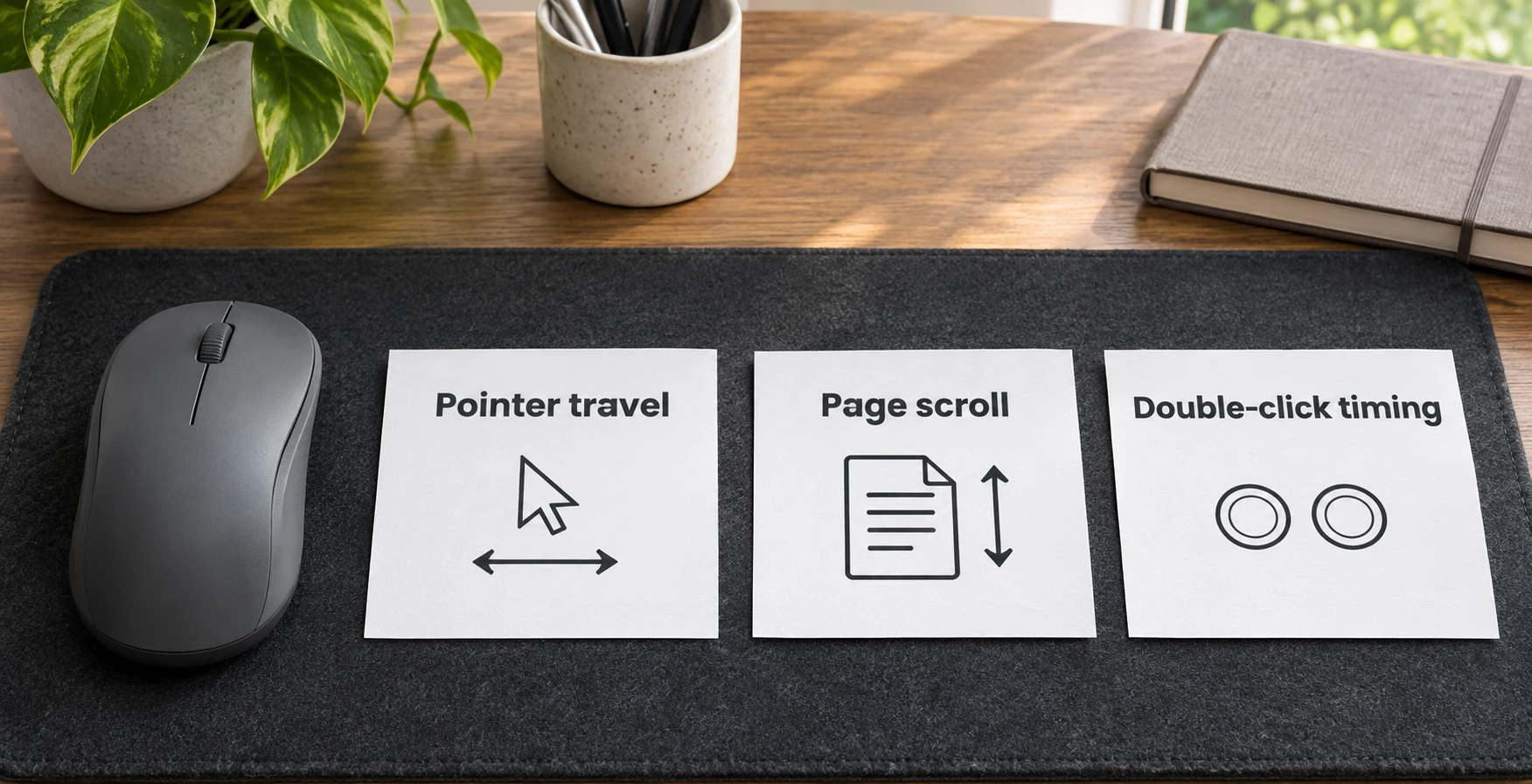
Check mouse pointer speed settings when a connected mouse responds but the pointer travels farther or less far than you want. First describe the movement that bothers you. A pointer crossing the screen, a page moving under the wheel and a double-click failing to register are different observations. Give the problem a specific description before changing a control.
This article starts with a mouse that already moves the pointer on a Windows computer. It addresses choosing the appropriate Windows control for the symptom you can observe. Initial pairing, a missing receiver and a mouse that produces no movement need a separate setup check. Neither of the product examples below is presented as a tested fix or a guarantee about your computer.
Name the behavior you want to change
Try finishing one sentence: "When I move the mouse, the pointer goes too far," "When I turn the wheel, the page moves too far," or "My intended double-click is not recognized." Use the sentence that describes your experience, or write a more specific one. Avoid putting every unwanted response under the word sensitivity, because that leaves the next action unclear.
A useful observation identifies what your hand did and what changed on screen. If the pointer moved as expected but the document jumped after a wheel movement, say so. If the pointer reached an icon comfortably but opening it required repeated attempts, keep that distinction. You do not need a sensor specification or an explanation of the cause to make this first description.
Keep the first check in an unimportant document or a familiar, harmless part of the desktop. Choose something you can recognize again after a setting changes. A complicated work task can make the comparison harder: you might be concentrating on a dialog, a selection or a deadline instead of the particular motion you intended to check.
Use the pointer-speed control for pointer travel
Microsoft's current mouse-settings guidance directs Windows users to Start, Settings, Bluetooth & devices, then Mouse. The Mouse pointer speed slider controls pointer speed. This article uses that Windows 11 settings route.
Before moving the slider, note its current position or save a screenshot for your own reference. Make a small adjustment in the direction you want, then return to the same simple task. The aim is to compare two known settings. Moving several controls at once would leave you unable to explain which change accompanied the result.
Use an ordinary pointer movement you actually need at the desk. You might move between a line of text and a nearby toolbar, or between two familiar controls in the same window. Keep the target and the starting point reasonably consistent for the comparison. This is an informal usability check, not a benchmark, a sensor calibration or a measured comparison between the listed mice.
If the new position feels usable, try it during the normal task that first brought the problem to your attention. A short check can be a starting point without settling every application or session. If the adjustment made matters worse, return to the position you recorded. Leave other settings unchanged while deciding whether pointer travel was the behavior you meant to address.
Keep wheel scrolling separate from cursor movement
On the same Mouse settings page, Microsoft lists separate scrolling controls. Roll the mouse wheel to scroll can select multiple lines or one screen at a time. Lines to scroll at a time adjusts the line count for a wheel notch.
Use a document with enough content to make a short scroll observable. Put the pointer over the intended window and turn the wheel gently. Describe whether the document moved farther than you wanted, rather than describing the pointer itself as too fast. Keep the original scrolling choice available so you can return to it after the comparison.
Change one scrolling option, repeat the same reading task and decide whether it addresses that task. For example, you might want to move through a paragraph without losing the sentence you were reading. That is a different goal from reaching an icon with a short movement of the mouse. Keep pointer and scroll settings as separate decisions even when you reach both from the same settings page.
Check the exact mouse documentation before attributing a wheel behavior to a Windows option. Some product accounts describe their own wheel features. A feature named in one listing does not establish that a second mouse has it, and an unfamiliar button is not a reason to borrow another model's instructions. Keep a hardware feature question tied to the actual model.
Use double-click timing for a double-click problem
Microsoft places double-click speed under Additional mouse settings. In the Mouse Properties window, select the Buttons tab and use the Double-click speed slider. This is a separate control from the Mouse pointer speed slider.
Investigate this setting when the problem you are trying to describe concerns an intended double-click. Start with an ordinary item whose behavior you understand, away from anything you might accidentally change. Keep the pointer-travel setting where you left it. You want to observe the clicking problem without also changing how you reach the item.
Note the starting timing setting and make one adjustment before checking again. Report the outcome narrowly: the same intended action was recognized more easily, remained difficult or behaved differently than you expected. A slider change does not prove that the mouse has a hardware fault or that an application has accepted every setting exactly as you intended.
If the symptom occurs only in a particular application, keep that fact in the description. Ask about the action that application expects and any relevant settings it documents. Avoid making a broad replacement decision from one unexplained result. Your next enquiry will be more useful if it names the program and the action, instead of simply saying that the mouse is broken.
If the described control is unavailable on the computer in front of you, stop at that mismatch. Note the Windows version shown on the computer and the setting name you searched for. Use the help for that version or ask whoever manages the device where the relevant control is exposed. This guide does not establish permission to change a shared or managed computer. An absent slider is not a reason to install an unrelated utility or follow instructions for a different operating system.
Read the two mouse listings within their limits
The Logitech M185 wireless mouse listing describes an optical mouse using a 2.4 GHz USB nano receiver. Its gallery shows a rounded gray mouse and a small receiver. The account does not provide a measured result for the pointer behavior you are investigating.
The MX Master 2S wireless mouse listing describes Bluetooth Smart and a supplied Unifying receiver. It also describes a speed-adaptive wheel that switches between click-to-click and fast scrolling. That wheel description is a product-specific claim, not evidence that a Windows pointer-speed setting changed.
Use the native catalog names to keep the examples identifiable. The photographs show the general designs but do not expose underside model labels or authenticate delivered contents. Neither account gives a common test in the same Windows configuration. There is no basis here for ranking their pointer accuracy, claiming a particular delay or promising that one shape will resolve the symptom.
The listing's level of detail should also limit what you infer. A missing specification does not establish that a feature is absent. If your decision depends on a physical adjustment button or a documented software control for the delivered model, obtain that information before relying on it. The Windows control you are checking and the exact mouse's own instructions should remain distinguishable in your notes.
Compare two observations without changing the whole desk
Consider a fictional reading session in which the pointer comfortably reaches the toolbar, but one turn of the wheel moves the reader beyond the paragraph. Calling the whole setup too sensitive would hide the useful detail. The first question concerns the page movement. A pointer-travel change would introduce a second variable before the original observation has been addressed.
In a second fictional situation, the page stays where the reader wants it, but moving the mouse takes the pointer past a small control. Here the initial observation concerns pointer travel. The reader can leave the scrolling choice alone while comparing a small pointer-speed adjustment. These examples illustrate how to choose a question; they are not reports of tests on the M185 or MX Master 2S.
A clicking example adds another distinction. Imagine that the pointer reaches an ordinary folder accurately, while the reader struggles to complete the intended double-click. Preserve the comfortable travel setting and investigate the clicking action separately. Note whether the same difficulty occurs in the same place on a repeat attempt. If the result changes, describe that variation without attributing it to a particular switch, sensor or Windows control. The example leaves the cause open until an actual check supplies more information.
After the relevant check, return to the task that matters to you. Write down the changed control and the observed result in a short sentence. If another desk user needs different settings, explain what you changed before leaving the computer. Keep an earlier usable setting available as a reference, rather than expecting that person to reconstruct it from memory.
Keep connection and desk-fit questions on their own paths
The published wireless mouse setup checklist addresses power, connection choice, a first pointer test and receiver storage. Use that setup scope if the pointer is not responding consistently enough to begin a settings comparison. This article concerns selecting a control after a working pointer is established.
The desk pad dimensions guide concerns the pad footprint and usable room around a keyboard and mouse. It supplies a separate fit question when equipment crowds the working area. It does not establish a Windows slider position for your task.
Leave the physical arrangement unchanged during the short control comparison when it is practical to do so. If you move the keyboard, change the mouse surface and adjust the slider together, the resulting observation concerns a different whole setup. You can still evaluate that setup, but you should not attribute its behavior to one control without a separate comparison.
Use Windows mouse controls to answer the specific symptom you can observe. Keep cursor travel, wheel-driven page movement and clicking timing in their respective checks. If none describes the problem, write down the actual action and result before seeking model- or application-specific help. Preserve the last usable settings so that an unsuccessful experiment does not become the unexplained starting point for the next one.
Conceptual mouse-control decision scene; no product test or exact Windows interface is demonstrated.