Crypto Commerce
LG UltraGear 27G610A-B QHD monitor — Two 27-inch QHD monitors: is more refresh worth the bundle?
Compare LG UltraGear 27G610A-B QHD monitor by 200Hz versus 240Hz native refresh, sync support, color claims, stand, inputs, and bundle value.
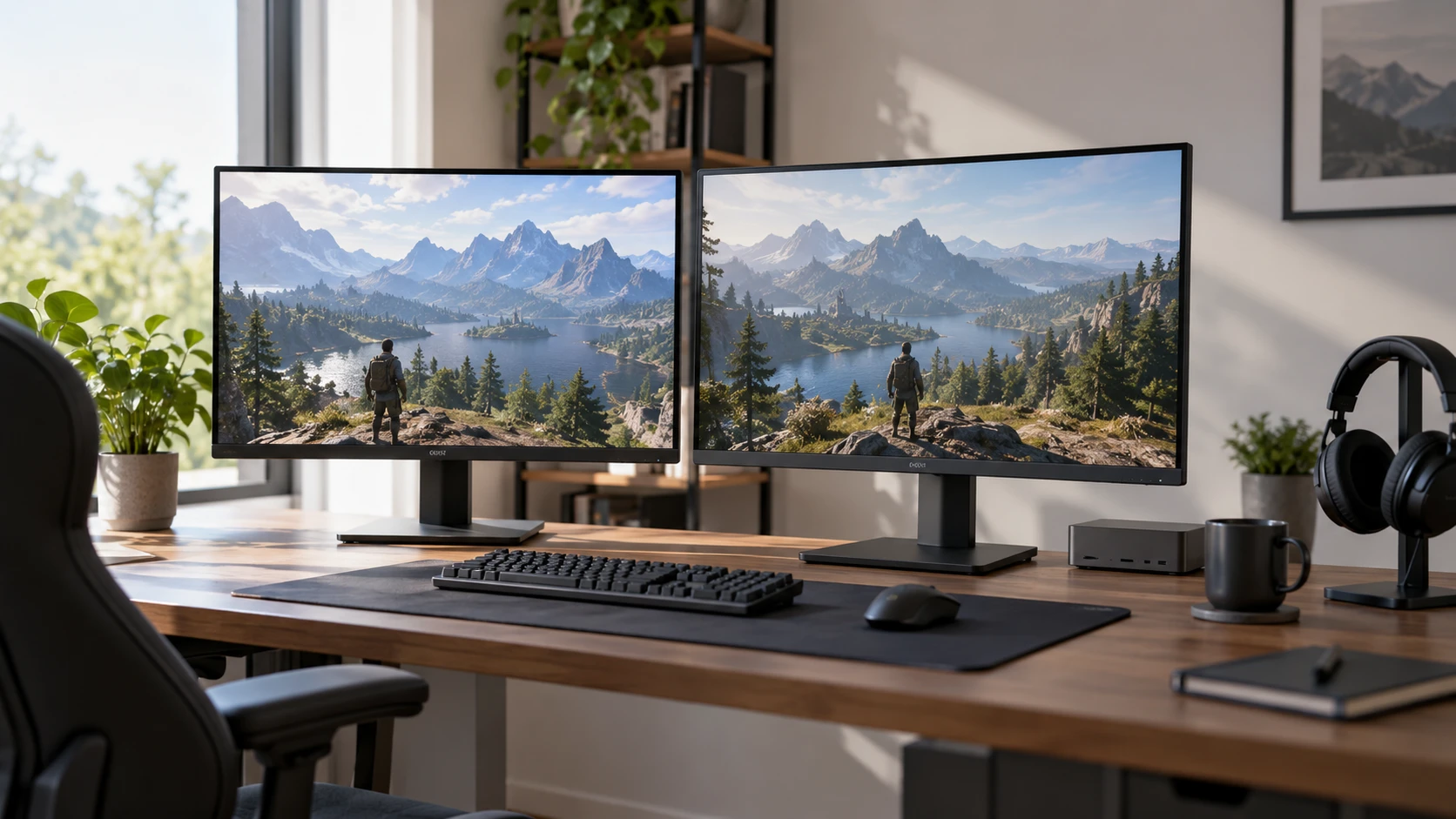
The LG UltraGear 27G610A-B QHD monitor lists a 27-inch IPS panel, 2560-by-1440 resolution, a native 200Hz refresh rate, and an adjustable stand. This guide to 27-inch WQHD gaming monitors discusses another model and offers a related way to check whether a fast screen suits the games being played. The Alienware AW2723DF QHD monitor lists the same screen size and resolution, with 240Hz native refresh over DisplayPort and a stated 280Hz overclock option. The guide's monitor is separate; the specifications here come from the two exact listings.
The saved minimum prices are $312.49 for LG and $1,187.44 for the Alienware listing. That $874.95 gap includes an important packaging difference: the Alienware offer is described as a bundle with a Dell UD22 dock, cables, and cleaning kit. The catalog excerpts do not price those pieces separately. A shopper who wants only a monitor should confirm whether the bundle is necessary and what a monitor-only offer costs. Then compare the display features against the computer, games, and desk where the screen will actually be used.
Start with the same pixels and different refresh ceilings — Alienware AW2723DF QHD monitor
Both products list a 27-inch IPS screen at 2560 by 1440 pixels. That creates a similar basic workspace for a game, browser, or editing timeline. The main speed difference in the saved descriptions is refresh: LG claims native 200Hz, while Alienware claims native 240Hz via DisplayPort and an optional 280Hz overclock. An overclock is not the same as the default operating mode. Ask the current manual which resolution, cable, port, and color settings are supported at each refresh level.
A game must produce enough frames to make the higher ceiling useful. A computer running a game around 100 frames per second cannot display 200 distinct new frames each second just because the monitor supports 200Hz. The graphics card, game settings, and connection path matter. Record frame rates in the games you actually play at 1440p before paying for an additional 40Hz native or a 280Hz overclock. Competitive players may notice changes at high frame rates, but the saved listings do not include a matched user or latency test.
Both Republeq product records state a one-millisecond gray-to-gray response time. That number depends on test settings and does not measure the whole input-to-image delay. LG names Dynamic Action Sync as an in-game aid intended to reduce input lag. Alienware describes competitive responsiveness, but the excerpt gives no matched measured latency figure. Do not treat two identical “1ms” labels as proof of identical motion clarity or speed. A detailed response-time test at the refresh rate you will use would be more useful.
If the screen will also be used for documents and video, 1440p resolution may make the choice less about the last 40Hz and more about stand fit, ports, and color. Both panels can show the same pixel dimensions. A window layout that fits on one should fit on the other at the same scaling setting, though panel coatings and factory settings may affect appearance. Test readability under the room's usual lighting.
Check sync support against the graphics card — Alienware AW2723DF QHD monitor
LG lists AMD FreeSync Premium. Alienware lists AMD FreeSync Premium Pro, Adaptive-Sync, and NVIDIA G-Sync support. Those names point to different compatibility claims, but the saved descriptions do not give each monitor's variable-refresh range or the exact certification and connection requirements. Ask for the model-specific support matrix and confirm the graphics card's output. A feature badge does not guarantee every console or laptop will use the full stated refresh and sync behavior.
Tearing and uneven frame pacing can be more noticeable than a small difference in maximum refresh when game frame rates vary. A variable-refresh mode can help when the source and display negotiate it correctly. Test the intended game with the chosen cable and observe whether the mode is active in the monitor's on-screen menu. If a capture device or dock sits between computer and monitor, verify whether it passes the desired timing. The Alienware bundle's dock should not automatically be assumed to support the monitor's fastest mode.
Alienware's 280Hz figure is specifically described as an overclock. Overclocking can have model-specific limits or settings. Check whether the manual requires a particular DisplayPort path and whether a chosen color mode or bit depth changes the available rate. LG's 200Hz is described as native in the saved entry. Neither excerpt gives a full mode table, so a price calculation based only on the largest number would leave important configuration questions open.
Use color and HDR labels as starting points — Alienware AW2723DF QHD monitor
LG states up to 99% sRGB coverage and VESA DisplayHDR 400. Alienware states 100% sRGB and 95% DCI-P3 coverage, plus a 1000:1 contrast-ratio claim. Those figures are not a matched measurement from one reviewer. LG's HDR certification is a specific named claim; the Alienware excerpt does not name a comparable HDR certification. That absence should be checked against the current model manual if HDR video is important. Do not infer that one screen has stronger HDR solely from color-gamut percentages.
A wider claimed gamut can help some creative workflows when the software and color profile are managed correctly. It can also make ordinary content look over-saturated if left in an inappropriate mode. Test a familiar image in the color setting you expect to use. Neither saved listing reports factory calibration accuracy, uniformity, black level in a dark room, or viewing-angle measurements from a common method. Those would matter more than a one-point sRGB difference for photo editing.
LG's marketing text calls its QHD image vivid and its HDR deeper. Alienware describes its color as suitable for content work. These are Republeq's catalog judgments, not independent review results. A competitive gamer may prefer a mode that raises dark detail, while a creator may need a faithful neutral image. Check whether switching between those modes is quick and whether the on-screen controls preserve separate settings. The product excerpts describe several image aids but no matched color test.
Compare gaming aids by their actual use — guide to 27-inch WQHD gaming monitors
LG names Black Stabilizer, an on-screen Crosshair, FPS Counter, and Dynamic Action Sync. These tools can make monitor-side information visible without changing the game itself, but their usefulness depends on the title and the user's settings. Alienware's AlienVision menu lists Night Vision, Clear Vision, Chroma Vision, and Crosshair Vision overlays, reachable through an on-screen joystick. The names suggest different ways to make dark areas or targets easier to see. The saved text does not quantify the effect of any mode.
Try the aids in a normal game before judging them. A dark-area mode may help with visibility while changing the intended look of a scene. A crosshair overlay may be redundant when a game already provides one. Some competitive events have their own rules about display-side aids; check them if tournament play matters. For casual use, ease of turning an overlay off can be as useful as the feature itself. Do not count the number of named modes as a performance score.
LG also lists an LG Switch app that can divide the display into up to six customizable sections and arrange windows or launch a video call with a hotkey. That is a desktop-layout feature for one computer's workspace. Alienware lists picture-in-picture and picture-by-picture for viewing multiple sources. Those are different tasks: a window manager does not by itself show two external inputs, and PiP does not replace a flexible desktop window layout. Choose based on whether the desk uses one computer with many windows or two video sources at once.
Fit the stand and cables to the desk — Alienware AW2723DF QHD monitor
LG's saved listing specifies height, tilt, swivel, and pivot adjustment. Those are useful if the monitor must align with another display or move from gaming posture to document work. Alienware calls its stand fully adjustable, but the excerpt does not enumerate each axis. It also names cable management, a retractable headset hanger, and ventilation around the chassis. Confirm the exact height range and pivot behavior before assuming the stands move alike.
LG lists HDMI and DisplayPort inputs. The Alienware excerpt identifies DisplayPort as the path for native 240Hz and lists four USB-A 3.2 Gen 1 ports, one with charging capability. Its bundle includes DisplayPort and HDMI cables, but the short excerpt is not a complete port map. Check how many video inputs the monitor actually has and which one supports each speed. If a console and gaming PC will remain connected, available ports and input switching may matter more than a dock in the box.
The Dell UD22 in the Alienware bundle is a separate universal dock. It may suit a laptop-centered desk, but the saved listing gives no compatibility, power-delivery, or maximum video timing for that dock. Verify it against the actual laptop and monitor before valuing it as part of the purchase. A bundled cable is also only useful if it supports the desired mode and reaches the computer without tension. The LG excerpt does not identify included cables, so check its current box contents.
Measure the desk depth and viewing distance. A 27-inch display on a deep stand can sit closer to the viewer than expected. If a monitor arm will be used, ask for VESA pattern, weight without stand, and mounting instructions; neither saved excerpt gives those details. Cable exits, power supply placement, and access to the Alienware USB ports affect daily use. A photograph of the back panel can answer questions that a refresh-rate badge cannot.
Price the useful hardware in the bundle — Alienware AW2723DF QHD monitor
At the saved minimums, LG costs $312.49 and the Alienware bundle costs $1,187.44. The difference should be evaluated against the current monitor-only price, dock value to the specific computer, included cables, and any warranty terms. The saved excerpt does not price the UD22, the cleaning kit, or the monitor separately. A buyer who already owns a dock may get little value from another one. A buyer building a laptop-and-monitor desk may find the package useful if it passes the needed display mode.
LG offers the lower saved entry price and a stated 200Hz native QHD panel with several ergonomic adjustments. Alienware offers a stated 240Hz native DisplayPort mode, optional 280Hz overclock, additional named sync support, and multi-source viewing, in a bundle. Those are factual differences from the listings; their value depends on frame rates, ports, and the intended desk. Test the computer's real 1440p output, check the current input-mode tables, and price the exact package before treating the maximum refresh or the bundle total as the deciding fact.