Crypto Commerce
Dell Inspiron touchscreen checks before choosing
A touchscreen label tells you where you may be able to place a finger. It does not tell you whether a particular control in your intended application will respond the way you need. Before choosing the listed Dell Inspiron, pick one short task you would actually want to do by touch. Try selecting a control, moving through content, and repositioning an object if that application allows it. Keep the intended result separate from what you observe. A small, deliberate trial can answer a more useful question than a general impression that the screen feels easy to use.
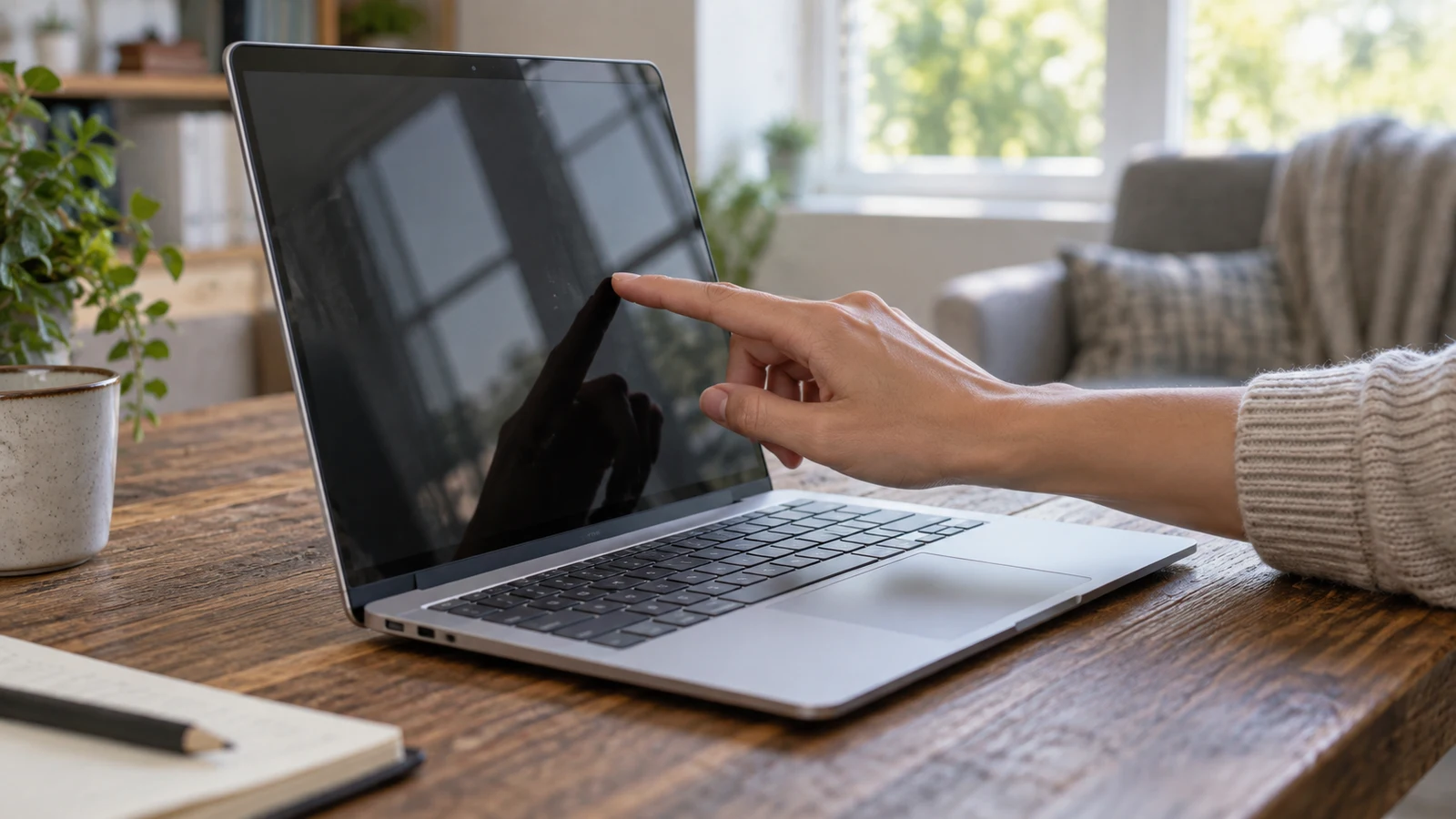
A touchscreen label tells you where you may be able to place a finger. It does not tell you whether a particular control in your intended application will respond the way you need. Before choosing the listed Dell Inspiron, pick one short task you would actually want to do by touch. Try selecting a control, moving through content, and repositioning an object if that application allows it. Keep the intended result separate from what you observe. A small, deliberate trial can answer a more useful question than a general impression that the screen feels easy to use.
If you cannot access the exact device and application, the same plan still helps. It turns an unknown into a question about a particular action instead of an assumption about all touchscreens. You can also use it to assess the listed refurbished iPad independently, without presuming that its applications or controls match those on the laptop.
IPad Touch Interaction Checks Begin With A Defined Task
Choose an activity whose outcome is easy to describe. Suppose you use a personal layout application to place a rectangle in a simple sample arrangement. Your touch task might be to open a control, scroll to another part of the working area, and move the rectangle to a marked position. This is a proposed test, not a claim that a particular application is installed on either listing. If your own work involves another kind of on-screen object, substitute that activity. Name the application and the exact version or configuration you intend to use if you know them.
Decide which actions you want to complete directly with a finger. Someone who only expects to scroll through a page has a different requirement from someone who must repeatedly select small controls and place objects. Write down your expected result in ordinary language: touching a particular control should open the intended option; moving your finger over the page should reveal the next portion; moving an object should leave it where you meant to put it. Where an action is not available in your application, leave it out rather than pretending every touch task includes dragging.
Make a harmless test area before trying anything on a device. Use sample content that you can discard or restore, and avoid accounts or information you would not want to expose during a demonstration. A sample layout with two distinguishable shapes is enough if your application permits it. Mark where the movable shape starts and where you want it to end. If the app has a control beside another control, those neighboring targets may help you notice an unintended selection. The point is to recognize an outcome, not to invent a standardized performance test.
Keep the task short enough that you can repeat an uncertain action. One attempt that goes wrong may reflect where you placed your finger, a control that behaves differently than you expected, or the device's response in that particular situation. A repeat can clarify what you saw, though it may not establish the cause. Define in advance what counts as acceptable for you: perhaps completing the action without accidentally changing another object, or being able to recover easily if you do. Those are personal decision criteria, not specifications for either product.
The listed Dell Inspiron is identified as a 15.6-inch touchscreen laptop. Begin Dell Inspiron touchscreen checks at that exact listing, then test on the actual configuration and intended application if you can. The product description identifies touch capability, but it does not establish how your particular on-screen controls behave. Do not substitute a demonstration on another model for an observation of this one. If you only have the listing, record the touch actions you still need to confirm.
For Dell Inspiron touchscreen checks, keep three kinds of contact distinct. A deliberate touch on a control tests selection. Moving through a page tests whether you can reach the part of the content you need without triggering something else. Moving an object tests a different outcome and should be attempted only if your intended application supports that operation. Success at scrolling does not answer whether object placement works for you; likewise, a misplaced object says little about selecting a separate control.
- Start with selection. Identify the control you mean to use and state what should appear or change. Touch it once, then note whether the intended control responded, a neighbor responded, or nothing visible happened. If the result is uncertain, repeat with the same sample content before making a judgment.
- Next, scroll a known portion of the content. Choose a starting point and something you expect to reach farther along. Note whether you arrive there and whether the action opens or changes anything unintentionally. An unexpected change is worth recording even if you can continue the task.
- Finally, move the sample object if that operation exists in the application. Set a modest destination that you can recognize afterward. Note whether the object moves, whether something else is selected, and where the object ends up. If the application offers no comparable movement action, mark this part inapplicable rather than calling it a failed test.
A compact record can keep the result honest. For each action, note the intended target, the result you could see, and any unintended selection or movement. Add whether you could return the sample to its starting state. You do not need a numerical score. A note such as “touched the shape, the nearby control opened, then I closed it and retried” preserves more information than “touchscreen inaccurate.” It also avoids assigning blame to hardware when the trial cannot distinguish among your technique, the application's controls, and device response.
Watch for a task that succeeds only after you change the way you intended to work. If you wanted to move a shape directly with a finger but ended up using another input method, the shape may still be in the right place; the finger-only requirement remains untested. That distinction matters if direct manipulation is the reason you are considering a touchscreen. Conversely, if you intended only occasional touch selection, an optional object-movement test should not dominate your decision. Evaluate the behavior you will actually rely on.
Give a mismatch a narrow description. “I touched the lower control, but the upper control opened on this attempt” is an observation. “This laptop always selects the wrong control” is a conclusion a short trial cannot support. Note whether the same result occurs on a careful retry, and whether the control is part of the application you intend to use. If you cannot repeat the trial on the exact configuration, retain the uncertainty. You can still decide that unresolved touch behavior is important enough to investigate before choosing.
IPad Touch Interaction Checks On The Listed Refurbished Model
The separate listing is an Apple Restored Tech iPad 6th Gen, described as a refurbished model A1893. Approach iPad touch interaction checks as a new trial, not a replay of results from the Dell. First establish whether the application you plan to use is available in the form you need on that device. The product identity alone does not establish that it runs the same application, presents the same controls, or handles your sample content in the same way.
If a suitable application is available on both, compare intended outcomes rather than assuming identical finger movements. Can you select the needed control? Can you reach the part of the content you need? Can you position the object if the tablet application supports that operation? Its interface might place controls elsewhere or require a different action; record those differences instead of marking them as automatic successes or failures. If the relevant task cannot be attempted on one device, the comparison is incomplete for that task. Say so explicitly.
Use separate notes for the two listings. A successful demonstration on one iPad does not prove how the particular refurbished unit would respond, and the catalog description is not an observation of a touch trial. If you can try the exact unit, use the same harmless sample and the outcomes you defined earlier. If you cannot, ask about the precise interaction that matters to you. Keep the answer, if one is available, attached to the model and application being discussed; a broad assurance that a tablet has touch input does not resolve object placement in your intended app.
Do not force a winner from uneven evidence. You may have tried the Dell in the intended application but only read the iPad listing, or tried an iPad application without a matching Dell version. Mark what you observed and what remains unknown in each column of your notes. Your decision can then depend on how much that missing interaction matters. If selecting and scrolling are enough for your planned use, there is no reason to pretend an untested movement action has been established. If movement is essential, leave it open until you have a relevant trial or a specific answer.
Buying Electronics With Crypto After The Touch Questions
Turn the trial into a short requirement you can carry back to the product listing. For the Dell, you might write, “I need to select adjacent controls and reposition an object in my intended application by touch; selection was observed, object movement was not tested.” Another reader might have observed all the actions they need, including recovery from one unintended selection. Either record is more useful than treating the word touchscreen as a promise about every action. Dell Inspiron touchscreen checks should end with the specific behaviors you can rely on, the ones needing another try, and those still unknown.
If direct access is unavailable, make your inquiry testable. Name the exact listing, the application or kind of control, and the action you need: “Can I see this model selecting a control next to another control in the application I plan to use?” or “Can I see a sample object moved and left at a chosen position?” Ask about the iPad separately if that remains an option. A reply that confirms the presence of a touchscreen answers a different question; it does not replace evidence about your particular task. You may choose to defer a decision if the behavior is essential and remains unconfirmed.
Only after identifying the device requirements should you move to the wider purchase questions. The guide to buying electronics with crypto covers checking the exact product and checkout details. Use that separate guidance for the transaction decision; this touch trial does not establish a current price, accepted asset or network, fee, delivery term, or return eligibility. Check the current listing and checkout information for the item you actually choose rather than carrying over assumptions from a demonstration or another product.
The useful outcome may be a choice, a request for a demonstration, or a clear reason to wait. Keep the final note tied to the action you started with: what you wanted your finger to do, what the actual device and application showed, and what you have not seen. That makes the next step specific without asking either catalog description to answer a question it was never meant to settle.